
Training Models in SageMaker: Intro
Last updated on 2026-10-21 | Edit this page
Estimated time: 65 minutes
Overview
Questions
- What are the differences between local training and SageMaker-managed training?
- How do Estimator classes in SageMaker streamline the training process for various frameworks?
- How do you estimate what a training job will cost before launching it, and check what it cost afterwards?
Objectives
- Understand the difference between training locally in a SageMaker notebook and using SageMaker’s managed infrastructure.
- Learn to configure and use SageMaker’s Estimator classes for different frameworks (e.g., XGBoost, PyTorch, SKLearn).
- Tell apart the two ways to run XGBoost on SageMaker, your script in AWS’s container versus AWS’s built-in algorithm in the same container, and know when each fits.
- Conduct training with data stored in S3 and monitor training job status using the SageMaker console.
- Estimate the cost of a job before launching it, tag it so it shows up on the bill, and read back its billable time afterwards.
Initial setup
1. Open prefilled .ipynb notebook
Open the notebook from:
/ML_with_AWS_SageMaker/notebooks/06_Training-models-in-SageMaker-notebooks.ipynb.
When asked for a kernel, pick
conda_pytorch; we will use the same kernel
for the next two episodes. The conda_python3 kernel has no
PyTorch, and on current instances no scikit-learn either.
2. Move to the project folder and import the helpers
Work from the Titanic project folder the S3 episode created, and make
the lesson repository’s scripts/ importable. The training
scripts for this episode (train_xgboost.py) and the next
(train_nn.py) are in that folder.
PYTHON
# The Titanic project folder from the S3 episode, beside the lesson clone: downloads and outputs land here, not in the repository
!mkdir -p /home/ec2-user/SageMaker/titanic
%cd /home/ec2-user/SageMaker/titanic
import sys
# Put the lesson's scripts/ folder on Python's import path
sys.path.insert(0, "/home/ec2-user/SageMaker/ML_with_AWS_SageMaker/scripts")
import helpers  # lesson helper functions; train_xgboost.py lives in the same folder
3. Initialize SageMaker environment
This code initializes the AWS SageMaker environment by defining the SageMaker role and S3 client. It also specifies the S3 bucket and key for accessing the Titanic training dataset stored in an S3 bucket.
Boto3 API
Boto3 is the official AWS SDK for Python, allowing developers to interact programmatically with AWS services like S3, EC2, and Lambda. It provides both high-level and low-level APIs, making it easy to manage AWS resources and automate tasks. With built-in support for paginators, waiters, and session management, Boto3 simplifies working with AWS credentials, regions, and IAM permissions. It’s ideal for automating cloud operations and integrating AWS services into Python applications.
PYTHON
import boto3                          # AWS SDK for Python: low-level access to every AWS service (S3, EC2, ...)
import pandas as pd
import sagemaker                      # SageMaker Python SDK: higher-level API for training jobs, tuning, deployment
from sagemaker import get_execution_role

# Initialize the SageMaker role (will reflect notebook instance's policy)
role = sagemaker.get_execution_role()  # the IAM role attached to this notebook instance; every call below acts as this role
print(f'role = {role}')

# Initialize an S3 client to interact with Amazon S3, allowing operations like uploading, downloading, and managing objects and buckets.
s3 = boto3.client('s3')

# Define the S3 bucket that we will load from
bucket_name = 'sinkorswim-doejohn'  # replace with your S3 bucket name

# Define train/test filenames
train_filename = 'titanic_train.csv'  # object keys inside the bucket (no prefix: they sit at the bucket root)
test_filename = 'titanic_test.csv'
Create a SageMaker session to manage interactions with Amazon SageMaker, such as training jobs, model deployments, and data input/output. The region comes from the notebook instance itself, so the same notebook works in any account.
PYTHON
region = boto3.Session().region_name  # inherited from the notebook instance; do not hard-code a region
session = sagemaker.Session()         # tracks the region, default bucket and SageMaker client for this notebook
sagemaker_client = session.sagemaker_client  # the boto3 SageMaker client inside the session; we'll use it to describe jobs
print(f"region = {region}")
Testing train.py on this notebook’s instance
In this next section, we will learn how to take a model training script that was written/designed to run locally, and deploy it to more powerful instances (or many instances) using SageMaker. This is helpful for machine learning jobs that require extra power, GPUs, or benefit from parallelization. However, before we try exploiting this extra power, it is essential that we test our code thoroughly! We don’t want to waste unnecessary compute cycles and resources on jobs that produce bugs rather than insights.
General guidelines for testing ML pipelines before scaling
- Run tests locally first (if feasible) to avoid unnecessary AWS charges. Here, we assume that local tests are not feasible due to limited local resources. Instead, we use our SageMaker instance to test our script on a minimally sized EC2 instance.
- Use a small dataset subset (e.g., 1-5% of data) to catch issues early and speed up tests.
- Start with a small/cheap instance before committing to larger resources. Visit the Instances for ML page for guidance.
- Log everything to track training times, errors, and key metrics.
- Verify correctness first before optimizing hyperparameters or scaling.
What tests should we do before scaling?
Before scaling to multiple or more powerful instances (e.g., training on larger/multiple datasets in parallel or tuning hyperparameters in parallel), it’s important to run a few quick sanity checks to catch potential issues early. In your group, discuss:
- Which checks do you think are most critical before scaling up?
- What potential issues might we miss if we skip this step?
Which checks do you think are most critical before scaling up?
-
Data loads correctly – Ensure the dataset loads
without errors, expected columns exist, and missing values are handled
properly.
-
Overfitting check – Train on a small dataset (e.g.,
100 rows). If it doesn’t overfit, there may be a data or model setup
issue.
-
Loss behavior check – Verify that training loss
decreases over time and doesn’t diverge.
- Training time estimate – Run on a small subset to estimate how long full training will take.
- Memory estimate - Estimate the memory needs of the algorithm/model you’re using, and understand how this scales with input size.
- Save & reload test – Ensure the trained model can be saved, reloaded, and used for inference without errors.
What potential issues might we miss if we skip the above checks?
-
Silent data issues – Missing values, unexpected
distributions, or incorrect labels could degrade model
performance.
-
Code bugs at scale – Small logic errors might not
break on small tests but could fail with larger datasets.
-
Inefficient training runs – Without estimating
runtime, jobs may take far longer than expected, wasting AWS
resources.
-
Memory or compute failures – Large datasets might
exceed instance memory limits, causing crashes or slowdowns.
- Model performance issues – If a model doesn’t overfit a small dataset, there may be problems with features, training logic, or hyperparameters.
Know Your Data Before Modeling
The sanity checks above focus on validating the code, but a model is only as good as the data it’s trained on. A deeper look at feature distributions, correlations, and potential biases is critical before scaling up. We won’t cover that here, but it’s essential to keep in mind for any ML/AI practitioner.
Understanding the XGBoost Training Script
Take a moment to review the
ML_with_AWS_SageMaker/scripts/train_xgboost.py script we
just cloned into our notebook. This script handles preprocessing,
training, and saving an XGBoost model, while also adapting to both local
and SageMaker-managed environments.
Try answering the following questions:
Data Preprocessing: What transformations are applied to the dataset before training?
Training Function: What does the
train_model()function do? Why do we print the training time?Command-Line Arguments: What is the purpose of
argparsein this script? How would you modify the script if you wanted to change the number of training rounds?Handling Local vs. SageMaker Runs: How does the script determine whether it is running in a SageMaker training job or locally (within this notebook’s instance)?
Training and Saving the Model: What format is the dataset converted to before training, and why? How is the trained model saved, and where will it be stored?
After reviewing, discuss any questions or observations with your group.
Data Preprocessing: The script fills missing values (
Agewith median,Embarkedwith mode), converts categorical variables (SexandEmbarked) to numerical values, and removes columns that don’t contribute to prediction (Name,Ticket,Cabin).Training Function: The
train_model()function takes the training dataset (dtrain), applies XGBoost training with the specified hyperparameters, and prints the training time. Printing training time helps compare different runs and ensures that scaling decisions are based on performance metrics.Command-Line Arguments:
argparseallows passing parameters likemax_depth,eta,num_round, etc., at runtime without modifying the script. To change the number of training rounds, you would update the--num_roundargument when running the script:python train_xgboost.py --num_round 200Handling Local vs. SageMaker Runs: The script uses
os.environ.get("SM_CHANNEL_TRAIN", ".")andos.environ.get("SM_MODEL_DIR", ".")to detect whether it’s running in SageMaker.SM_CHANNEL_TRAINis the directory where SageMaker stores input training data, andSM_MODEL_DIRis the directory where trained models should be saved. If these environment variables are not set (e.g., running locally), the script defaults to"."(current directory).Training and Saving the Model: The dataset is converted into XGBoost’s
DMatrixformat, which is optimized for memory and computation efficiency. The trained model is saved with XGBoost’s ownsave_model()asxgboost-model.json, stored either in the SageMakerSM_MODEL_DIR(if running in SageMaker) or in the local directory. The JSON format can be loaded by any later XGBoost version, which matters here because the SageMaker container and the notebook kernel do not run the same version.
Download data into notebook environment
It can be convenient to have a copy of the data (i.e., one that you store in your notebook’s instance) to allow us to test our code before scaling things up.
While we demonstrate how to download data into the notebook environment for testing our code (previously setup for local ML pipelines), keep in mind that S3 is the preferred location for dataset storage in a scalable ML pipeline.
Run the next code chunk to download data from S3 to notebook environment. You may need to hit refresh on the file explorer panel to the left to see this file. If you get any permission issues…
- check that you have selected the appropriate policy for this notebook
- check that your bucket has the appropriate policy permissions
PYTHON
# Define the S3 bucket and file location
file_key = f"{train_filename}"  # Path to your file in the S3 bucket
local_file_path = f"./{train_filename}"  # Local path to save the file

# Download the file using the s3 client variable we initialized earlier
# This writes a copy to the instance's disk, unlike get_object, which reads the object into memory
s3.download_file(bucket_name, file_key, local_file_path)
print("File downloaded:", local_file_path)
We can do the same for the test set.
PYTHON
# Define the S3 bucket and file location
file_key = f"{test_filename}"  # Path to your file in the S3 bucket
local_file_path = f"./{test_filename}"  # Local path to save the file

# Download the file
s3.download_file(bucket_name, file_key, local_file_path)
print("File downloaded:", local_file_path)
Logging runtime & instance info
To compare our local runtime with future experiments, we’ll need to know what instance was used, as this will greatly impact runtime in many cases. We can extract the instance name for this notebook using…
PYTHON
# Replace with your notebook instance name.
# This does NOT refer to specific ipynb files, but to the SageMaker notebook instance.
notebook_instance_name = 'SinkOrSwim-DoeJohn'

# Describe the notebook instance (sagemaker_client was created from our session above)
response = sagemaker_client.describe_notebook_instance(NotebookInstanceName=notebook_instance_name)

# Display the status and instance type
print(f"Notebook Instance '{notebook_instance_name}' status: {response['NotebookInstanceStatus']}")
local_instance = response['InstanceType']  # e.g. ml.t3.medium; recorded so runtimes can be compared across instances
print(f"Instance Type: {local_instance}")
Helper: get_notebook_instance_info()
You can also use the get_notebook_instance_info()
function found in the lesson’s scripts/helpers.py to
retrieve this info for your own project.
Test train.py on this notebook’s instance (or when possible, on your own machine) before doing anything more complicated (e.g., hyperparameter tuning on multiple instances)
Local test
Run the training script here in the notebook first, on the small data, with the hyperparameters passed in as variables. A local run finds bugs for free, and the same script then runs unchanged as a SageMaker job.
PYTHON
import time as t # we'll use the time package to measure runtime

start_time = t.time()

# Define your parameters. These python vars wil be passed as input args to our train_xgboost.py script using %run

max_depth = 3 # Sets the maximum depth of each tree in the model to 3. Limiting tree depth helps control model complexity and can reduce overfitting, especially on small datasets.
eta = 0.1 #  Sets the learning rate to 0.1, which scales the contribution of each tree to the final model. A smaller learning rate often requires more rounds to converge but can lead to better performance.
subsample = 0.8 # Specifies that 80% of the training data will be randomly sampled to build each tree. Subsampling can help with model robustness by preventing overfitting and increasing variance.
colsample_bytree = 0.8 # Specifies that 80% of the features will be randomly sampled for each tree, enhancing the model's ability to generalize by reducing feature reliance.
num_round = 100 # Sets the number of boosting rounds (trees) to 100. More rounds typically allow for a more refined model, but too many rounds can lead to overfitting.
train_file = 'titanic_train.csv' #  Points to the location of the training data

# %run executes the script in this kernel; IPython substitutes the Python variables in {braces} into the arguments
%run /home/ec2-user/SageMaker/ML_with_AWS_SageMaker/scripts/train_xgboost.py --max_depth {max_depth} --eta {eta} --subsample {subsample} --colsample_bytree {colsample_bytree} --num_round {num_round} --train {train_file}

# Measure and print the time taken
print(f"Total local runtime: {t.time() - start_time:.2f} seconds, instance_type = {local_instance}")
Training on this relatively small dataset should take less than a minute, but as we scale up with larger datasets and more complex models in SageMaker, tracking both training time and total runtime becomes essential for efficient debugging and resource management.
Note: Our code above includes print statements to monitor dataset size, training time, and total runtime, which provides insights into resource usage for model development. We recommend incorporating similar logging to track not only training time but also total runtime, which includes additional steps like data loading, evaluation, and saving results. Tracking both can help you pinpoint bottlenecks and optimize your workflow as projects grow in size and complexity, especially when scaling with SageMaker’s distributed resources.
Sanity check: Quick evaluation on test set
This next section isn’t SageMaker specific, but it does serve as a good sanity check to ensure our model is training properly. Here’s how you would apply the outputted model to your test set using your local notebook instance.
Score the model you just trained locally on the test set, reusing the
script’s own preprocess_data so the test rows are
transformed exactly as the training rows were.
PYTHON
import xgboost as xgb
import pandas as pd
import numpy as np
from sklearn.metrics import accuracy_score
from train_xgboost import preprocess_data  # importable because scripts/ is on sys.path

# Load the test data
test_data = pd.read_csv('./titanic_test.csv')

# Preprocess the test data using the imported preprocess_data function
X_test, y_test = preprocess_data(test_data)

# Convert the test features to DMatrix for XGBoost
dtest = xgb.DMatrix(X_test)

# Load the trained model from the saved file
model = xgb.Booster()
model.load_model('./xgboost-model.json')  # the file the local %run wrote to the current directory

# Make predictions on the test set
preds = model.predict(dtest)
predictions = np.round(preds)  # Round predictions to 0 or 1 for binary classification

# Calculate and print the accuracy of the model on the test data
accuracy = accuracy_score(y_test, predictions)
print(f"Test Set Accuracy: {accuracy:.4f}")
A reasonably high test set accuracy suggests our code/model is working correctly.
Training via SageMaker: your script inside AWS’s XGBoost container
Unlike “local” training (using this notebook), this next approach leverages SageMaker’s managed infrastructure to handle resources, parallelism, and scalability. By specifying instance parameters, such as instance_count and instance_type, you can control the resources allocated for training.
Which instance to start with?
In this example, we start with one ml.m5.large instance, which is suitable for small- to medium-sized datasets and simpler models. Using a single instance is often cost-effective and sufficient for initial testing, allowing for straightforward scaling up to more powerful instance types or multiple instances if training takes too long. See here for further guidance on selecting an appropriate instance for your data/model: Instances for ML page
Challenge: pick an instance for a bigger job
Open the supplemental Instances for ML page. A colleague has a 20 GB tabular dataset (a CSV of sensor readings) and wants to train gradient-boosted trees on it, like we are about to do with the Titanic data. Which instance would you pick for the training job, and why?
The table’s rule of thumb is RAM of at least 1.5× the dataset, so 20
GB of data wants about 32 GB of memory: ml.m5.2xlarge (8
vCPU, 32 GiB, about $0.46/h) is the natural fit for a
tree-ensemble training job, or ml.m5.4xlarge (64 GiB) if
feature engineering will add many columns. No GPU: gradient-boosted
trees on tabular data are CPU work, so a g4dn or
g5 would cost more and run no faster.
Two ways to run XGBoost on SageMaker, and why the names mislead
Every training job runs inside a container image, and for XGBoost that image comes from AWS either way. The question is whose training code runs in it:
| Your script | AWS’s built-in algorithm | |
|---|---|---|
| Estimator | XGBoost(entry_point="train_xgboost.py", ...) |
Estimator(image_uri=<AWS XGBoost image>, ...), no
entry_point
|
| Who wrote the training code | you: the same train_xgboost.py you just ran with
%run
|
AWS; nothing of yours is uploaded |
What hyperparameters are |
flags for your script’s argparse
|
XGBoost’s own parameter names |
| Data | whatever your script reads; it preprocesses the raw CSV itself | a headerless, all-numeric CSV with the label first, prepared beforehand |
| When it fits | preprocessing, custom logic, anything the algorithm alone cannot do | standard tabular XGBoost with nothing to write |
The class names point the wrong way. XGBoost is a
framework estimator: a convenience that looks up AWS’s XGBoost
image and runs your script in it; PyTorch,
SKLearn and HuggingFace are the same idea for
other frameworks. The plain Estimator takes an image
directly, and when that image is one of AWS’s built-in algorithms the
image’s own code does the training. We do the script version first,
because it is the one that generalises to every later episode, and the
built-in algorithm at the end of this one.
Overview of Estimator classes in SageMaker
To launch this training “job”, we’ll use the XGBoost Estimator. In
SageMaker, Estimator classes streamline the configuration and training
of models on managed instances. Each Estimator can work with custom
scripts and be enhanced with additional dependencies by specifying a
requirements.txt file, which is automatically installed at
the start of training. Here’s a breakdown of some commonly used
Estimator classes in SageMaker:
1. Estimator (Base Class)
- Purpose: Runs whatever image you name: one of AWS’s built-in algorithms, or a container of your own.
-
Configuration: Requires an
image_uri; with a built-in algorithm there is noentry_point, the image’s own code trains. -
Dependencies: You can use
requirements.txtto install Python packages or configure a custom Docker container with pre-baked dependencies. - Ideal Use Cases: Custom algorithms or models that need tailored environments not covered by built-in containers.
2. XGBoost Estimator
- Purpose: AWS’s XGBoost container running your script; the class saves you looking up the image.
-
Configuration:
-
entry_point: Path to a custom script, useful for additional preprocessing or unique training workflows. -
framework_version: Select XGBoost version, e.g.,"1.7-1". -
dependencies: Specify additional packages throughrequirements.txtto enhance preprocessing capabilities or incorporate auxiliary libraries.
-
- Ideal Use Cases: Tabular data modeling using gradient-boosted trees; cases requiring custom preprocessing or tuning logic.
3. PyTorch Estimator
- Purpose: Configures training jobs with PyTorch for deep learning tasks.
-
Configuration:
-
entry_point: Training script with model architecture and training loop. -
instance_type: e.g.,ml.g5.xlargefor GPU acceleration. -
framework_versionandpy_version: Define specific versions (e.g.,"2.3"and"py311"). -
dependencies: Install any required packages viarequirements.txtto support advanced data processing, data augmentation, or custom layer implementations.
-
- Ideal Use Cases: Deep learning models, particularly complex networks requiring GPUs and custom layers.
4. SKLearn Estimator
- Purpose: Supports scikit-learn workflows for data preprocessing and classical machine learning.
-
Configuration:
-
entry_point: Python script to handle feature engineering, preprocessing, or training. -
framework_version: Version of scikit-learn, e.g.,"1.2-1". -
dependencies: Userequirements.txtto install any additional Python packages required by the training script.
-
- Ideal Use Cases: Classical ML workflows, extensive preprocessing, or cases where additional libraries (e.g., pandas, numpy) are essential.
5. TensorFlow Estimator
- Purpose: Designed for training and deploying TensorFlow models.
-
Configuration:
-
entry_point: Script for model definition and training process. -
instance_type: Select based on dataset size and computational needs. -
dependencies: Additional dependencies can be listed inrequirements.txtto install TensorFlow add-ons, custom layers, or preprocessing libraries.
-
- Ideal Use Cases: NLP, computer vision, and transfer learning applications in TensorFlow.
6. HuggingFace Estimator
-
Purpose: Provides managed containers for training
and fine-tuning models using the Hugging Face
transformerslibrary. -
Configuration:
-
entry_point: Custom script for training (e.g.,train.py). -
transformers_version,pytorch_version,py_version: Define framework versions. -
dependencies: Optionalrequirements.txtfor extra libraries.
-
- Ideal Use Cases: NLP, vision, or multimodal tasks using pretrained Transformer models.
Configuring custom environments with
requirements.txt
For all these Estimators, adding a requirements.txt file
as a dependencies argument ensures that additional packages
are installed before training begins. This approach allows the use of
specific libraries that may be critical for custom preprocessing,
feature engineering, or model modifications. Here’s how to include it
(illustration only; we don’t run this):
from sagemaker.sklearn.estimator import SKLearn
sklearn_estimator = SKLearn(
    base_job_name=f"{notebook_instance_name}-xgboost",   # job name = who + which model; SageMaker appends a timestamp
    entry_point="train_script.py",
    role=role,
    instance_count=1,
    instance_type="ml.m5.large",
    max_run=max_run,
    tags=job_tags,
    output_path=f"s3://{bucket_name}/output",
    framework_version="1.2-1",
    dependencies=['requirements.txt'],  # Adding custom dependencies
    hyperparameters={
        "max_depth": 5,
        "eta": 0.1,
        "subsample": 0.8,
        "num_round": 100
    }
)
This setup simplifies training, allowing you to maintain custom environments directly within SageMaker’s managed containers, without needing to build and manage your own Docker images. The AWS SageMaker Documentation provides lists of pre-built container images for each framework and their standard libraries, including details on pre-installed packages.
Deploying to other instances
For this deployment, we configure the XGBoost estimator
with a custom training script, train_xgboost.py, and define
hyperparameters directly within the SageMaker setup. Here’s the full
code, with some additional explanation following the code.
Cost tracking
When you launch a SageMaker training job from a notebook, SageMaker creates new managed resources (EC2 instances, attached storage, logs) on your behalf. These resources do not automatically inherit the notebook instance’s tags.
To avoid this, we explicitly tag each training job at launch time. This ensures that compute usage is traceable to a project, a purpose, and a human-readable name, even after the job has completed.
PYTHON
name = "DoeJohn" # replace with your name
project = "SinkOrSwim" # replace with your challenge name
purpose = "Training"        # one of: Storage, Notebook, Training, Tuning, Inference

# Tags: key/value labels attached to the job's resources, so its cost shows up under your name and project on the bill
job_tags = [
    {"Key": "Name", "Value": name},
    {"Key": "Project", "Value": project},
    {"Key": "Purpose", "Value": purpose},
]
print(f"Name: {name}, Project: {project}, Purpose: {purpose}")
Estimate before you launch
Estimate the cost of every job before you run it: instance
rate x expected minutes, plus two or three minutes of startup. Two
things happen before your script runs, and only one of them is billed.
First SageMaker finds an instance for you: that is
provisioning, it takes a minute or so, and it is free. Then the
instance pulls the training container and downloads your data: that is
startup, and the meter is running. In this lesson, startup
always means the billed part. An ml.m5.large costs about
$0.115/hour (us-east-1 on-demand; see the Instances
for ML page). Our local test finished in under a minute, so the
estimate is roughly 1 minute of training + 2-3 minutes of startup = 3-4
billable minutes, or under a cent.
One thing to watch in the estimator below is
hyperparameters. It is how values get from this notebook
into the script. SageMaker turns the dictionary into command-line flags,
--train titanic_train.csv --max_depth 3 --eta 0.1 ..., and
appends them to the command that starts train_xgboost.py
inside the container, exactly as %run passed them a moment
ago; the script’s argparse block reads them. So the keys
must be the script’s argument names, and anything the script does not
define a flag for is ignored. (The job’s log prints the full command,
under “Invoking script with the following command”, which is the place
to look when a value does not seem to arrive.)
PYTHON
from sagemaker.inputs import TrainingInput
from sagemaker.xgboost.estimator import XGBoost   # framework estimator: AWS's XGBoost container running your own script

# Define instance type/count we'll use for training
instance_type="ml.m5.large"   # the managed machine SageMaker launches for the job, separate from this notebook's instance
instance_count=1 # always start with 1 (see "When training takes too long" at the end of this episode)
price_per_hour = 0.115 # ml.m5.large, us-east-1 on-demand (2026-10-16); check the instances page for your region

# Define max runtime in seconds to ensure you don't use more compute time than expected. Use a generous threshold (2x expected time but < 2 days) so that work isn't interrupted without any gains.
max_run = 2*60*60 # 2 hours; SageMaker stops the job and releases the instance when this is reached

# Define S3 paths for input and output
train_s3_path = f's3://{bucket_name}/{train_filename}'  # an S3 URI: bucket plus key; SageMaker takes input in this form

# we'll store all results in a subfolder called xgboost on our bucket. This folder will automatically be created if it doesn't exist already.
output_folder = 'xgboost'
output_path = f's3://{bucket_name}/{output_folder}/'   # S3 prefix (a "folder") where SageMaker uploads the job's outputs

# The XGBoost framework estimator: AWS's XGBoost container, running our script
xgboost_estimator = XGBoost(
    base_job_name=f"{notebook_instance_name}-xgboost",   # prefix of the job name: who + which model; SageMaker appends a timestamp to make it unique
    max_run=max_run, # in seconds; always include (max 48 hours)
    entry_point='train_xgboost.py',      # the script SageMaker runs inside the container on the training instance
    source_dir='/home/ec2-user/SageMaker/ML_with_AWS_SageMaker/scripts',  # Directory where your script is located (uploaded to the job with it)
    role=role,                           # the job assumes this role to read its input and write its output in S3
    tags=job_tags,                       # the cost-tracking tags defined above
    instance_count=instance_count,
    instance_type=instance_type,
    output_path=output_path,
    sagemaker_session=session,
    framework_version="1.7-1",           # XGBoost container version
    hyperparameters={                    # passed to the script as command-line arguments: --train ..., --max_depth ...
        'train': train_file,
        'max_depth': max_depth,
        'eta': eta,
        'subsample': subsample,
        'colsample_bytree': colsample_bytree,
        'num_round': num_round
    }
)

# Define input data
# TrainingInput: where the data is and its format; SageMaker copies it onto the training instance before the script runs
train_input = TrainingInput(train_s3_path, content_type='csv')

# Measure and start training time
start = t.time()
# fit() launches the job and blocks until it finishes (wait=False would return at once); the 'train' channel becomes SM_CHANNEL_TRAIN
xgboost_estimator.fit({'train': train_input})
end = t.time()

print(f"Runtime for training on SageMaker: {end - start:.2f} seconds, instance_type: {instance_type}, instance_count: {instance_count}")
When running longer training jobs, you can check on their status periodically from the AWS SageMaker Console (where we originally launched our Notebook instance) on left side panel under “Training”.
Hyperparameters
The hyperparameters section in this code defines the
input arguments of train_xgboost.py. The first is the name
of the training input file, and the others are hyperparameters for the
XGBoost model, such as max_depth, eta,
subsample, colsample_bytree, and
num_round.
TrainingInput
Additionally, we define a TrainingInput object containing the
training data’s S3 path, to pass to
.fit({'train': train_input}). SageMaker uses
TrainingInput to download your dataset from S3 to a
temporary location on the training instance. This location is mounted
and managed by SageMaker and can be accessed by the training job if/when
needed.
What did that cost?
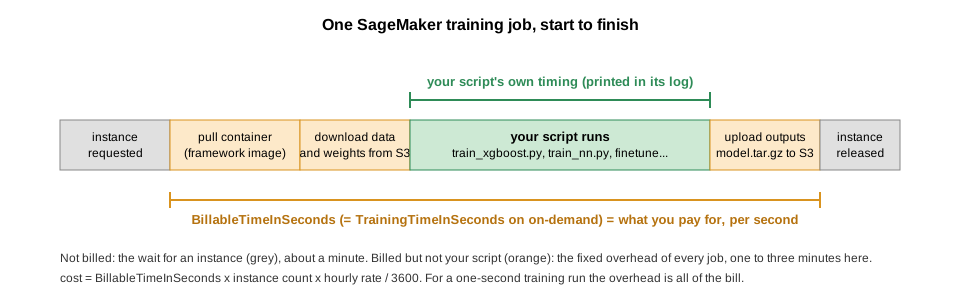
describe_training_job returns
BillableTimeInSeconds: the seconds the instance was yours,
from container pull to model upload, per instance. It also returns
TrainingTimeInSeconds, which on on-demand instances is the
same number (it only differs on spot instances), so do not expect it to
isolate your script. The minute or so before that, while SageMaker finds
an instance, is not billed. SageMaker bills per second, with no
rounding, so cost is billable seconds x instance count x hourly rate.
We’ll wrap this in a small helper and call it after every job in this
lesson.
PYTHON
def job_cost_report(job_name: str, price_per_hour: float):
    desc = session.sagemaker_client.describe_training_job(TrainingJobName=job_name)  # the job's full record: status, timings, resources, output
    n = desc["ResourceConfig"]["InstanceCount"]
    billable = desc["BillableTimeInSeconds"] * n   # BillableTimeInSeconds: container pull to model upload, charged per instance
    wall = (desc["TrainingEndTime"] - desc["CreationTime"]).total_seconds()   # from the launch request to the end, including unbilled provisioning
    print(f"{job_name}: status {desc['TrainingJobStatus']}, wall-clock {wall/60:.1f} min, billable {billable/60:.1f} min on {n} instance(s), cost ${billable/3600*price_per_hour:.3f} at ${price_per_hour}/h")
    print(f"    model: {desc['ModelArtifacts']['S3ModelArtifacts']}")   # the model.tar.gz this job uploaded to output_path
    return desc

desc = job_cost_report(xgboost_estimator.latest_training_job.name, price_per_hour)  # latest_training_job: the job fit() just ran
The model: line is where the trained model went.
Everything else the job wrote sits next to it under the same prefix;
list it straight from the notebook:
PYTHON
# Everything the job wrote, straight from S3: the model tarball plus the profiler's small files
job_prefix = f"{output_folder}/{xgboost_estimator.latest_training_job.name}/"
for obj in s3.list_objects_v2(Bucket=bucket_name, Prefix=job_prefix).get("Contents", []):
    print(f"{obj['Size'] / 1024:8.1f} KB  s3://{bucket_name}/{obj['Key']}")
Compare this with the estimate you made above. The job’s log (scroll
up in the fit() output) shows the script itself trained in
a fraction of a second, yet the bill is about two minutes. The rest is
container pull, data download and model upload: the fixed overhead of
every job, the same whether you train for one minute or one hour. The
extra minute between calling fit() and the first billed
second is SageMaker finding an instance, which is free.
What landed in S3
The listing above is what you would see in the S3 console; open it once to see the same thing the console’s way.
In your bucket, under
xgboost/<job-name>/ (the prefix from
output_path plus the job name):
-
output/model.tar.gz: the model artifacts, a tarball of whatever the script saved toSM_MODEL_DIR(herexgboost-model.json). This is the file we download below. -
profiler-output/anddebug-output/: small files from SageMaker’s built-in profiler, written for every training job. Ignore them; they can be turned off withdisable_profiler=Trueon the estimator.
The job’s log is not in S3. It is in CloudWatch, the
AWS service that stores the printed output of every job: everything the
script prints goes to a CloudWatch log stream named after the
job, and it stays there after the instance is gone. To read it: open Training
jobs, click the job’s name, scroll to Monitor and
click View logs, then click the one stream listed. What
you see is the same text fit() streamed into the notebook,
which is useful the day a job you launched last night failed while the
kernel was off.
A second bucket also appeared,
sagemaker-<region>-<account-id>. The SageMaker
SDK creates this default bucket the first time it needs
somewhere to stage files: before the job started, fit()
zipped source_dir and uploaded it there as
<job-name>/source/sourcedir.tar.gz for the training
instance to download. It holds kilobytes per job and nothing you need,
but it is shared by everyone in the account and carries no tags, so it
is one more thing on the cleanup list. If you want everything in your
own bucket, create the session as
sagemaker.Session(default_bucket=bucket_name).
Extracting trained model from S3 for final evaluation
To evaluate the model on a test set after training, we’ll go through these steps:
- Download the trained model from S3.
- Load and preprocess the test dataset.
- Evaluate the model on the test data.
Here’s how you can implement this in your SageMaker notebook. The following code will:
- Download the
model.tar.gzfile containing the trained model from S3. - Load the
titanic_test.csvdata we downloaded earlier and preprocess it as needed. - Use the XGBoost model to make predictions on the test set and then compute accuracy or other metrics on the results.
If additional metrics or custom evaluation steps are needed, you can add them in place of or alongside accuracy.
PYTHON
# Model results are saved in auto-generated folders. Use xgboost_estimator.latest_training_job.name to get the folder name
# Key of the model artifact: <output prefix>/<job name>/output/model.tar.gz, a tarball of whatever the script saved to SM_MODEL_DIR
model_s3_path = f'{output_folder}/{xgboost_estimator.latest_training_job.name}/output/model.tar.gz'
print(model_s3_path)
local_model_path = 'model.tar.gz'

# Download the trained model from S3
s3.download_file(bucket_name, model_s3_path, local_model_path)

# Extract the model file
import tarfile
with tarfile.open(local_model_path) as tar:
    tar.extractall()
Now the same evaluation on the model the job trained: load it from the unpacked archive and score the test set the same way as before.
PYTHON
import xgboost as xgb
import pandas as pd
import numpy as np
from sklearn.metrics import accuracy_score
from train_xgboost import preprocess_data

# Load the test data
test_data = pd.read_csv('./titanic_test.csv')

# Preprocess the test data using the imported preprocess_data function
X_test, y_test = preprocess_data(test_data)

# Convert the test features to DMatrix for XGBoost
dtest = xgb.DMatrix(X_test)

# Load the trained model from the saved file (the container's XGBoost 1.7 wrote it; the kernel's newer XGBoost reads it)
model = xgb.Booster()
model.load_model('./xgboost-model.json')

# Make predictions on the test set
preds = model.predict(dtest)
predictions = np.round(preds)  # Round predictions to 0 or 1 for binary classification

# Calculate and print the accuracy of the model on the test data
accuracy = accuracy_score(y_test, predictions)
print(f"Test Set Accuracy: {accuracy:.4f}")
Now the other route from the table at the top of this section: the same AWS XGBoost container, but with AWS’s own training code instead of our script. Nothing of ours is uploaded; we hand the algorithm data in the shape it expects and XGBoost’s own parameters. Below, we’ll discuss both the code and pros and cons of the image-based setup compared to the custom script approach.
The built-in algorithm: AWS’s training code in the same container
When the job is standard XGBoost on a table, there is nothing to write: the built-in algorithm trains, evaluates and saves the model itself. The price is that it does only that. Preprocessing has to happen before the data reaches it, and the data has to arrive in its format.
Comparison: your script vs. the built-in algorithm
| Feature | Your script (XGBoost with
entry_point) |
Built-in algorithm (Estimator with
image_uri, no script) |
|---|---|---|
| Flexibility | Allows for custom preprocessing, data transformation, or advanced
parameterization. Requires a Python script and custom dependencies can
be added through requirements.txt. |
Limited to XGBoost’s built-in functionality, no custom preprocessing steps without additional customization. |
| Simplicity | Requires setting up a script with entry_point and
managing dependencies. Ideal for specific needs but requires
configuration. |
Streamlined for fast deployment without custom code. Simple setup and no need for custom scripts. |
| Performance | Similar performance, though potential for overhead with additional preprocessing. | Optimized for typical XGBoost tasks with faster startup. May offer marginally faster time-to-first-train. |
| Use Cases | Ideal for complex workflows requiring unique preprocessing steps or when adding specific libraries or functionalities. | Best for quick experiments, standard workflows, or initial testing on datasets without complex preprocessing. |
When to use each approach:
- Your script: whenever the job needs preprocessing, feature engineering, or any logic of your own around the training call. This is the route every later episode uses.
- Built-in algorithm: standard XGBoost on a table that is already in its format, with nothing to write.
Below is the same Titanic job on the built-in algorithm.
Preparing data for the built-in algorithm
The built-in algorithm will not run our
preprocess_data() for us, and it expects a CSV with no
header row, every column numeric, and the label in the first column. The
raw titanic_train.csv (header, Name and
Sex strings, label in the second column) fails at data
load. So we run the same preprocessing we used in
train_xgboost.py here in the notebook, write the result in
the expected layout, and upload it to its own prefix in our bucket.
PYTHON
from train_xgboost import preprocess_data

# Same preprocessing our script applies: fill missing values, encode Sex/Embarked, drop text columns
X, y = preprocess_data(pd.read_csv(train_filename))

# Built-in XGBoost wants: no header, all numeric, label first
builtin_filename = "train_builtin.csv"
pd.concat([y, X], axis=1).to_csv(builtin_filename, header=False, index=False)

# Upload to a dedicated prefix so it doesn't get confused with the raw CSV
builtin_s3_key = f"xgboost/builtin/{builtin_filename}"
s3.upload_file(builtin_filename, bucket_name, builtin_s3_key)
builtin_s3_path = f"s3://{bucket_name}/{builtin_s3_key}"
print("Uploaded:", builtin_s3_path)
Setting up the data path
With our script, the data path was just another flag the script read.
The built-in algorithm has no flags: the data arrives as a
TrainingInput channel it knows to look for. Here there is
no script of ours in the container, so the dictionary goes to AWS’s own
training code, which reads it as XGBoost’s parameters: the keys must be
XGBoost’s parameter names (max_depth, eta,
num_round), not flags we invented, and there is no
train key because the data arrives as a channel. We also
add objective, because the built-in algorithm’s default
objective is regression rather than binary classification.
PYTHON
from sagemaker.estimator import Estimator # when using images, we use the general Estimator class: a container image, no script of ours

# Define instance type/count we'll use for training
instance_type="ml.m5.large"
instance_count=1 # always start with 1

# Use Estimator directly for built-in container without specifying entry_point
xgboost_estimator_builtin = Estimator(
    base_job_name=f"{notebook_instance_name}-xgboost",   # job name = who + which model; SageMaker appends a timestamp
    max_run=max_run, # in seconds; always include (max 48 hours)
    # image_uris.retrieve looks up AWS's prebuilt XGBoost container for this region; its built-in training code replaces entry_point
    image_uri=sagemaker.image_uris.retrieve("xgboost", region, version="1.7-1"),
    role=role,
    tags=job_tags,
    instance_count=instance_count,
    instance_type=instance_type,
    output_path=output_path,
    sagemaker_session=session,
    hyperparameters={                    # go straight to the XGBoost algorithm, not to a script of ours
        'objective': 'binary:logistic',  # the built-in default is regression; we are classifying
        'max_depth': max_depth,
        'eta': eta,
        'subsample': subsample,
        'colsample_bytree': colsample_bytree,
        'num_round': num_round
    }
)

# Define input data: the headerless, label-first CSV we just uploaded
train_input_builtin = TrainingInput(builtin_s3_path, content_type="text/csv")  # content_type tells the built-in algorithm how to parse the data

# Measure and start training time
start = t.time()
xgboost_estimator_builtin.fit({'train': train_input_builtin})
end = t.time()

print(f"Runtime for training on SageMaker: {end - start:.2f} seconds, instance_type: {instance_type}, instance_count: {instance_count}")
Then the cost report:
Monitoring training
To view and monitor your SageMaker training job, follow these steps in the AWS Management Console. Since training jobs may be visible to multiple users in your account, it’s essential to confirm that you’re interacting with your own job before making any changes.
-
Navigate to the SageMaker Console
- Go to the AWS Management Console and open the SageMaker service (can search for it)
-
View training jobs
- In the left-hand navigation menu, select Training jobs (or open this link in the class region). You’ll see a list of recent training jobs, which may include jobs from other users in the account.
-
Verify your training Job
- Identify your job by looking for the specific name format (e.g.,
SinkOrSwim-DoeJohn-YYYY-MM-DD-HH-MM-SS-XXX) generated when you launched the job. Click on its name to access detailed information. Cross-check the job details, such as the Instance Type and Input data configuration, with the parameters you set in your script.
- Identify your job by looking for the specific name format (e.g.,
-
Monitor the job status
- Once you’ve verified the correct job, click on its name to access
detailed information:
-
Status: Confirms whether the job is
InProgress,Completed, orFailed. - Logs: the View logs link opens the job’s output in CloudWatch, the AWS logging service, where it is kept after the job ends; Job Metrics shows CPU, GPU and memory use over the run.
- Output Data: Shows the S3 location with the trained model artifacts.
-
Status: Confirms whether the job is
- Once you’ve verified the correct job, click on its name to access
detailed information:
-
Stopping a training job
- Before stopping a job, ensure you’ve selected the correct one by verifying job details as outlined above.
- If you’re certain it’s your job, go to Training jobs in the SageMaker Console, select the job, and choose Stop from the Actions menu. Confirm your selection, as this action will halt the job and release any associated resources.
- Important: Avoid stopping jobs you don’t own, as this could disrupt other users’ work and may have unintended consequences.
Following these steps helps ensure you only interact with and modify jobs you own, reducing the risk of impacting other users’ training processes.
When training takes too long
When training time becomes excessive, two main options can improve efficiency in SageMaker:
-
Option 1: Upgrading to a more powerful
instance
- Option 2: Using multiple instances for distributed training
Generally, Option 1 is the preferred approach and should be explored first.
Option 1: Upgrade to a more powerful instance (preferred starting point)
Upgrading to a more capable instance, particularly one with GPU capabilities, is often the simplest and most cost-effective way to speed up training. Check the Instances for ML page for guidance.
When to use a single instance upgrade:
- Dataset size – The dataset is small to moderate (e.g., <10 GB),
fitting comfortably within memory.
- Model complexity – XGBoost models are typically small enough to fit in
memory.
- Training time – If training completes in a few hours but could be
faster, upgrading may help.
Upgrading a single instance is usually the most efficient option. It avoids the communication overhead of multi-instance setups and works well for small to medium datasets.
Option 2: Use multiple instances for distributed training
If upgrading a single instance doesn’t sufficiently reduce training time, distributed training across multiple instances may be a viable alternative. This only helps when your script and data are set up to split the work.
When to consider multiple instances
Using multiple instances makes sense when:
- Dataset size – The dataset is large and doesn’t fit comfortably in
memory.
- Expected training time – A single instance takes too long (e.g.,
>10 hours).
- Need for faster training – Parallelization can speed up training but
introduces communication overhead.
If scaling to multiple instances, monitoring training time and efficiency is critical. In many cases, a single, more powerful instance may be more cost-effective than multiple smaller ones.
In the next episode we train a PyTorch network, try Option 1 (a GPU
instance), and then run a two-instance job to see what
instance_count=2 does and does not do.
- Environment initialization: Setting up a SageMaker session, defining roles, and specifying the S3 bucket are essential for managing data and running jobs in SageMaker.
- Local vs. managed training: Always test your code locally (on a smaller scale) before scaling things up. This avoids wasting resources on buggy code that doesn’t produce reliable results.
- Estimator classes: SageMaker provides framework-specific Estimator classes (e.g., XGBoost, PyTorch, SKLearn) to streamline training setups, each suited to different model types and workflows.
-
Your script vs. the built-in algorithm: both run in
AWS’s XGBoost container.
XGBoost(entry_point=...)runs your script in it and is the pattern every later episode uses;Estimator(image_uri=...)with no script runs AWS’s own training code, which needs the data pre-shaped and takes XGBoost’s own parameters. -
Training data channels: Using
TrainingInputensures SageMaker manages data efficiently. -
Cost habit: Estimate cost before launching (rate x
minutes + ~3 minutes startup), then read back
BillableTimeInSecondswithjob_cost_report()after every job and compare. - Scaling: Upgrade the single instance first; consider multiple instances only when data no longer fits in memory or a run takes more than ~10 hours.