
Notebooks as Controllers
Last updated on 2026-10-20 | Edit this page
Estimated time: 30 minutes
Overview
Questions
- How do you set up and use SageMaker notebooks for machine learning tasks?
- How can you manage compute resources efficiently using SageMaker’s controller notebook approach?
Objectives
- Explain why the lesson works from a SageMaker notebook instance, and what the controller pattern is.
- Create a tagged notebook instance on a small instance type, open the lesson notebooks in it, and stop it when done.
Setting up our notebook environment
Amazon SageMaker provides a managed environment to simplify the process of building, training, and deploying machine learning models. In this episode, we’ll set up a SageMaker notebook instance—a Jupyter notebook hosted on AWS for managing SageMaker workflows.
What a SageMaker notebook instance is
A SageMaker notebook instance is a virtual machine
that AWS runs for you with JupyterLab already installed, a set of Python
kernels that come with the AWS SDKs (boto3 and the
SageMaker Python SDK), and an IAM role attached that decides what the
code running on it may do in your account. You create it from the
console and open JupyterLab in a browser tab. It is billed per second
while it is running and nothing while it is stopped, and the files you
keep under /home/ec2-user/SageMaker/ survive a stop.
Why we work from a notebook instance in this lesson
The SageMaker SDK runs anywhere Python does, so the lesson could be run from a laptop. We use a notebook instance for three reasons:
- Identity comes from the instance, not from a file on your machine. The IAM role attached to the notebook is what authorizes every call it makes. Nobody installs the AWS CLI, configures credentials, or has an access key that can end up in a notebook, a shell history or a GitHub commit.
- Everyone has the same environment. The kernels, the SDK version and the paths are identical for every learner, so a cell that works for the instructor works for you.
-
It is inside AWS. Transfer charges apply when data
leaves AWS or crosses regions, not when it is read. Reading or even
downloading your bucket’s files onto the instance is in-region and free.
A job launched from anywhere, laptop included, also reads its S3 inputs
in-region for free; only data pulled to the laptop itself (a
read_csvof an S3 path on your own machine) is billed as egress.
Using the notebook as a controller
In this setup, the notebook instance functions as a
controller to manage more resource-intensive compute tasks. By
selecting a minimal instance (e.g., ml.t3.medium: 2 vCPUs,
4 GB of memory, $0.05 per hour), you can perform lightweight operations
while leveraging the SageMaker Python SDK to launch
scalable compute instances for model training, batch processing, and
hyperparameter tuning. Those instances start, run your script, write
their results to S3, and shut themselves down. This approach minimizes
costs while accessing the full power of SageMaker for demanding
tasks.
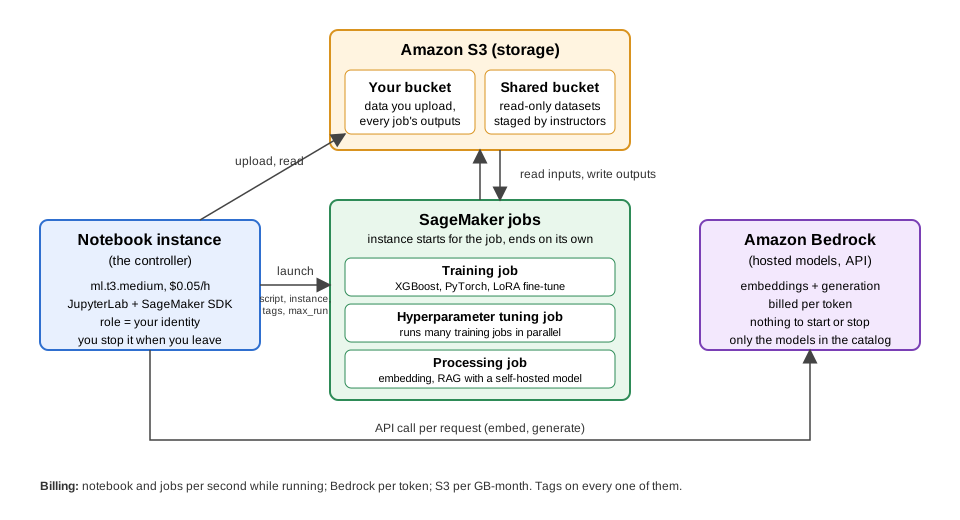
The notebook is the box on the left of the diagram from the overview episode. Everything else in the picture is launched or called from it, and every later episode uses this same instance.
We’ll follow these steps to create our first “SageMaker notebook instance”.
1. Navigate to SageMaker
- In the AWS Console, search for SageMaker.
- Recommended: Select the star icon next to Amazon SageMaker AI to save SageMaker as a bookmark in your AWS toolbar
- Select Amazon SageMaker AI
2. Create a new notebook instance
In the SageMaker left-side menu, click on Notebook instances, then click Create notebook instance.
Notebook name: the same words as your bucket, capitalised:
Challenge-LastnameFirstname, e.g.SinkOrSwim-DoeJohn. One instance serves the whole workshop; the individual.ipynbnotebooks inside it are where the per-episode work lives. SageMaker allows letters, digits and hyphens (no spaces or underscores, up to 63 characters); capitals are fine here and in tags, only bucket names must be lowercase. This name is also reused as the prefix of every training job you launch from the notebook, which is how you will find your jobs in a shared account.-
Instance type: a SageMaker notebook instance is an EC2 virtual machine (the previous episode introduced these) with JupyterLab preinstalled, and the instance type sets its CPU, memory and price. Since our notebook will act as a low-resource “controller”, we’ll select a small instance such as
ml.t3.medium(2 vCPU, 4 GB RAM, $0.05/hour)- This keeps costs low while allowing us to launch separate
training/tuning jobs on more powerful instances when needed.
- For guidance on common instances for ML procedures, refer to our
supplemental Instances
for ML webpage.
- This keeps costs low while allowing us to launch separate
training/tuning jobs on more powerful instances when needed.
Platform identifier: This is an internal AWS setting related to the environment version and underlying platform. You can leave this as the default.
-
Permissions and encryption:
-
IAM role: For this workshop, we have pre-configured
the “ml-sagemaker-use” role to enable access to AWS services like
SageMaker, with some restrictions to prevent overuse/misuse of
resources. Select the “ml-sagemaker-use” role. Outside of the workshop,
you create/select a role that includes the
AmazonSageMakerFullAccesspolicy. -
Root access: Determines whether the user can run
administrative commands within the notebook instance. You should
Enable root access to allow installing additional
packages if/when needed.
- Encryption key (skip): While we won’t use this feature for the workshop, it is possible to specify a KMS key for encrypting data at rest if needed.
-
IAM role: For this workshop, we have pre-configured
the “ml-sagemaker-use” role to enable access to AWS services like
SageMaker, with some restrictions to prevent overuse/misuse of
resources. Select the “ml-sagemaker-use” role. Outside of the workshop,
you create/select a role that includes the
Network (skip): Networking settings are optional. Configure them if you’re working within a specific VPC or need network customization.
Git repositories configuration (skip): You don’t need to complete this configuration. Instead, we’ll run a clone command from our notebook later to get our repo setup. This approach is a common strategy (allowing some flexiblity in which repo you use for the notebook).
-
Tags (NOT OPTIONAL): Adding tags helps track and organize resources for billing and management. This is particularly useful when you need to break down expenses by project, task, or team. To help track costs on our shared account, add exactly these three tags, the same keys you put on your bucket in the previous episode (type the keys exactly as shown; capitalization matters):
Key Value Projectyour challenge name ( SinkOrSwim,WattBot2026,BadgerScribe,BadgerCode, …), e.g.SinkOrSwimNameyour name, e.g. DoeJohnPurposewhat this resource is for, Notebook
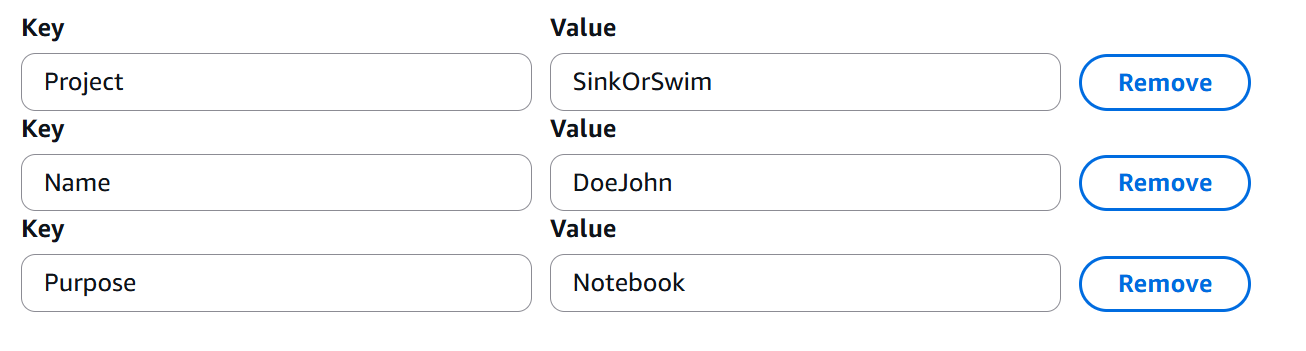
(The screenshot shows a fourth key, ModelSize. Leave it
out: it is not an approved key, so it would never appear on the
bill.)
Why these three keys, and why they must be spelled exactly
Tags only show up in cost reports if the tag key has been
activated as a cost allocation tag at the account level. On UW–Madison’s
AWS accounts that activation is done centrally by the Public Cloud team
for a fixed list of approved keys, documented at AWS - Tagging with an AWS Account (KB
72454). Name, Project, and
Purpose are on that list; ModelSize,
Team, project (lowercase) or any other
spelling are not, and spend tagged with them is invisible in Cost
Explorer. The KB page says it plainly: cut and paste, because any
deviation stops the tag from reporting.
Two more things to know now, because they come up in every later episode:
- Tags never propagate. Tagging this notebook instance tags the notebook instance only. Every S3 bucket, training job, processing job and Bedrock inference profile you create later needs its own copy of the same three tags.
- Outside UW, you activate the keys yourself, once, under Billing and Cost Management → Cost allocation tags. Until you do, the tags exist on the resources but not on the bill.
- Click Create notebook instance. It may take a few minutes for the instance to start. Once its status is InService, you can open the notebook instance and start coding.
Load pre-filled Jupyter notebooks
Once your newly created instance shows as
InService, open the instance in Jupyter Lab. From there, we
can create as many Jupyter notebooks as we would like within the
instance environment.
We will then select the standard python3 environment (conda_python3) to start our first .ipynb notebook (Jupyter notebook). We can use the standard conda_python3 environment since we aren’t doing any training/tuning just yet.
In that notebook, run the following cell to clone the lesson
repository into the instance’s persistent directory. The
test -d ... || guard makes it a no-op if the folder already
exists, and every later episode starts with the same cell:
SH
%cd /home/ec2-user/SageMaker/
!test -d ML_with_AWS_SageMaker || git clone https://github.com/carpentries-incubator/ML_with_AWS_SageMaker.git
Then open
ML_with_AWS_SageMaker/notebooks/Accessing-S3-via-SageMaker-notebooks.ipynb
from the file browser to begin the first notebook.
Challenge: pick an instance, and decide what to tag
Open the supplemental Instances for ML page and answer:
- A colleague has a 20 GB tabular dataset (a CSV of sensor readings) and wants to train gradient-boosted trees on it. Which instance would you pick for the training job, and why? What would you pick for the controller notebook that launches it?
- List every resource this colleague will create during that project, and say which of them need the three tags.
- The table’s rule of thumb is RAM of at least 1.5× the dataset, so 20
GB of data wants about 32 GB of memory:
ml.m5.2xlarge(8 vCPU, 32 GiB, about $0.46/h) is the natural fit for a tree-ensemble training job, withml.m5.4xlarge(64 GiB) as the safe choice if the feature engineering doubles the frame. No GPU: gradient-boosted trees on tabular data are CPU work, so ag4dnorg5would cost more and run no faster. The controller staysml.t3.medium($0.05/h): it only submits the job and reads the results back from S3, so it never needs to hold the dataset in memory. - At least four: the S3 bucket, the notebook instance, each training
job, and (if they tune) each hyperparameter tuning job. Every one of
them needs its own copy of
Name,ProjectandPurpose, because tags never propagate from one resource to another. The training-job instance itself is not a separate resource to tag: it is created and destroyed by the job, and the job’s tags cover it.
Before you leave: stop the instance
A notebook instance bills for every second it is
InService. When you step away for the day, go to
Notebook instances, select yours and choose
Stop. Your files under
/home/ec2-user/SageMaker (including the repos you clone)
survive a Stop and are there when you start it again; packages you
pip install are not, so expect to reinstall them. When the
workshop is over, Delete the instance: a stopped
instance still bills for its storage volume ($0.14 per GB-month), and
the cleanup episode walks through this.
Use a minimal SageMaker notebook instance as a controller to manage larger, resource-intensive tasks.
The notebook does not do the heavy computation; later episodes use it to launch training, tuning and processing jobs on separate instances.
Tags can help track costs effectively, especially in multi-project or team settings.
Stop the notebook instance whenever you leave, and delete it when the workshop is over.
Use the SageMaker SDK documentation to explore additional options for managing compute resources in AWS.