
Collaborating via GitHub
Last updated on 2025-11-25 | Edit this page
Overview
Questions
- How do I authenticate with GitHub?
- How do I put my project on GitHub?
- How do I “push” my latest changes to GitHub?
Objectives
- Authenticate with GitHub.
- Connecting your project to GitHub.
- Make changes locally and push them to GitHub.
Synchronizing Your Local Changes with Your Repository on GitHub
Earlier, we looked at integrating version control into your RStudio workflow to help streamline your work and keep track of changes. In this part of the workshop, we will set up RStudio to authenticate with GitHub, which is necessary to push your local changes to the remote repository on GitHub.
Terminology: Git Push and Pull
Definition: The process of synchronizing your local git repository with your git repository on GitHub (or other Git server).
GitHub requires a more secure method of authentication than a simple Username and Password. For this workshop, we’ll use a Personal Access Token (PAT), which you will set up for your GitHub account. We will configure RStudio to use your PAT to authenticate with GitHub so you can download and upload your RStudio code edits to GitHub.
A Quick Note on GitHub Authentication Methods
In this lesson, we stick with Personal Access Tokens (PATs), but GitHub offers other authentication methods, such as SSH keys, which can be particularly useful with different Git forges (GitLab, Bitbucket, etc.). If you’re curious about other authentication options or how things differ across platforms, GitHub has a helpful overview here: https://docs.github.com/en/authentication/keeping-your-account-and-data-secure/about-authentication-to-github.
Setting up your GitHub Personal Access Token (PAT)
In your RStudio console, enter the following command:
usethis::create_github_token()
This will open your web browser and, after logging in if necessary, you’ll be on the GitHub settings page to create a PAT. Most of the options have already been set for us; we only need to update:
- the Note field by describing what the token is for. We recommend a combination that describes the computer the PAT will be used on and the purpose for which it will be used.
For example:
RStudio on MacBook Air for Reproducibility Workshop
- Set expiration to 90 days. So that you know, GitHub will send you an email when it’s time to renew your token that is about to expire. It is easier not to let the token expire; otherwise, you will have to regenerate a new one and set it up again.
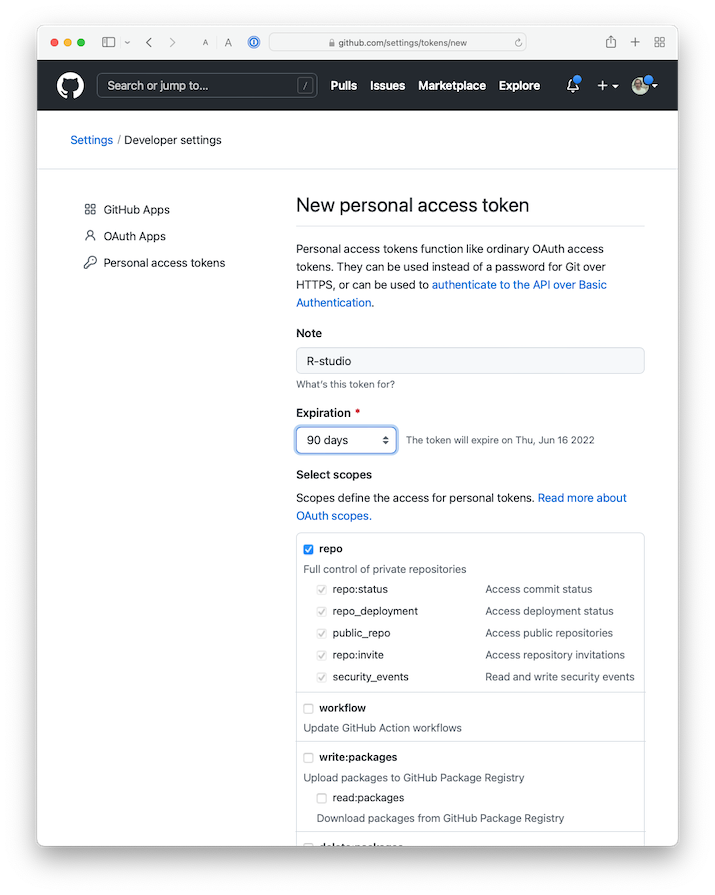
Feel free to leave all the other options as selected. Click on the green Generate token button at the bottom of the page.
- On the next screen, GitHub shows you the new token. ** Please be sure to copy it** as you only get one chance to see the token text. This is the only time you will be able to see it, so do not close this page before you are done with the setup! Copy your PAT to your clipboard. Return to RStudio and run the following command in the R console:
gitcreds::gitcreds_set()
This will prompt you to paste the PAT you just copied from GitHub. Paste your PAT and hit Enter. You should see a few lines indicating that the token has been set up.
To check your work, you can run the following command in your R console:
usethis::git_sitrep()
If the output shows the line
Personal access token for 'https://github.com': '<discovered>'
then you know you’ve succeeded in connecting RStudio with GitHub.
Note that if you use multiple computers/servers, you will have to repeat those steps on each machine.
If you have already cloned the repository, the next two steps are not necessary, as the “origin” is set during cloning.
Getting your Repository’s URL from GitHub
You can get your repository’s address from GitHub by navigating to your repository on GitHub.com and clicking the green “Code” button.
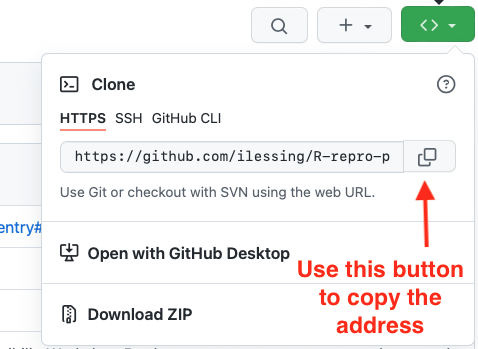
With that address, you can go ahead and complete the origin URL setting in the next step.
Checking and Setting the “Origin” for the local copy of your repository.
If you forked and cloned the demonstration publication for this workshop, as covered in an earlier episode, your repository should already have the “origin” set. Once the “origin” is appropriately set, you should be able to push and pull your changes to and from GitHub. When you clone a repository from GitHub, your local copy should have GitHub set as the “origin”.
You can check this in RStudio –> Tools –> Project Options –> Git/SVN
If the “Origin” field is blank, then you’ll need to add it from the terminal with a couple of terminal commands like this:
git remote add origin <paste your repository address here>
git fetch --set-upstream origin main
Ensure your GitHub username is part of the URL.
After you’ve updated the Origin URL from the command line, go back to R Studio –> Tools –> Project Options –> Git/SVN to verify you have the “Origin” field filled in. It should look like this.
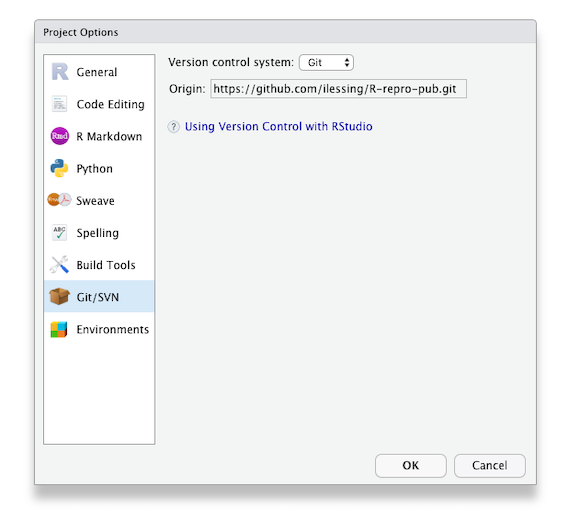
Push your local changes up to your GitHub repository.
With authentication set up and your local copy of your repository pointing to GitHub as the “Origin” you should be able to make changes locally and push them up to GitHub.
Let’s try it and see if it works.
Challenge 2: Push to GitHub
- Make a change to one of the files in your project or add a new file.
- In R Studio’s Git panel, check the box to Stage the changed file.
- Commit the change to your Git repository.
- Click the green up arrow to Push your repository changes up to GitHub.
- Look on GitHub.com to verify your changes are there.
Tips for working with Git
Tips for working with Git
You should pull each time you start working on your project after a hiatus or before each edit if you know a team member is working at the same time.
At the end of your work session (or more frequently if you are working at the same time as team members), “push” your commits to the remote repository - this way your local changes get added to your team’s remote repository.
This pull, add, commit, push routine will become second nature. When you sit down to work, do a pull and when you’re about to get up, push to establish a ritual that marks the beginning and end of your work session.
With the ability to synchronize your changes between GitHub and your local repo, the next step is to explore options for publishing your research paper.
- You may set up RStudio to authenticate with GitHub using a Personal Authentication Token (PAT) or consider other methods such as SSH keys.
- Setting the Git repository Origin in your R Studio project enables pushing and pulling from your local copy of the repository to the repository on GitHub.