
Bibliography, Citations and Cross-Referencing
Last updated on 2025-12-08 | Edit this page
Overview
Questions
- How can you insert citations into your manuscripts using RStudio’s visual editor?
- How can you change citation styles?
- What are the options to display cited and uncited bibliography?
- How can you cross-reference content?
Objectives
- Inserting citations and listing bibliography in a Quarto Document file.
- Customizing citation styles and the display of references and bibliographies.
- Add cross-referencing, directing your readers through your document.
Why Cite?
Correctly citing and attributing publications is key to academic writing. Older versions of RStudio require Pandoc’s citation syntax to render bibliographies correctly. We won’t be covering this approach extensively in this workshop since the new visual editor has made this process much simpler. You can refer to our previous workshop on R Markdown pre-visual editor for more information.
The new visual editor has made citations and cross-referencing much easier by offering different options for referencing various types of sources. Before getting into these different features, let’s first learn how you can call the citation window dialog in RStudio and how to navigate these various options.
Calling Citation Options on RStudio
After placing your cursor where you want to insert the citation, you
can either click the @ icon in the toolbar or select
Insert, and from the drop-down menu, choose
Citation. Alternatively, you can use the keyboard shortcut
⇧⌘ F8 on Mac or Ctrl+Shift+F8 for Windows.
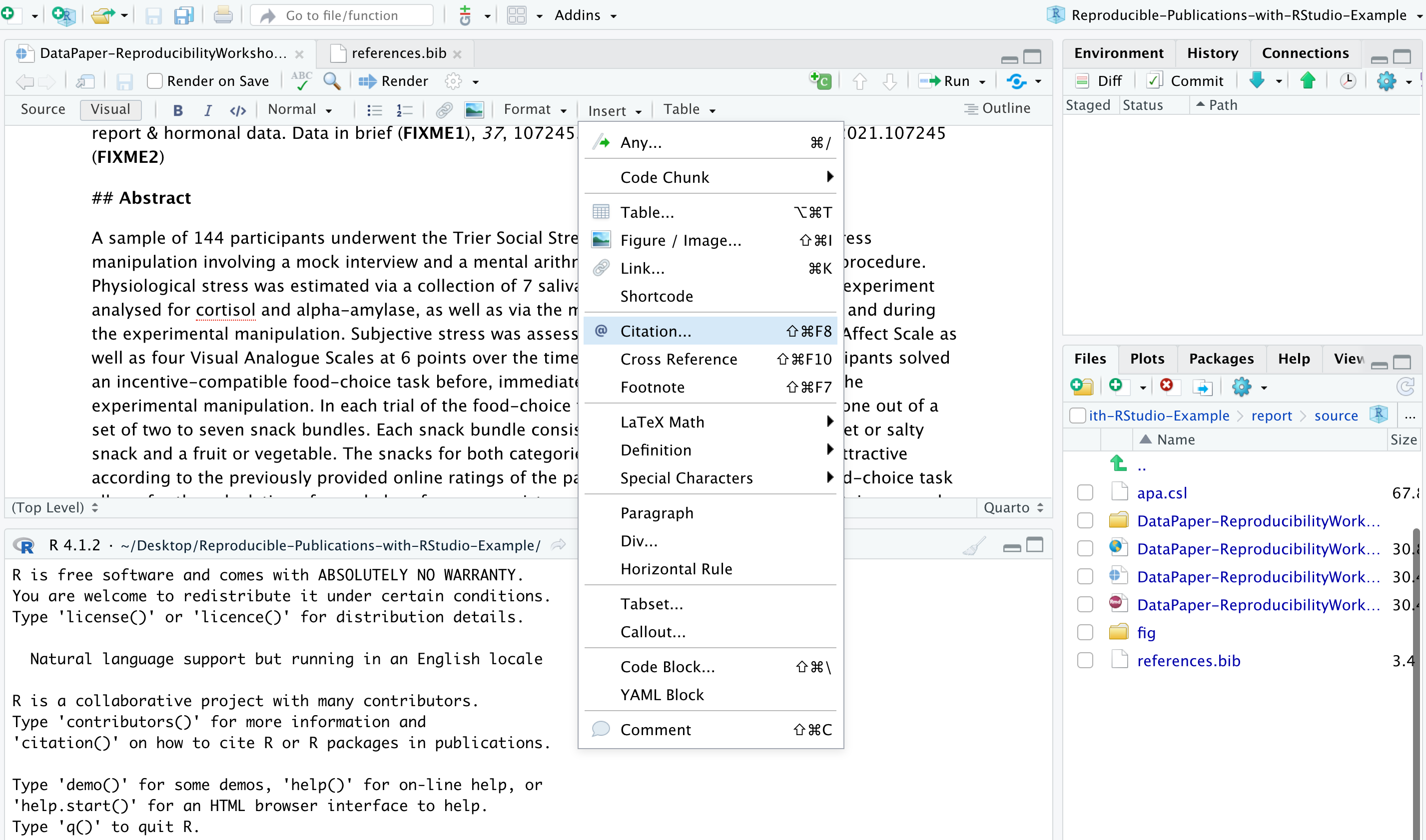
The citation window will display different options for inserting citations. You can either find items listed in your own sources through your Bibliography folder (you should have one already in your project folder provided by us), your Zotero Library(ies) if you have the reference manager installed on your computer, or even use the lookup feature to search for publications by DOI (Digital Object Identifier), Crossref, DataCite, or PubMed ID as we will explore a bit more shortly.
Understanding How RStudio Stores and Organizes Citations
Have you noticed that the YAML header contains “bibliography:
references.bib”. Do you have any idea why? Well, that’s because on our
paper template, we have some existing citations and a
references.bib file in our project folder. RStudio
automatically adds that to the YAML once you cite the first item in your
manuscript. But let’s first open the references.bib file (located in
report>source on your project folder) and understand how citations
are presented there:
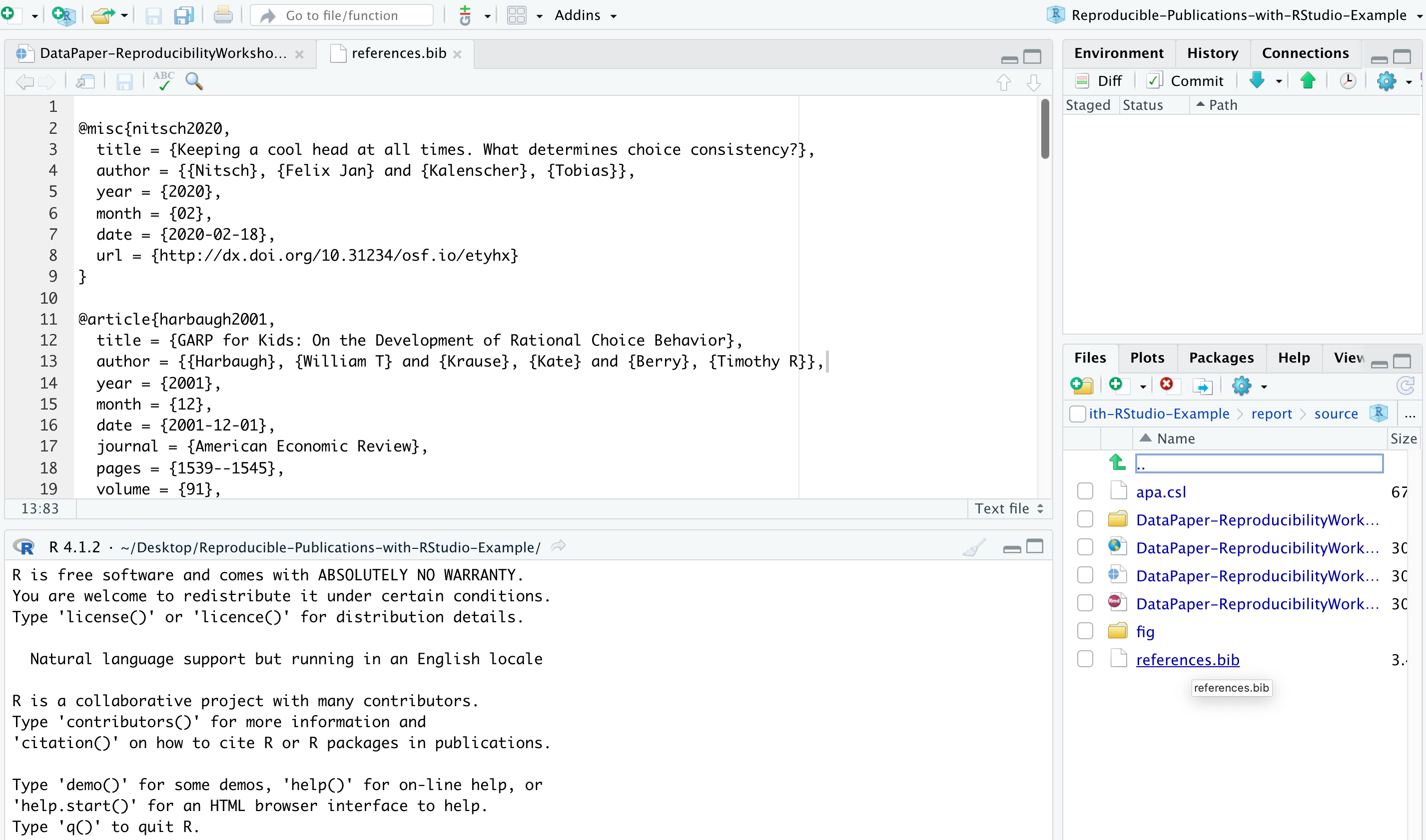
A file with the BIB file extension is a BibTeX Bibliographical
Database file. It’s a specially formatted text file that lists
references pertaining to a particular source of information. They’re
normally seen only with the .bib file extension but might
instead use .bibitex. BibTeX files might hold references
for things like research papers, articles, books, etc. The file often
includes an author’s name, year, title, page number, and other related
content. Each item can be edited, in case there is any metadata that is
incorrect or missing.
Most citation and reference management tools, such as RefWorks,
EndNote, Mendeley, and Zotero, as well as some search engines (e.g.,
Google Scholar), most scientific databases, and our UCSB library
catalog, allow us to export citations as .bib or BibTeX files.
These files are used to describe and process reference lists, mostly in
conjunction with LaTeX documents. Each .bib file contains a citation key
or ID, preceded by an @, that uniquely identifies each
item. Citation keys can be customized, as we will learn in a bit, but
please keep in mind that your manuscript will render citations correctly
only if you have the cited item corresponding to its exact key.
Inserting Citations
Note that this file contains multiple blocks, starting with a
@ and ending with a curly bracket {, each
representing a unique citable source. We will now add a new item using
the DOI lookup function so you can see how the magic works!
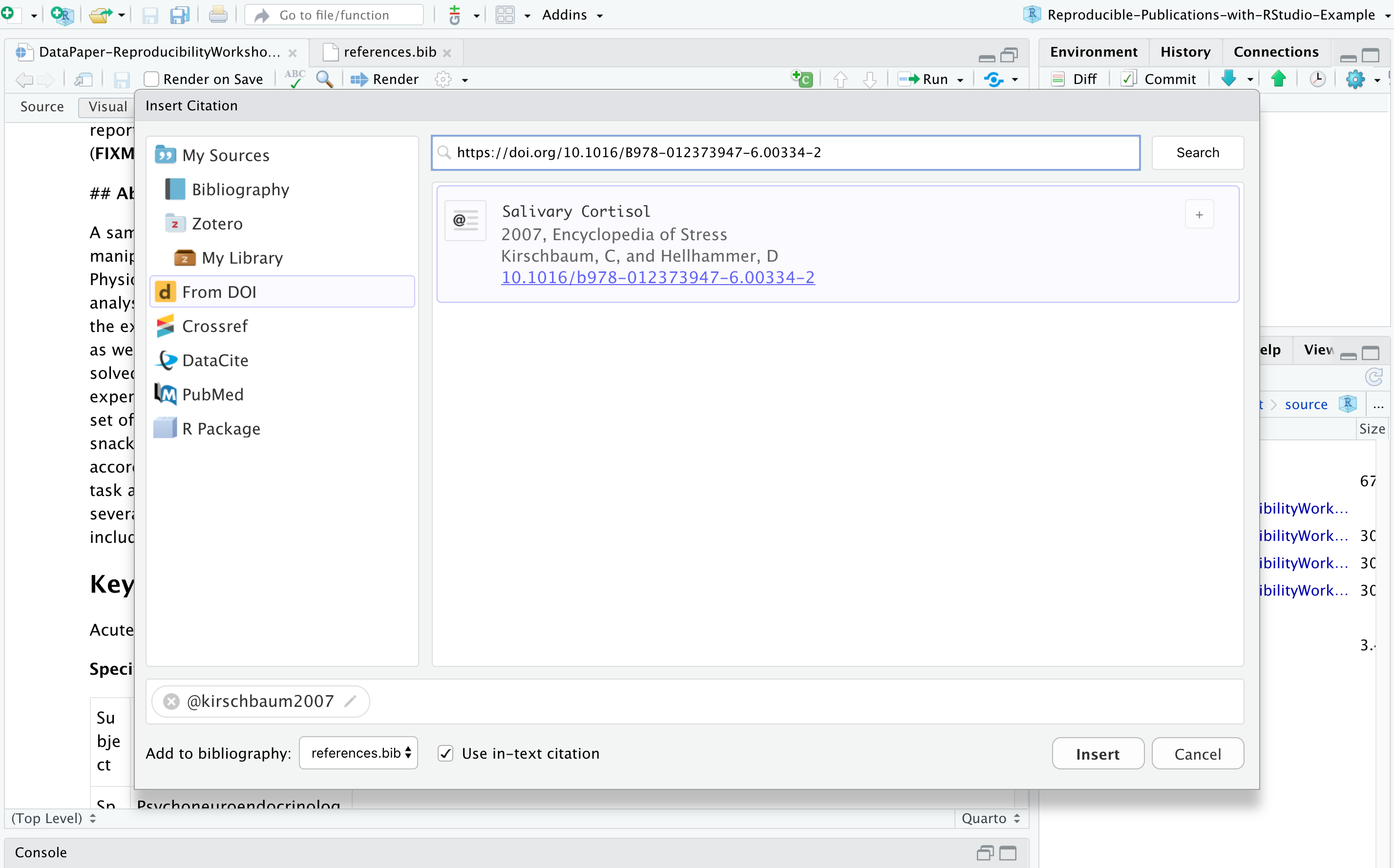
Let’s assume you want to include a citation in the first line of the Value of the Data section because you would like to talk about how the salivary cortisol technique has been used in research. So let’s click where we want to insert the citation, call the citation function, and look for the following DOI: https://doi.org/10.1016/B978-012373947-6.00334-2
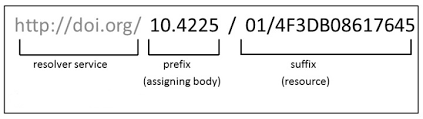
The DOI lookup uses the persistent identifier, which connects to the DOI resolver service and retrieves the .bibtex file with resource metadata1. You should insert the whole DOI address, including the resolver service, the prefix, and the suffix, which is specific to the resourc,e as illustrated below:
RStudio will search the DOI API and list the only matching result, and you can insert it. After confirming this is the citation you would like to include, you can modify the key if you would like to simplify it and also choose if you would like to insert it as an in-text citation, meaning you would like to have the last name of the author(s) followed by a page number enclosed in parentheses. i.e., Kirschbaum and Hellhammer (2007), but in this case, we will uncheck that option since we won’t include authors in the narrative. Instead, we would like to insert a parenthetical citation, where authors and year will be displayed inside the parentheses, such as (Kirschbaum and Hellhammer 2007). You may insert more than one citation by selecting multiple items.
This item will be automatically listed in your references.bib file
and will help you manage your citations more efficiently. Pretty cool,
huh? If you want to cite this same item again, you can type
@ and the first letters of the item name, which will be
auto-completed by RStudio. You will have to type the key between
brackets for parenthetical citations, and for in-text narrative
citations, you only need to type in the key. Note that when you hover
over the citation, you will preview the full reference for the cited
item that will be listed at the bottom of the manuscript. This feature
helps you to identify if you have to edit anything in the .bib file that
your citation is calling. Also, all citations will appear at the end of
your document in a reference list.
Insert a Citation Using the DOI Lookup Function
Following the same process described, insert a parenthetical citation
to the publication “Welcome to the tidyverse” (https://doi.org/10.21105/joss.01686) where this package
is mentioned in the data paper. Look for:
add citation here
OUTPUT
[@wickham2019]
render the document and voila!
(Wickham et al., 2019)
Inserting citations using Crossref, DataCite, or PubMed follows a process very similar to the DOI process; however, to search on their APIs, you must input information accordingly. For Crossref, you may use keywords and author information to identify an item (e.g., Cortisol Stress Oken), and RStudio will connect to Crossref search and provide related results, often not as specific as the DOI search, for cases where you know exactly what you are looking for. DataCite allows searches by persistent identifiers or keywords, while PubMed searches exclusively in biomedical literature indexed in the database. If you have the PMID (PubMed reference number), which the NIH National Library of Medicine uniquely assigns to papers indexed in PubMed, it will save you time.
Editing Metadata & Citation Key
Not all citations are in perfect shape when we import them. You may have to adjust them (e.g., include missing metadata and move content to another metadata field). If you need it, we can do so by modifying the .bib file. As we talked about, you can also edit citation keys. By default, most citation keys will have the first author’s last name or the first word of the title (if no authors), followed by the year of publication. Consider editing the citation key to simplify the entry and speed up autocomplete. If you choose to do so, you can click on the key in the .bib file and edit it. Please be advised to use this option with caution and to update citations to match the .bib file.
Changing Citation Styles
You might have noticed that all citations are inserted in a specific style. Can you guess which one? If you answered Chicago, that is correct! By default, RStudio uses a Chicago author-date format for citations and references. To use another style, you will need to specify a CSL (Citation Style Language) file in the CSL metadata field in the YAML.
But how can you identify which CSL you should use? You can find the required formats in the Zotero Style Repository, making it easy to search for and download your desired style.
You can download the format you’d like to use and call it out in the
YAML. We have pre-saved the APA CSL file in the project folder for you.
But if you would like to follow the process or try another style, go to
the Zotero Style repo and select American Psychological
Association 7th edition or any other style of your choice. It will
automatically download the file (e.g., apa.csl). Make sure
to save it to your project directory in the report/source folder. In the
YAML, we have to call the exact name of the file preceded by “csl:”.
OUTPUT
csl: apa.cslSave and render the document to see how citations and references have changed. This same process could be followed for any citation style required by the university, the journal, or the conference you are planning to submit your manuscript.
Adding Items to the References without Citing them
All cited items will be listed under the section References, which you created before while practicing headings and subheadings. Items will be placed automatically in alphabetical order for most citation styles. However, there might be cases in which you will be referencing supporting literature that you have not necessarily cited in the document.
By default, the bibliography will only display items that are
directly referenced in the document. If you want to include items in the
bibliography without actually citing them in the body text, you can
define a dummy nocite metadata field in the YAML and put
the citations there.
OUTPUT
nocite: |
  @item1, @item2
To demonstrate that, let’s include the bibtex @key for
an item that was not cited in the YAML. Note that this will force all
items added in the YAML with this command to be listed in the
bibliography.
Let’s try!
Adding references you have not cited (optional)
We have used a few packages in our paper that we do not necessarily cite in the text. However, adding them to the reference list is a good practice. This practice is recommended for giving proper credit to package developers and also to let your readers know about the exact version you have used to produce your paper.
Ideally, we follow this process for all packages we have installed and used to produce the paper. But for the sake of time, let’s do that process for the package BayesFactor. Since we have the option to call R packages right from the insert citation, look for the package and think about how we can include it in the reference list even without citing it in our paper.
You should call the @ it in the YAML, with the nocite
function:
OUTPUT
nocite: |
@BayesFactorImportant Info:
Does the indentation matter? Yes, you have to indent by at least one
space, and the citation key should turn green for it to work.
In case you are including a citation to nocite that you
have not cited in the document, you have to make sure first that the bib
file is in your Bibliography folder.
Tip:
Depending on the bibliography style, BibTeX converts all characters in the title to lowercase, except the first. If you want to override this, wrap the character(s) you wish to show in upper case in curly braces.
title = "Pascal, {C}, {Java}: were they all conceived in {ETH}?" Adding Cross-referencing
Cross-referencing is a useful way of directing your readers through your document, and it can be accomplished in Quarto. You may create cross-references to figures, tables, equations, sections, code listings, theorems, proofs, and more.
Essentially, every cross-referenceable entity requires a caption (description), the object info, and a label (unique identifier. Let’s say we want to cross-reference Figure 1 in the paper. To do so, we will first need to create an ID for it. If we are in the visual mode, we can double-click the image, click the “Attributes” tab, and enter #fig1 as the ID.
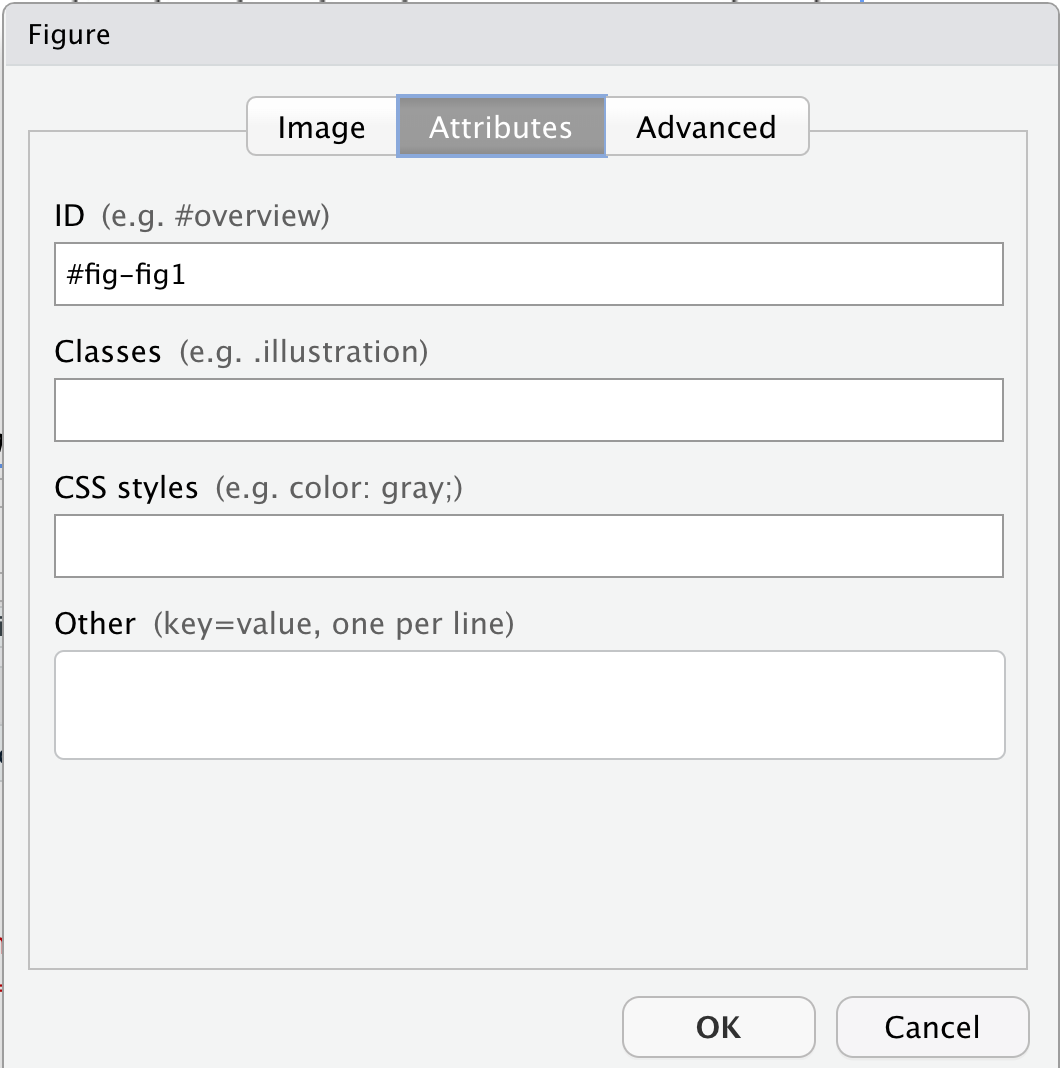
Alternatively, in the source mode, we can enter that same ID in front of the figure name by typing in {#fig-fig1}
{#fig-fig1}
Ok, but how can you call that in another part of the paper? You may
enter the key below using the unique identifier, but instead of the hash
#, it should be preceded by an at @:
@fig-fig1
If you do not start your label with fig-, Quarto will
interpret it as a citation and won’t render correctly. Click
Render and see how it displays.
You may follow a similar approach to add cross-references for
sections (#sec-)/(@sec-), equations
(#eq-)/(@eq-), tables (#tbl-)/(@tbl-), and
other objects (see: Quarto’s
Cross References guide).
If you wish to add a cross-reference to a figure that was generated via a code block, you have to provide a label (id) and a caption at the beginning of the figure code block.
#| label: fig-id
#| fig-cap: "figure caption here"
And then, enter the @fig-id where you want to note the cross-reference in your paper.
Adding cross-reference for code block figures
Your turn! Include a cross-reference to Figure 3.
Make sure you have added a label (id). If you missed that step, now
is the time to add #| label: fig-heartrate Call the figure
using the assigned id @fig-heartrate
- RStudio supports different lookup strategies to make the citation process easier.
- RStudio supports different citation styles.
- The YAML can be adjusted to display uncited items in the reference list.
- Use bookdown to cross-reference content.