
Good Practices for Managing Projects in RStudio
Last updated on 2025-11-25 | Edit this page
Overview
Questions
- What are good research project management practices?
- What is an R Project file?
- How do you start a new R Project or open an existing one?
- How do you use version control to keep track of your work?
Objectives
- Become familiar with best practices for working on research projects involving data.
- Understand the purpose of using RStudio Projects
(
.Rprojfiles). - Utilize version control in RStudio.
- Start and continue an R project.
Managing Research Projects
The ability to integrate code and narratives is a major advantage of Quarto and the RStudio environment, especially considering that the scientific process is naturally incremental, and many projects start life as random notes, some code, then a manuscript, and eventually, everything ends up a bit mixed together. To complicate things further, we often work with other collaborators, lab members, graduate students, and faculty from the same or different institutions, which makes it that much more difficult to keep projects organized. When you throw data into the mix (sometimes vast amounts of it!) it’s integral to use best practices to maintain the integrity of your analysis and to be able to publish high-quality and reproducible research. Quarto is a powerful tool that can’t be fully utilized unless your project documents, scripts, and other files are well-organized. So, let’s take a look at RStudio’s features for managing projects and discuss some of the best practices when working with data and collaborators.
Research Project Stress Points
We often have organizational or logistical stress points in our research that may become breaking points, especially when it comes to working with collaborators, returning to a project after a hiatus, or dealing with data and scripts. Let’s discuss three of those common stress points:
-
File/folder disorganization
- You cannot find your files on your computer (or your cloud storage)
- Multiple versions of files with names such as “finaldraft_4.txt”
- Path issues when trying to run code
- Reviewers or colleagues cannot re-run your code/analyses
-
Storage and sharing issues
- Files are only saved to your computer and are vulnerable (or have already succumbed to computer/hard drive failure
- When working with collaborators, they (or you) don’t share the files needed
- Files are shared via email attachments
- Difficult to know if you have the latest version of documents
-
Losing track of project status
- You cannot remember where you are in a project after being away for an extended period (or what you worked on the previous day…no judgment)
- You aren’t sure what you should be working on next
- You have various to-do notes spread across your office or home (or never write them down in the first place)
Let’s discuss!
To what extent do these stress points affect your research projects? Are there additional issues that you’ve encountered that slow down or derail your work due to issues with project management?
What are some practices you implement to keep your project materials organized?
Antidotes
A good project layout will ultimately make your life easier:
- It will help ensure the integrity of your data
- It makes it simpler to share your code with someone else (a lab mate, collaborator, advisor, etc.)
- It allows you to upload your code with your manuscript submission easily
- It makes picking the project back up after a break easier.
- It makes your research reproducible!
We’ll discuss three aspects of project management and then implement those practices for the remainder of this workshop in the RStudio environment.
- File/Folder Organization
- Storage & Sharing
- Using Version Control
Then, we’ll get started on our project!
Project File/Folder Organization
Important principles:
Although there is no “best” way to lay out a project, there are some general principles to adhere to that will make project management easier:
Practice good file-organization
Good Enough Practices for Scientific Computing gives the following recommendations for project organization:
- Put each project in its own directory named after the project.
- Put text documents associated with the project in the doc directory.
- Put raw data and metadata in the data directory and files generated during cleanup and analysis in a results directory.
- Put the source for the project’s scripts and programs in the src directory, and programs brought in from elsewhere or compiled locally in the bin directory.
- Name all files to reflect their content or function.
- Additionally, we’d recommend including README, LICENSE, and CITATION files!
For the project we’re working on today, we used the following setup for folders and files:
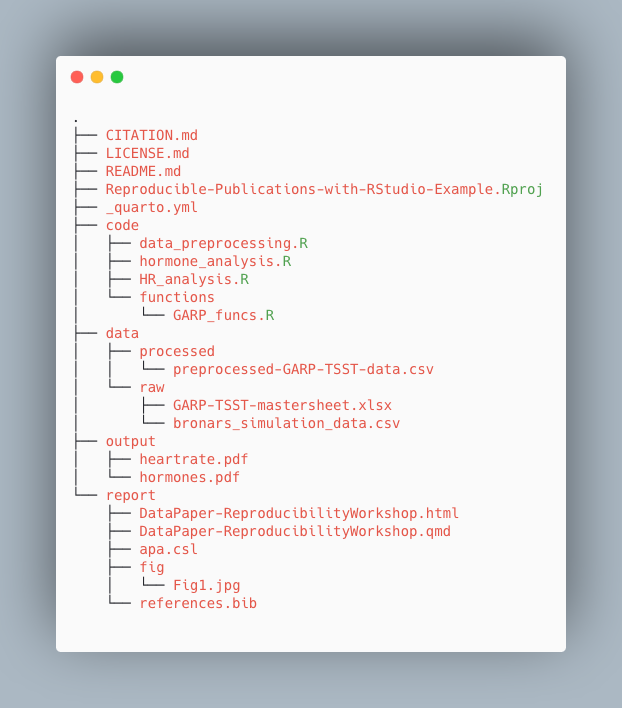
Take a few minutes to look through the workshop project files
Please take some time to look through the project files. Either the screenshot above or you may browse the files on GitHub at <https://github.com/UCSBCarpentry/Quarto-Project-Example>. What do each of the directories (folders) contain? What is their purpose?
Please take a look at the solution drop-down for an explanation of each directory’s contents.
-
code: contains the scripts that generate the plots
and analysis (found in
output/)- /functions: contains custom functions written for the data pre-processing
-
data: This folder contains the raw and cleaned data
files
-
/processed: contains a CSV file produced by the
data_preprocessing.Rscript. - /raw: contains the individual data files from food choice trials
-
/processed: contains a CSV file produced by the
- output: contains all plots generated by the plot scripts in the code folder
-
report: all files needed for the publication of the
research project, including:
- .qmd file for the paper and additional files needed for rendering the paper
- images created specifically (not through the analysis scripts) for the paper - CITATION.md: directions to cite the project.
- LICENSE.md: instructions on reusing the project or any components.
- README.md: a detailed project description with all collaborators listed.
- Reproducible-Publications-with-RStudio-Example.Rproj: the R project file that lives in the root directory and is used by R-Studio to keep track of the project.
- _quarto.yml: the quarto project configuration file that allows users to specify various settings and options for their Quarto projects. We will learn more about it when we cover more advanced topics.
Practice good file-naming
The three principles of file naming are:
- Machine-readable
- Friendly for searching (using regular expressions/globbing)
- No spaces, unsupported punctuation, accented characters, or case-sensitive file names
- Friendly for computing
- Deliberate use of delimiters (i.e., for splitting file names)
-
data-analyses-fig1.Rwith-used consistently as a separator
-
- Deliberate use of delimiters (i.e., for splitting file names)
- Human-readable
- Name contains a brief description of the content
- Borrow from clean URL practices:
- “slug,” i.e., the part of a URL that is human-readable
- i.e.
data-analyses-fig1.R
- i.e.
- “slug,” i.e., the part of a URL that is human-readable
- Plays nice with default ordering
- Use chronological or logical order:
-
chronological: filename starts with a date.
- i.e.
2022-01-01_data_analyses.R - Use ISO 8601 date standard
- i.e.
-
logical: filename starts with a number or
keyword/number combo.
- i.e.
CC-101_1_data.csv - i.e.
CC-101_2_data.csv
- i.e.
-
chronological: filename starts with a date.
Adapted from https://datacarpentry.org/rr-organization1/01-file-naming/index.html. For more tips on file naming, check: The Dos and Don’ts of File Naming.
File name syntax
Given the filename CC-101_1_data.csv and
2022-01-01_data_analyses.R, why does it make sense to use
both - and _ as delimiters/separators?
In CC-101_1_data.csv, the - is used as part
of the keyword shared between several files. the _
separates it from the trial number and description. If one were to split
the filename on the _, the keyword would be maintained, and
the trial number would be separated out. In the
2022-01-01_data_analyses.R, the dash character
- is used for a date delimiter between year, month, and
day. The underscore character _ is used between the words.
This allows us to split on underscore _, which would
preserve the date (separate from other file info).
It’s good to strategize on the best way to name files to anticipate future uses of the information contained within the filename.
Use relative paths
This goes hand in hand with keeping your project within a single “root” directory. If you use complete paths to, say, read your data to RStudio and then share your code with a collaborator, they won’t be able to run it because the complete path you used is unique to your system, and they will receive an error that the file is not found. That is why one should always use relative paths to link to other files in the project, i.e., “Where is my data file in relation to the script I’m reading the data into?” Using relative paths is easier when a directory is set up and all project files are kept within a single root project folder.
Assuming your R script is in a code directory and your
data file is in a data directory, then an example of a
relative path to read your data would be:
df <- read.csv("../data/foodchoice_budgetlines.csv")Whereas a complete path might look like:
Windows:
df <- read.csv("C:/Users/wilma/Desktop/project23/data/foodchoice_budgetlines.csv")If the example were on a Mac or Linux computer, you would have
home instead of C:
In the complete path example, you can see that the code is not going to be portable. If someone other than Wilma Flintstone wanted to run the R script, they would have to alter the path to match their system.
Relative Paths
What would be the relative path needed to refer to the file
bronars_simulation_data.csv (located in the raw directory)
from R-repro-pub.Rproj (root directory)? And what about the
inverse relative path?
R-repro-pub.Rproj to
bronars_simulation_data.csv
“data/raw/bronars_simulation_data.csv”
bronars_simulation_data.csvto
R-repro-pub.Rproj “../..” “..” directs back to the
directory that contains the file of interest.
Level up your relative paths
We’ve just discussed how using relative paths is a better coding practice, as it helps ensure our code works consistently across different systems. However, relative paths can still be quite confusing to deal with, especially when you have many sub-directories in your project. One way to make things a bit easier on ourselves is to ensure the part that’s relative to what we’re referencing stays the same.
This is where using the RStudio Project can help. When
you create a Project in RStudio, in the background, RStudio will
automatically create a “root” folder and set it as your working
directory in R. Since in R relative paths are relative to your working
directory, this will ease referring to external input or output files
(data, images, plots, …) consistently across your project by always
having your relative paths relative to the top level folder and help to
encapsulate your work within this folder. So with an R project setup,
the relative path in the previous example will now be:
df <- read.csv("data/foodchoice_budgetlines.csv")In the end, this means you can move this folder around on your machine or to another machine, and all paths will remain valid.
Treat data as read-only
This is the most important goal of setting up a project. Data collection is typically time-consuming and/or expensive. Working with them interactively (e.g., in Excel or R) and allowing them to be modified means you are never sure where the data came from or how they have been modified since collection. Therefore, treating your data as “read-only” is a good idea. However, in many cases, your data will be “dirty”: it will need significant preprocessing to get into a format that R (or any other programming language) will find helpful. Storing these cleaning scripts in a separate folder (e.g., code) and creating a second data folder to hold the “cleaned” datasets can help prevent confusion between the two sets. You should have separate folders for each: raw data, code, and output data/analyses. You wouldn’t mix your clean laundry with your dirty laundry, right?
Treat generated output as disposable
Anything generated by your scripts should be treated as disposable: it should all be able to be regenerated from your scripts (and the raw data). There are many ways to manage this output. Having an output folder with different sub-directories for each separate analysis makes it easier later. Since many analyses are exploratory and aren’t used in the final project, some are shared across projects.
Include a README file
For more information about the README file and a customizable template, check this handout. Make sure to include citation and license information, both for your data see creative commons license and software (see license types on Github). This information will be critical for others to reuse and correctly attribute your work. You may also consider adding a separate citation and license file to your project folder.
Again, there are no hard and fast rules here, but remember, keeping your raw data files separate is essential to ensure they don’t get overwritten after you use a script to clean your data. It’s also very helpful to keep the different files generated by your analysis organized in a folder.
*what’s this .Rproj file? We’ll be able to explain in a
bit.
Storage and Sharing
Backup your work
Having a solid backup plan in case of emergencies (e.g., your computer’s hard drive fails) is essential. The general guideline for backups is to adhere to the 3-2-1 principle, which dictates that you should have three copies on two different media, with one copy offsite. Your decision on backups will be based on your own personal tolerance, but we recommend, at a minimum, avoiding having only a copy of your project on your personal or work computer, or on a lab computer, at all costs.
At the very least, you should back up your project in cloud storage (either provided by your university or paid for yourself). Common cloud storage platforms include Google Drive, Box, OneDrive, Dropbox, etc. Backing up a project to a local device and to cloud storage allows you to meet 2 of the 3-2-1 criteria (2 different media and 1 offsite). If you’re working with at least one collaborator, and they also keep an up-to-date copy of the project on their computer, you’re set!
Version Control hosting services
If your research project involves code, the best way to ensure your work is backed up AND to keep track of your code is to use a version control hosting service such as GitHub. Note that out-of-the-box Git and, thus, GitHub are not optimized to handle large files, and therefore, we do not recommend using these tools to version data beyond maybe small data sets in a text-based format such as CSV files.
The main three version control hosting services are GitHub, GitLab, and BitBucket. To see a comparison of the available options, see this comparison on LinkedIn
We will go ahead using GitHub because it is the most used version control platform to date.
Using Version Control
Okay, let’s talk about implementing version control in your project through RStudio! But first… let’s quickly clarify the difference between Git and GitHub. We already said that GitHub is a version control hosting platform. Git is the version control system and does not have to be used with GitHub. You can use Git and then host your code on Bitbucket, for example, or save it to your Google Drive. In fact, you can use Git on your local system only and never save it to a cloud storage platform. However, version control hosting platforms such as GitHub enhance the benefits of version control and offer incredible collaboration features. The difference between the two can be a bit confusing because they are so often used together, but the more you use them, the more it will make sense. Soon enough, you’ll be wondering how you even completed a code project without version control.
There are actually many ways to use Git: you could use it only on GitHub (though that suffers from a lack of options and is a bit clunky), there is a Desktop interface, and many serious programmers use it on the command line. However, RStudio has built-in Git controls, so we’ll use them all in one place!
Project Environments in R
Environments are a rather advanced topic in programming, but we will
introduce capabilities in R that improve the reproducibility of your
code. Essentially, a project environment allows us to save (or take a
snapshot) of our R version and dependencies - aka what packages/package
versions are required to run our code without error. This can be
important when collaborating with others, and you may be unsure whether
you are working with the same R and package versions. Another common
issue is if you try to run very old code from a previous project - the
older the code, the more likely errors will crop up, or the code will no
longer run as it used to. To take advantage of project environments, we
will use a package called renv, the successor of
packrat, which used to be the de facto package in R for
managing environments.
However, as noted in this RStudio article
on renv, using renv does not automatically make your
project reproducible, nor is it bullet-proof. Sometimes, other factors
come into play that may alter the results of your code despite using
renv, such as operating systems, compilers, etc. Many use
‘containers’ such as Docker or Kubernetes to go one step further in
assuring reproducibility. However, that is beyond the scope of this
workshop.
Later in this workshop, we will cover dependencies and how to
implement project environments with renv to increase
reproducibility in R projects.
Before we use Git and environments in the RStudio project, we must be working on an R Project, so let’s talk about how R Projects work in RStudio.
Working in RStudio & Quarto Projects
RStudio Project
As mentioned earlier, one of the most powerful and useful aspects of
RStudio is its project management functionality. We’ll be using an
RStudio project today to complement our Quarto document and bundle all
the files needed for our paper into one self-contained, reproducible
bundle. An .Rproj file helps keep your R scripts, data, and
other files together - just navigate through your file system to get to
your project directory and double-click on the .Rproj file. The added
benefit is that the .RProj file will automatically open RStudio and
start your R session in the same directory as the .Rproj
file and remember exactly where you left off. The .RProj file offers a
powerful way to stay organized on their own, but it also unlocks the
additional benefit of being able to use Git within RStudio.
Quarto Projects
Perhaps confusing, but we have an additional “type” of project in the
RStudio ecosystem called a Quarto project. Thankfully, we don’t have to
choose between RStudio and Quarto projects, because a Quarto project is
just an RStudio project with additional capabilities. That addition
includes enhanced project and style controls in a YAML file called
_quarto.yml. To keep things simple, if you are going to use
Quarto documents, use Quarto Projects; if you aren’t, stick to an R
project. And no worries, you can always add a _quarto.yml
file if you have just an RStudio Project, which can retroactively turn
your project into a Quarto project. We will see how to create a Quarto
project further in this workshop.
R Project in “root” folder
.Rproj files must be at the top level of the root
directory of your project folder/directory. What is the root directory
again? Tip: Look back at the relative paths intro.
- Use best practices for file and folder organization. This includes using relative file paths rather than full file paths.
- Make sure that all data is backed up on multiple devices and that you treat raw data as read-only.
- We can use Git and GitHub to keep track of what we’ve done in the past and what we plan to do in the future.
- Rproj files are pivotal to keeping everything bundled and organized.