
Data Storage: Setting up S3
Last updated on 2026-10-21 | Edit this page
Overview
Questions
- How can I store and manage data effectively in AWS for SageMaker workflows?
- What are the best practices for using S3 versus EC2 storage for machine learning projects?
Objectives
- Explain data storage options in AWS for machine learning projects.
- Describe the advantages of S3 for large datasets and multi-user workflows.
- Create an S3 bucket in the class region with a bucket policy and cost-allocation tags, and upload the Titanic data to it.
- Estimate S3 storage, transfer and request costs for a small dataset.
Storing data on AWS
Machine learning and AI projects rely on data, making efficient storage and management essential. AWS provides several options for storing data, each with different use cases and trade-offs.
Consult your institution’s IT before handling sensitive data in AWS
When using AWS for research, ensure that no restricted or sensitive data is uploaded to S3 or any other AWS service unless explicitly approved by your institution’s IT or cloud security team. For projects involving sensitive or regulated data (e.g., HIPAA, FERPA, or proprietary research data), consult your institution’s cloud security or compliance team to explore approved solutions. This may include encryption, restricted-access storage, or dedicated secure environments. If unsure about data classification, review your institution’s data security policies before uploading.
Options for storage: EC2 Instance or S3
When working with SageMaker and other AWS services, you have options for data storage, primarily EC2 instances or S3.
What is an EC2 instance?
An Amazon EC2 (Elastic Compute Cloud) instance is a virtual server: a
machine with a chosen amount of CPU, memory, disk and optionally GPU
that you rent by the second. Elastic is the point of the name:
you can start one, resize it to a different type, add more, and shut
them down whenever you want, instead of owning a fixed machine. EC2
instances come in hundreds of types, from small web servers to 8-GPU
nodes. Every SageMaker notebook instance and every SageMaker job runs on
an EC2 instance underneath; SageMaker’s ml.t3.medium,
ml.g5.xlarge and so on are EC2 instance types with an
ml. prefix and SageMaker’s software and billing on top.
When to store data directly on EC2
Using an EC2 instance for data storage can be useful for temporary or
small datasets, especially during processing within a Jupyter notebook.
However, this storage is not persistent; if the instance is deleted, the
data is erased. (On a SageMaker notebook instance, files under
/home/ec2-user/SageMaker survive a Stop
and are lost when the instance is Deleted;
pip installs and files anywhere else on the instance are
lost on every Stop.) Therefore, EC2 is ideal for one-off experiments or
intermediate steps in data processing.
Limitations of EC2 storage
- Scalability: EC2 storage is limited to the instance’s disk capacity, so it may not be ideal for very large datasets.
- Cost: EC2 storage can be more costly for long-term use compared to S3.
-
Data Persistence: EC2 data may be lost if the
instance is stopped or terminated, unless using Elastic Block Store
(EBS) for persistent storage. On a SageMaker notebook instance, only
/home/ec2-user/SageMakersurvives a Stop, and nothing survives a Delete.
What is an S3 bucket?
Storing data in an S3 bucket is generally preferred
for machine learning workflows on AWS, especially when using SageMaker.
An S3 bucket is a container in Amazon S3 (Simple Storage Service) where
you can store, organize, and manage data files. Buckets act as the
top-level directory within S3 and can hold a virtually unlimited number
of files and folders, making them ideal for storing large datasets,
backups, logs, or any files needed for your project. You access objects
in a bucket via a unique S3 URI (e.g.,
s3://your-bucket-name/your-file.csv), which you can use to
reference data across various AWS services like EC2 and SageMaker.
Benefits of using S3 (recommended for SageMaker and ML workflows)
For flexibility, scalability, and cost efficiency, store data in S3 and load it into EC2 as needed. This setup allows:
- Separation of storage and compute: The most essential advantage. Data in S3 remains accessible even when EC2 instances are stopped or terminated, reducing costs and improving workflow flexibility.
-
Easy data sharing: Datasets in S3 are easier to
share with team members or across projects compared to EC2
storage.
-
Integration with AWS services: SageMaker, Lambda,
and other AWS services can read directly from and write back to S3,
streamlining ML workflows.
-
Scalability: S3 handles large datasets efficiently,
enabling storage beyond the limits of an EC2 instance’s disk
space.
-
Cost efficiency: S3 storage is generally lower cost
than expanding EC2 disk volumes, and you only pay for the storage you
use.
- Data persistence: Unlike EC2 storage, which is lost when an instance is deleted, S3 ensures long-term data availability.
Recommended approach: S3 buckets
In order to upload our titanic dataset to an S3 bucket on AWS, we’ll follow the below summary procedure (details follow):
- Log in to AWS Console and navigate to S3.
- Create a new bucket or use an existing one.
- Upload your dataset files.
- Use the object URL to reference your data in future experiments.
Detailed procedure
1. Sign in to the AWS Management Console
- Log in to the AWS Console through the sign-in link your instructor
emailed you. It looks like
https://<org>.awsapps.com/start/#/console?account_id=...&role_name=...and opens the console directly in the workshop account and role after you sign in with your university login. Working on your own account, use the regular console sign-in instead.
2. Navigate to S3
- Type “S3” in the search bar
- Recommended: Select the star icon to save S3 as a bookmark in your AWS toolbar
- Select S3 - Scalable Storage in the Cloud
3. Create a new bucket
Click Create bucket. The form has the sections below; most defaults are right. Change only what is listed.
General configuration
-
AWS Region: the region your instructor named (in
the workshop account, US East (Ohio),
us-east-2). This must be the same region your notebook instance and jobs run in. - Bucket type: General purpose (the default).
-
Bucket namespace: Global
namespace. The console recommends the account Regional
namespace, but that appends your account ID, region and
-anto every bucket name, which would turnsinkorswim-doejohnintosinkorswim-doejohn-123456789012-us-east-2-aneverywhere in the lesson. Global keeps the name as you type it. -
Bucket name:
challenge-lastnamefirstname, all lowercase, e.g.sinkorswim-doejohn: the challenge you are working on (sinkorswim,wattbot2026,badgerscribe,badgercode, …), a hyphen, then your last and first name run together. S3 requires lowercase letters, digits and hyphens only, 3 to 63 characters, starting and ending with a letter or digit. Buckets are the one place AWS forces lowercase; for the notebook instance and the tags we use the same words with capitals,SinkOrSwimandDoeJohn. This is the only bucket you will create in the workshop. Every later episode writes its outputs (trained models, embeddings, predictions) into this same bucket.
Wrong region costs money and breaks jobs
A SageMaker training or processing job reads only from buckets in its
own region; a bucket created elsewhere shows up later as “no such
bucket” or “access denied” from the job. Reading data across regions
from a notebook does work, but every byte is billed as inter-region
transfer (about $0.01-0.02 per GB each way), and a model
that reads its training set every epoch pays that on every pass. Check
the region before you click Create; it cannot be changed afterwards.
Object Ownership: leave ACLs disabled (the default). Access is managed through the bucket policy you add in the next step and through IAM roles, which is what AWS recommends.
Block Public Access settings for this bucket: leave Block all public access on (the default). Nothing in this lesson needs public access; if you ever do, use a policy or a signed URL instead of opening the bucket.
Bucket Versioning: leave Disable (the default). Versioning keeps every overwritten copy and raises storage costs; it is useful for datasets that change over time, not for this workshop.
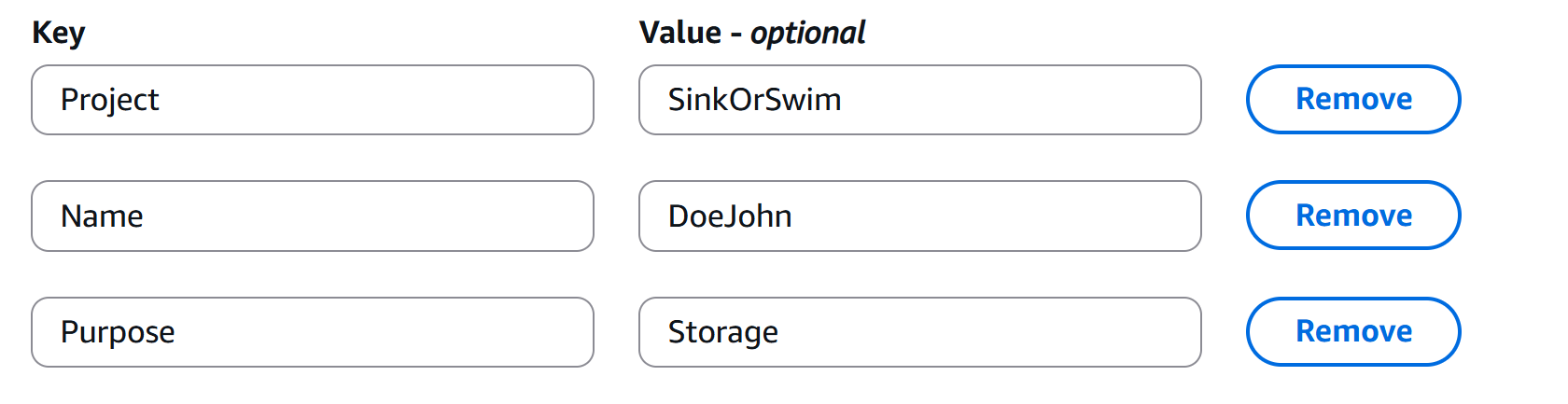
Tags (NOT OPTIONAL): tags are how the bill is broken down by project, person and purpose; this is the one section you must fill in. Add the following three keys, spelled exactly (they are the account’s approved cost-allocation keys, see KB 72454). You will put the same three keys on every resource you create in this lesson.
-
Project: your challenge name
(
SinkOrSwim,WattBot2026,BadgerScribe,BadgerCode, …), e.g.SinkOrSwim -
Name: your last and first name run together,
e.g.
DoeJohn -
Purpose: one of five fixed values, here
Storage
AWS allows tag values of up to 256 characters made of letters,
digits, spaces and + - = . _ : / @, and they are
case-sensitive. We use capitalised words with no spaces, and the same
spelling on every resource: SinkOrSwim and
sinkorswim would be separate rows in Cost Explorer.
Purpose takes one of five values, so that the bill can
be summed by kind of work rather than by individual job. Which job it
was is already in the job’s name.
Purpose |
Used for |
|---|---|
Storage |
your bucket |
Notebook |
the controller notebook instance |
Training |
training jobs, including the fine-tune |
Tuning |
hyperparameter tuning jobs |
Inference |
Bedrock calls, RAG jobs, batch transcription |
Why these three keys, and why they must be spelled exactly
Tags only show up in cost reports if the tag key has been
activated as a cost allocation tag at the account level. On UW–Madison’s
AWS accounts that activation is done centrally by the Public Cloud team
for a fixed list of approved keys, documented at AWS - Tagging with an AWS Account (KB
72454). Name, Project, and
Purpose are on that list; ModelSize,
Team, project (lowercase) or any other
spelling are not, and spend tagged with them is invisible in Cost
Explorer. The KB page says it plainly: cut and paste, because any
deviation stops the tag from reporting.
Two more things to know now, because they come up in every later episode:
- Tags never propagate. Tagging this bucket tags the bucket only. The notebook instance, every training job, processing job and Bedrock inference profile you create later needs its own copy of the same three tags.
- Outside UW, you activate the keys yourself, once, under Billing and Cost Management → Cost allocation tags. Until you do, the tags exist on the resources but not on the bill.
Default encryption: leave SSE-S3 (the default). Objects are encrypted at rest with keys S3 manages; KMS keys only matter when you need to control the keys yourself.
Advanced settings: leave closed.
Click Create bucket at the bottom.
4. Edit bucket policy
Once the bucket is created, the console opens the new bucket’s page (a green “Successfully created bucket” banner at the top, an empty Objects list below). If you land on the bucket list instead, click your bucket’s name. We’ll have to edit our bucket’s policy to allow ourselves proper access to any files stored there (e.g., read from bucket, write to bucket). To set these permissions:
- Click the Permissions tab (next to Objects, Metadata, Properties).
- Scroll down to Bucket policy and click
Edit. Paste the following policy, editing the
bucket name “sinkorswim-doejohn” to reflect your bucket’s name
and replacing
<account-id>with the 12-digit AWS account ID shown at the top right of the console (your instructor will also give it to you)
JSON
{
	"Version": "2012-10-17",
	"Statement": [
		{
			"Effect": "Allow",
			"Principal": {
			    "AWS": [
			        "arn:aws:iam::<account-id>:role/ml-sagemaker-use",
			        "arn:aws:iam::<account-id>:role/ml-sagemaker-bedrock-use"
		        ]
			},
			"Action": [
				"s3:GetObject",
				"s3:PutObject",
				"s3:DeleteObject",
				"s3:ListBucket",
				"s3:ListMultipartUploadParts"
			],
			"Resource": [
				"arn:aws:s3:::sinkorswim-doejohn",
				"arn:aws:s3:::sinkorswim-doejohn/*"
			]
		}
	]
}
What the policy says, line by line:
-
Principal is who gets access. SageMaker
never acts as you; it acts as an IAM role attached to
your notebook instance and to every job you launch (the execution
role). In the workshop account there are two:
ml-sagemaker-bedrock-use, which you will pick when you create your notebook instance in the next episode and which every job inherits, and the older SageMaker-onlyml-sagemaker-use, listed so that a notebook created with it still reads the bucket. The<account-id>is the 12-digit number shown next to the account name at the top right of the console. - Action is what they may do: read objects, write objects, delete objects, list the bucket’s contents, and list the parts of a large upload in progress.
-
Resource is where: the bucket itself (for
listing) and everything in it (
/*, for the object actions).
Without this, the notebook can see the bucket but a job’s
TrainingInput fails with “access denied” when it tries to
list and download its data.
Doing this on your own account
Everything above transfers; only the role name changes.
-
Find your execution role. When you create a
notebook instance (next episode) you either pick an existing role or let
the console create one, named like
AmazonSageMaker-ExecutionRole-20261020T120000. Its ARN is shown on the instance’s page under Permissions and encryption, and looks likearn:aws:iam::<account-id>:role/service-role/AmazonSageMaker-ExecutionRole-.... -
Put that ARN in the policy as the only entry under
Principal, and your bucket name underResource. -
Or skip the bucket policy by putting
sagemakerin the bucket name: the console-created role carries theAmazonSageMakerFullAccesspolicy, which already grants read and write on any bucket whose name containssagemaker. A bucket namedsinkorswim-doejohnis not covered, which is why the bucket policy is needed at all.
Either way, access comes from one of two places: the role’s own IAM policy (what the role may do anywhere) or the bucket’s policy (what this bucket allows). In the same account, allowing in either one is enough. The SageMaker execution role documentation covers the role side. UW-Madison researchers can bring questions about roles, policies and accounts to the Public Cloud team’s weekly office hours (Thursdays at 2 pm on Zoom) or email cloud-services@cio.wisc.edu.
Two buckets appear in this workshop, and this is the only one you
create. Your bucket holds the data you bring (the Titanic
files, uploaded below) and everything the later episodes produce. The
larger datasets for the fine-tuning and RAG episodes (hundreds of
scanned letters, a corpus of PDFs) live in a shared, read-only
bucket that the instructors stage before class: one copy for
everyone, instead of a hundred copies of the same files. You read from
it and never upload to it; in the workshop account it is
ml-marathon-shared, and the episodes that use it have the
name in their first cell.
5. Upload files to the bucket
- If you haven’t downloaded these files yet (part of workshop setup),
download the data for this workshop: data.zip
- Extract the zip folder contents (Right-click -> Extract all on Windows; Double-click on mac)
- Save the two data files (train and test) to a location where they
can easily be accessed. E.g., …
~/Downloads/data/titanic/titanic_train.csv~/Downloads/data/titanic/titanic_test.csv
- Navigate to the Objects tab of your bucket, then Upload.
-
Add Files (
titanic_train.csv,titanic_test.csv) and click Upload to complete. These two files are what the next episodes read: the Accessing S3 episode loads them into a notebook straight from this bucket, and the training and tuning episodes point their jobs at the same two objects.
6. Take note of S3 URI for your data
- After uploading a file to S3, click on the file to locate its
Object URI (e.g.,
s3://sinkorswim-doejohn/titanic_train.csv). The Uniform Resource Identifier (URI) is a unique address that specifies the location of the file within S3. This URI is essential for referencing data in AWS services like SageMaker, where it will be used to load data for processing and model training.
S3 bucket costs
S3 bucket storage incurs costs based on data storage, data transfer, and request counts.
Storage costs
- Storage is charged per GB per month. Typical: Storing 10 GB costs
approximately
$0.23/month in S3 Standard ($0.023/GB-month in us-east-1). - Pricing Tiers: S3 offers multiple storage classes (Standard, Intelligent-Tiering, Glacier, etc.), with different costs based on access frequency and retrieval times. Standard S3 fits most purposes.
Data transfer costs
- Uploading data to S3 is free.
-
Downloading data (out of S3) incurs charges
(~
$0.09/GB). Be sure to take note of this fee, as it can add up fast for large datasets. -
In-region transfer (e.g., S3 to EC2) is free, while
cross-region data transfer is charged (~
$0.02/GB). This is one reason your bucket and your SageMaker resources must be in the same region. - Deleting objects is free.
Request costs
Every operation on a bucket is an API request, and each one is billed
by count. Two kinds matter: GET ($0.0004
per 1,000), charged every time an object is read, and
PUT/LIST ($0.005 per 1,000), charged every
time an object is written or a prefix is listed. One request is one
object, whatever its size: reading a 5 GB file is one GET; reading 5,000
one-kilobyte files is 5,000 GETs.
A GET happens whenever code opens an object:
pd.read_csv("s3://..."),
s3.download_file(...), a training job pulling its input
channel (one GET per object in the prefix), a PyTorch
Dataset that fetches images from S3 one by one. The last
case is the one that bites in ML: a dataset of 100,000 images read once
per epoch is 100,000 GETs per epoch, and a 50-epoch run is 5 million
requests, about $2. Still small, but no longer zero, and a
hyperparameter sweep multiplies it by the number of trials. The usual
fix is the one SageMaker already uses for input channels: copy the data
to the instance once (File mode) and read it from local
disk during training.
For this lesson, requests round to nothing: two CSVs read a few dozen times. Over a research project, the costs rank in a stable order: storage is the one that accumulates (every dataset, model and output you forget to delete keeps billing monthly), transfer out is the one that spikes (one bulk download of results to a laptop), and requests matter only with many small files read repeatedly.
To calculate specific costs based on your needs, storage class, and region, refer to AWS’s S3 Pricing Information.
Challenge: Estimating Storage Costs
1. Estimate the total cost of storing 1 GB in S3 for one month assuming:
- Storage duration: 1 month
- Storage region: us-east-1
- Storage class: S3 Standard
- Data will be retrieved 100 times for model training and tuning by
SageMaker jobs in the same region (
GETrequests) - Data will be downloaded once to your laptop and then deleted after the project concludes
Hints
- S3 storage cost:
$0.023per GB per month (us-east-1) - Data transfer cost (download to your laptop):
$0.09per GB (us-east-1 out to internet) - In-region transfer (reads by SageMaker jobs): free
-
GETrequests cost:$0.0004per 1,000 requests (each model training will incur oneGETrequest) - Deleting objects: free
- Check the AWS S3 Pricing page for more details.
2. Repeat the above calculation using the following dataset sizes: 10 GB, 100 GB, 1 TB (1024 GB)
3. Wrong region. Suppose the 100 GB bucket had been
created in us-east-1 but the SageMaker jobs run in us-east-2. The 100
training reads are now cross-region transfers at $0.02 per
GB each. What does that add, and how does it compare to the download
charge?
Using the S3 Standard rate in us-east-1:
-
1 GB:
-
Storage: 1 GB *
$0.023=$0.023 -
Download: 1 GB *
$0.09=$0.09 -
GET Requests: 100 requests *
$0.0004per 1,000 =$0.00004 -
Deletion:
$0 -
Total Cost:
$0.11304
-
Storage: 1 GB *
-
10 GB:
-
Storage: 10 GB *
$0.023=$0.23 -
Download: 10 GB *
$0.09=$0.90 -
GET Requests: 100 requests *
$0.0004per 1,000 =$0.00004 -
Deletion:
$0 -
Total Cost:
$1.13004
-
Storage: 10 GB *
-
100 GB:
-
Storage: 100 GB *
$0.023=$2.30 -
Download: 100 GB *
$0.09=$9.00 -
GET Requests: 100 requests *
$0.0004per 1,000 =$0.00004 -
Deletion:
$0 -
Total Cost:
$11.30004
-
Storage: 100 GB *
-
1 TB (1024 GB):
-
Storage: 1024 GB *
$0.023=$23.55 -
Download: 1024 GB *
$0.09=$92.16 -
GET Requests: 100 requests *
$0.0004per 1,000 =$0.00004 -
Deletion:
$0 -
Total Cost:
$115.71004
-
Storage: 1024 GB *
These costs assume no additional request charges beyond those for
storage, the download, and GET requests for training.
Two things to notice. The GET line is the same
four-thousandths of a cent at every size: request costs depend on how
many objects you touch, not how big they are. And the download line
grows from 80% of the total at 1 GB to almost all of it at 1 TB: for a
dataset of any size, moving it out of AWS costs several times more than
keeping it there for a month, so plan to keep large data in the region
and bring code to it, not the other way round.
-
Wrong region, 100 GB: 100 reads x 100 GB x
$0.02=$200of inter-region transfer, on top of the$11.30above. The one-time download to a laptop was$9; the misplaced bucket costs twenty times that, silently, and keeps costing with every job. This is why the region is the first setting on the create-bucket form and why the warning above tells you to check it before clicking Create.
Removing unused data (complete after the workshop)
After you are done using your data, it’s important to practice good resource stewardship and remove the unneeded files/buckets.
Option 1: Delete data only (if you plan to reuse bucket for other datasets)
- Go to S3, navigate to the bucket.
- Select files to delete, then Actions > Delete.
- An empty bucket costs nothing: S3 bills for stored bytes and requests, and an empty bucket has neither. Keeping it is fine; the lesson’s end-of-workshop cleanup deletes it only because the shared account is swept between terms.
Option 2: Delete the S3 bucket entirely (you no longer need the bucket or data)
- Select the bucket, click Actions > Delete.
- Type the bucket name to confirm deletion.
Please complete option 2 following this workshop. On your own account, either option stops the bill: the charges come from the objects, not the bucket.
Use S3 for scalable, cost-effective, and flexible storage.
EC2 storage is fairly uncommon, but may be suitable for small, temporary datasets; only
/home/ec2-user/SageMakersurvives a Stop, and nothing survives a Delete.Create the bucket in the same region as your SageMaker notebook, and tag it with the same three keys (
Name,Project,Purpose) you will put on every other resource.Track your S3 storage costs, data transfer, and requests to manage expenses.
Regularly delete unused data or buckets to avoid ongoing costs.