
All in One View
Content from Julia Fundamentals
Last updated on 2026-08-28 | Edit this page
Overview
Questions
- What basic data types can I work with in Julia?
- How can I create a new variable in Julia?
- How do I use a function?
- Can I change the value associated with a variable after I create it?
Objectives
- Know basic Julia data types.
- Assign variables to values.
- Know basic Julia data structures.
Variables
Any Julia REPL or script can be used as a calculator:
OUTPUT
23This is great, but not very interesting. To do anything useful with
data, we need to assign its value to a variable. In Julia, we
assign a value to a variable using the equals sign =. For
example, we can track the weight of a patient who weighs 60 kilograms by
assigning the value 60 to a variable
weight_kg:
Now, whenever we use weight_kg, Julia will substitute
the value we assigned to it. In simple terms, a variable is a
name for a value.
In Julia, variable names:
- can include letters, digits, and underscores
- cannot start with a digit
- are case sensitive
This means that:
-
weight0is valid, but0weightis not -
weightandWeightrefer to different variables
Types of Data
You probably know that computers work with sequences of bits. Bits can have either one of two states, which is commonly denoted using the numbers 0 and 1. A data type specifies how a given sequence of bits is to be interpreted.
Julia supports various data types. Common ones include:
- Integer numbers
- Floating point numbers
- Strings
- Symbols
For example, weight_kg = 60 creates an integer
variable. If we want to represent a fractional number, we can use a floating
point number:
To store text, we create a string by using double quotes:
Using Variables in Julia
Once we’ve assigned variables to values, we can use them in calculations:
OUTPUT
132.66Or modify strings:
OUTPUT
"inflam_001"Built-in Julia Functions
Functions are called with parentheses. You can include variables or
values inside them. Julia provides many built-in functions. To display a
value, we use print or println, which adds a
newline at the end of the output:
OUTPUT
132.66
inflam_001
To display multiple values in Julia, we can pass them to
println separated by commas.
This prints the value of patient_id, followed by the
string " weight in kilograms: ", and then the value of
weight_kg, all in one line.
In Julia, every value has a specific data type (e.g., integer,
floating-point number, string). To check the type of a value or
variable, use the typeof function:
OUTPUT
Float64
String
In this example:
-
60.3is interpreted as a 64-bit floating-point number (specifically, aFloat64). -
patient_idcontains a sequence of characters, so its type isString.
Understanding data types is important because they determine how values behave in operations, and some functions may only work with certain types.
You can also use typeof to explore the structure of more
complex objects like arrays or dictionaries:
OUTPUT
Vector{Int64}
Vector{String}
We can even do math directly when passing arguments to
println:
OUTPUT
weight in pounds: 132.66The above doesn’t change weight_kg:
To change the value of the weight_kg variable, we have
to assign weight_kg to a new value
OUTPUT
weight in kilograms is now: 65.0Check Your Understanding
What values do the variables mass, speed
and age have?
JULIA
mass = 50.0
age = 56
speed = "fast"
println("very " * speed)
mass = mass * 2.0
age_new = age - 20
mass == 50.0, speed == "fast", age == 56mass == 100.0, speed == "very fast", age == 56mass == 100.0, speed == "fast", age == 56mass == 100.0, speed == "fast", age == 36
-
massindeed gets reassigned atmass = mass * 2.0. -
println("very " * speed)prints “very fast” as output, but does not alterspeeditself. - Thats the correct solution
-
age_new = age - 20binds the result ofage - 20to a new variable and does not changeageitself.
OUTPUT
Hello World!(Note: println prints without space by default. We
insert a space by adding a string with just one space character
" ".)
Julia vectors
We create a vector by putting values inside square brackets and separating the values with commas:
OUTPUT
nums = [1, 3, 5, 7]
length(nums) = 4
eltype(nums) = Int64
typeof(nums) = Vector{Int64}
We can access elements of a vector using indices — numbered positions of elements in the vector — or ranges or integers. Indices start at 1 in Julia.
OUTPUT
nums[1] = 1
nums[end] = 7
nums[2:3] = [3, 5]
nums[1:2:end] = [1, 5]ERROR
ERROR: BoundsError: attempt to access 4-element Vector{Int64} at index [0]
Stacktrace:
 [1] throw_boundserror(A::Vector{Int64}, I::Tuple{Int64})
   @ Base ./essentials.jl:15
 [2] getindex(A::Vector{Int64}, i::Int64)
   @ Base ./essentials.jl:919
 [3] top-level scope
@ REPL[17]:1ERROR
ERROR: BoundsError: attempt to access 4-element Vector{Int64} at index [5]
Stacktrace:
 [1] throw_boundserror(A::Vector{Int64}, I::Tuple{Int64})
   @ Base ./essentials.jl:15
 [2] getindex(A::Vector{Int64}, i::Int64)
   @ Base ./essentials.jl:919
 [3] top-level scope
   @ REPL[18]:1
In Julia vectors can change its size. You can add elements with
push!, pushfirst! or append!.
OUTPUT
push!(nums, 9) = [1,3,5,7,9]
pushfirst!(nums, -1) = [-1,1,3,5,7,9]
append!(nums, [11, 13]) = [-1,1,3,5,7,9,11,13]Ch-Ch-Ch-Ch-Changes
Data which can be modified in place is called mutable, while data which cannot be modified is called immutable. Strings and numbers are immutable. Vectors and other collections are mutable: we can change individual elements, append new elements, or reorder the whole vector.
In Julia, functions that modify their arguments in place follow a
naming convention: their name ends with an exclamation mark
!. For example, reverse!(v) reverses a vector
in place, while reverse(v) returns a new, reversed copy and
leaves v unchanged.
Be careful when modifying data in place. If two variables refer to the same vector (aliasing), and you modify the vector, it changes for both variables. Use copy to create an independent vector.
JULIA
push!(nums, 9)
@show nums

nums_rev = reverse(nums)      # non-mutating
@show nums nums_rev

reverse!(nums)                # mutating
@show nums
OUTPUT
nums = [1, 3, 5, 7, 9]
nums = [1, 3, 5, 7, 9]
nums_rev = [9, 7, 5, 3, 1]
nums = [9, 7, 5, 3, 1]
Because of pitfalls like this, code which modifies data in place can be more difficult to understand. However, it is often far more efficient to modify a large data structure in place than to create a modified copy for every small change. You should consider both of these aspects when writing your code.
Slicing with a range (v[2:4]) creates a copy; use
@view v[2:4] to create a non-copying view.:
JULIA
v = [1, 2, 3, 4, 5]

r = v[2:4]         # copy
r[1] = 20
@show v r

vw = @view v[2:4]  # view
vw[1] = 30
@show v vw
OUTPUT
v = [1, 2, 3, 4, 5]
r = [20, 3, 4]
v = [1, 30, 3, 4, 5]
vw = [30, 3, 4]Heterogeneous Vectors and missing
Vectors in Julia can contain elements of different types, but this
flexibility comes with a performance cost. Prefer a consistent, concrete
element type when possible. For unknown or unavailable data, Julia has a
preset type Missing with its single instance
missing; no need to roll your own. Similarly it has a type
for the absence of data called Nothing with its single
instance nothing.
JULIA
ages = Union{Missing,Float64}[10.0, 12.5, missing]
@show ages eltype(ages)

mix = [1, 2.0]
@show mix eltype(mix)
OUTPUT
ages = Union{Missing, Float64}[10.0, 12.5, missing]
eltype(ages) = Union{Missing, Float64}
mix = [1.0, 2.0]
eltype(mix) = Float64
mix is not heterogeneous because of promotion.
2D-Arrays (matrices)
Creating 2D-Arrays can be done by using square brackets and separating row elements by spaces and columns by semicolons:
OUTPUT
2×3 Matrix{Int64}:
 1  2  3
 4  5  6
And indexing can be done using either one or two indexes:
OUTPUT
A[4] = 5
A[2, 1] = 4
A[1, 2:3] = [2, 3]
A[:, 2] = [2, 5]
A[1:1, 2:3] = [2 3]
A[1:2:end, :] = [1 2 3]
As you can see from A[4] = 5 Julia is
column-major, which means that column elements are next to each
other in memory. In a row-major language A[4] would have
been 4.
Further information can be found in the
documentation and the LinearAlgebra
standard library.
Slicing Strings
A section of an array is called a slice. We can take slices of strings as well:
JULIA
element = "oxygen"
println("first three characters: ", element[1:3])
println("last three characters: ", element[4:6])
OUTPUT
first three characters: oxy
last three characters: gen
What is the value of element[1:4]? What about
element[5:end]? Or element[:]? What is
element[end]? What is element[end-1]?
OUTPUT
oxyg
en
oxygen
n
eThin Slices
The expression element[4:3] (a range where the start is
greater than the end) produces an empty string in Julia, a string
that contains no characters.
If data is an array what does
data[4:3, 5:4] produce? What about
data[4:4, :]?
Stacking Arrays
Arrays can be concatenated and stacked on top of one another in Julia using square bracket syntax.
OUTPUT
3×3 Matrix{Int64}:
 1  2  3
 4  5  6
 7  8  9

3×6 Matrix{Int64}:
 1  2  3  1  2  3
 4  5  6  4  5  6
 7  8  9  7  8  9

6×3 Matrix{Int64}:
 1  2  3
 4  5  6
 7  8  9
 1  2  3
 4  5  6
 7  8  9
Write additional code that slices the first and last
columns of A, and stacks them side by side into a
3×2 array, using only square bracket
syntax.
Pairs and Dictionaries
Dictionaries map keys to values. They are useful when you want fast lookup by a descriptive key rather than by position.
They can be constructed from pairs, where :a => 1 is
a pair linking the value 1 to the symbol
a:
OUTPUT
Dict{String, Int64} with 2 entries:
  "b" => 2
"a" => 1OUTPUT
Dict{Symbol, Int64} with 2 entries:
  :a => 1
:b => 2Dictionary order
The iteration and display order of Dict is not guaranteed. If you
need a stable order for presentation, collect and sort the keys or pairs
explicitly (e.g., sort(collect(keys(d)))) or use
OrderedDictionary from
OrderedDictionaries.jl.
We can also create an empty dictionary first and add keys to it later
with a similar syntax as changing elements of a vector or using
push!.
OUTPUT
d3 = Dict{String,Int}("a" => 3, "b" => 2)When we need the values of a dictionary we can use one of the following:
JULIA
@show d1["a"]                      # exact lookup
@show haskey(d1, "q")              # check without throwing an error
@show get(d1, "q", 0)              # returns default; does not insert
@show get!(d1, "q", 0)             # returns default; inserts if missing
OUTPUT
d1["a"] = 1
haskey(d1, "q") = false
get(d1, "q", 0) = 0
get!(d1, "q", 0) = 0
Tuples and Named Tuples
Tuples are great when you need small, possibly heterogenous,
fixed-size groupings of values. They can be constructed using commas and
parentheses or the tuple function:
Tuples can be destructured into parts and combined by splatting using three dots:
OUTPUT
(1, 42, "x", 1, 2.5, "x")Tuple basics
Parentheses don’t make a tuple—commas do. (1) is just
1, while (1,) is a 1‑tuple. Tuples are
immutable: you can read elements but not reassign them
(t[1] = 10 is an error). Contained objects may themselves
be mutable.
Named tuples are akin to tuples, but each value has an associated name.
The values can then be retrieved either by position or by name.
OUTPUT
nt[1] = 1
nt[:b] = 2.5
nt.name = "Ada"- Basic data types in Julia include integers, strings, and floating-point numbers.
- Use
variable = valueto assign a name to a value. - Use
println(value)or@showto display output. - Julia provides many built-in functions, such as
typeof. - Basic data structures include vectors, dictionaries and tuples.
- Vectors can contain any Julia object, including other vectors (i.e., a vector of vectors).
- Vectors are indexed and sliced with square brackets (e.g.,
vec[1]andvec[2:9]), in the same way as strings and arrays. - Vectors are mutable (i.e., their values can be changed in place).
Content from Analyzing Patient Data
Last updated on 2026-05-21 | Edit this page
Overview
Questions
- How can I process tabular data files in Julia?
Objectives
- Explain what a package is and what libraries are used for.
- Import a package and use the functions it contains.
- Read tabular data from a file into a program.
- Select individual values and subsections from data.
- Perform operations on arrays of data.
Loading data
To begin processing the clinical trial inflammation data, we need to load it into Julia. Depending on the file format we have to use different packages. Some examples are XLSX.jl or JSON.jl. In this example we work with a CSV File. That means we use the package CSV.jl
Before we can use a package in Julia, we need to install it. This can
be done either by entering the package mode in the Julia REPL or by
using Pkg.add("Example"), for example inside a script.
To enter the package manager mode, press ] in the Julia
REPL:
Then you can add a package
Alternatively, to add a package inside a script use
After installing the package, you still need to load it before using its functionality:
After installing the package, we can read the data file like this:
OUTPUT
60×40 Matrix{Int64}:
 0  0  1  3  1  2  4  7  8  3   3   3  10   5
 0  1  2  1  2  1  3  2  2  6  10  11   5   9
 0  1  1  3  3  2  6  2  5  9   5   7   4   5
 0  0  2  0  4  2  2  1  6  7  10   7   9  13
 0  1  1  3  3  1  3  5  2  4   4   7   6   5
 0  0  1  2  2  4  2  1  6  4   7   6   6   9
 ⋮              ⋮               ⋮
 0  1  2  1  1  4  5  4  4  5   9   7  10   3
 0  0  1  3  2  3  6  4  5  7   2   4  11  11
 0  1  1  2  2  5  1  7  4  2   5   5   4   6
 0  1  1  1  4  1  6  4  6  3   6   5   6   4
 0  0  0  1  4  5  6  3  8  7   9  10   8   6
 0  0  1  0  3  2  5  4  8  2   9   3   3  10
If we want to check that the data loaded correctly, we can just print it:
We can check the type of object we’ve created:
OUTPUT
Matrix{Int64} (alias for Array{Int64, 2})To see how many rows and columns the data contains, we can use:
OUTPUT
(60,40)Analyzing Data
Julia provides powerful tools for analyzing data. To calculate the
average inflammation for all patients
on all days, we can use the mean function
from the Statistics standard library.
Tip: Make sure to install the required packages first
Then load the packages:
OUTPUT
6.160593220338983Descriptive Statistics
Let’s use three Julia functions to get some basic descriptive statistics from our dataset: maximum, minimum, and standard deviation.
We can use multiple assignment to store all the results in one line.
JULIA
maxval, minval, stdval = maximum(data), minimum(data), std(data)

println("maximum inflammation: ", maxval)
println("minimum inflammation: ", minval)
println("standard deviation: ", stdval)
maximum inflammation: 20
minimum inflammation: 0
standard deviation: 4.625075651890539Exploring Functions
How can you find out what functions are available in a Julia module and how to use them?
Julia provides several ways to explore functions and get help:
-
To list functions and names in a module, use the
names()function. For example: -
To get detailed documentation on a function, use the help mode by typing a question mark
?before the function name in the REPL or Jupyter notebook:This will show you the official help text for
mean. -
To see all methods and signatures of a function, use:
When analyzing data, we often want to find values like the maximum inflammation per patient or the average inflammation per day.
One way is to first select the data for a single patient (row), then apply a function to that data:
JULIA
# Select data for patient 1
patient_1 = data[1, :]

println("maximum inflammation for patient 1: ", maximum(patient_1))
OUTPUT
maximum inflammation for patient 1: 18We don’t need to store the row separately — we can combine selecting the data and applying the function in one step:
OUTPUT
maximum inflammation for patient 3: 17What if we want the maximum inflammation for each patient across all days (i.e., row-wise maximum), or the average inflammation for each day across all patients (i.e., column-wise average)?
In Julia, many functions accept a dims keyword argument
that specifies the dimension (axis) to operate on:
-
dims=1means operate across rows, producing one result per column. -
dims=2means operate across columns, producing one result per row.
For example, to find the average inflammation per day (i.e., average across all patients for each day — column-wise):
OUTPUT
[0.0 0.4576271186440678 1.11864406779661 1.728813559322034 ...]To check the shape:
To get the average inflammation per patient:
OUTPUT
[5.45; 5.425; 6.1; 5.9; 5.55; ...]Change in Inflammation
The patient data is longitudinal — each row represents a series of measurements for one patient over time. That means calculating the change in inflammation over consecutive days is meaningful.
Here’s how you can explore those changes:
OUTPUT
7-element Vector{Int64}:
 0
 1
 1
 3
 3
 1
 3
To compute changes day by day, we use diff:
OUTPUT
[1, 0, 2, 0, -2, 2]- Set
dims=2indiff(data; dims=2)to compute differences along each row (across days for each patient). - If your data is shaped
(60, 40), the result ofdiffwill be(60, 39)— one fewer column, because differences are between pairs of adjacent days. - To get the largest magnitude change for each
patient, combine
diff,abs., andmaximum, again usingdims=2:
This returns a 60×1 array, where each entry is the maximum absolute change in inflammation for that patient.
- Use
Pkg.add("PackageName")to install andusing PackageNameto load packages in Julia. - Load CSV data into a Matrix with
CSV.read("file.csv", CSV.Tables.matrix). - Use
size(df)to inspect Matrix dimensions. - Use
mean,maximum,minimum, andstdto compute statistics on data arrays. - Use
mean(data, dims=1)for column-wise anddims=2for row-wise operations. - Use
diff(data; dims=2)to calculate daily changes per patient.
Content from Visualizing Tabular Data
Last updated on 2026-08-28 | Edit this page
Plotting
The mathematician Richard Hamming once said, “The purpose of
computing is insight, not numbers,” and the best way to develop insight
is often to visualize data. Visualization deserves an entire lecture of
its own, but we can explore a few features of Julia’s
Plots.jl library here. While Julia has several plotting
libraries, Plots.jl is a powerful and flexible option that
works well for most use cases. First, we will load Plots
and use its functions to create and display a heat map of our data:
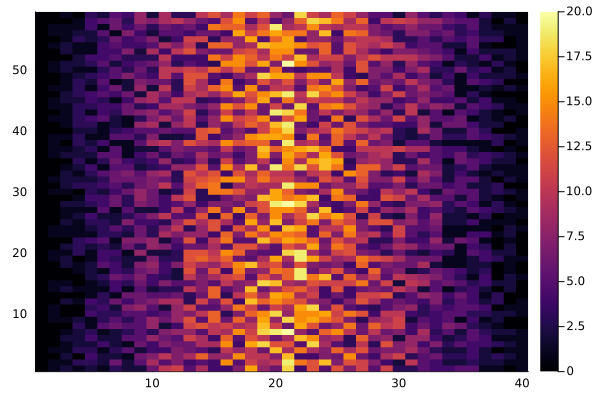
This will display a heat map where colors represent the magnitude of
values in a matrix data. You can customize it further by
adding labels, colorbars, and other visual elements. Each row in the
heat map corresponds to a patient in the clinical trial dataset, and
each column corresponds to a day in the dataset. Darker (blue) pixels in
this heat map represent lower values, while lighter (yellow) pixels
represent higher values. As we can see, the general number of
inflammation flare-ups for the patients rises and falls over a 40-day
period.
Let’s calculate the average inflammation per day across all patients and plot it:
JULIA
plot(transpose(mean(data, dims=1)),
     xlabel="Day",
     ylabel="Average inflammation",
     title="Average inflammation over time",
     legend=false)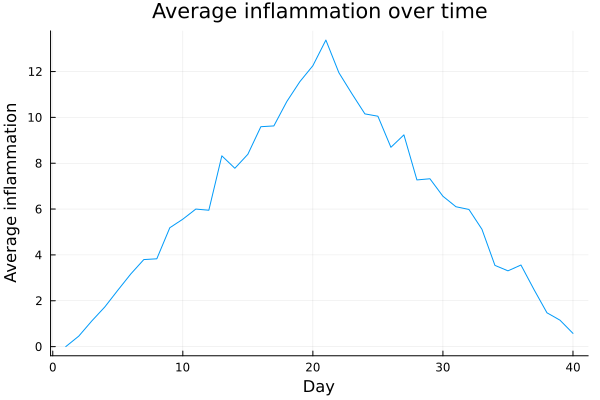
This line of code creates a plot showing the average inflammation
over time. The options xlabel="Day" and
ylabel="Average inflammation" label the axes,
title="Average inflammation over time" adds a title to the
graph, and legend=false hides the legend since only one
line is being shown. Note, that we plot the transposed data since
Plots.jl treats columns as series, not rows.
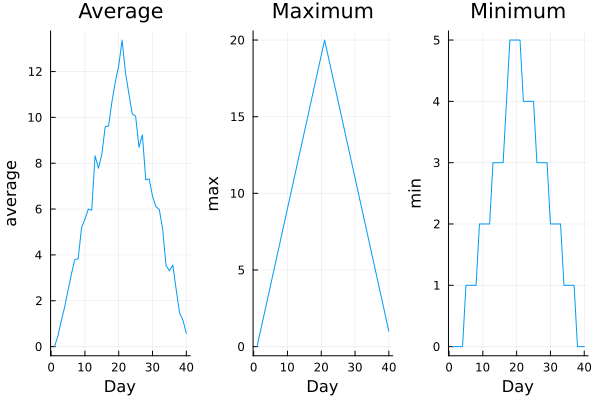
This plot shows how the average inflammation changes day by day, across all patients. It typically starts low, increases steadily, and then decreases — supporting the idea that the treatment takes effect after about three weeks.
JULIA
plot(transpose(maximum(data, dims=1)),
     xlabel="Day",
     ylabel="Maximum inflammation",
     title="Maximum inflammation over time",
     legend=false)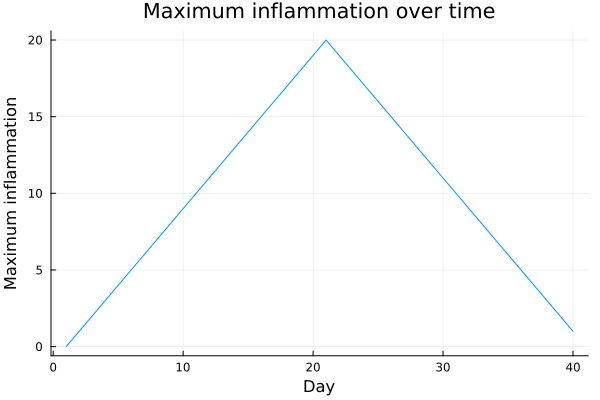
JULIA
plot(transpose(minimum(data, dims=1)),
     xlabel="Day",
     ylabel="Minimum inflammation",
     title="Minimum inflammation over time",
     legend=false)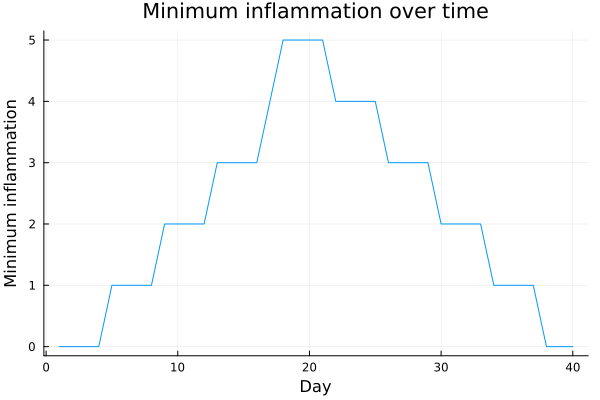
The maximum value rises and falls in a linear pattern, while the minimum values appear to follow a step-like function. Neither of these trends seems biologically plausible, so there may be an error in the data or in how it was collected. These insights would have been difficult to uncover without visualizing the results.
Grouping Plots
With Plots.jl, it is easy to group multiple plots into a single
figure. We first create the individual subplots and save them in
variables. Then, we combine them into one figure using the
layout argument.
JULIA
p1 = plot(transpose(mean(data, dims=1)), title="Average", ylabel="average", xlabel="Day", legend=false)
p2 = plot(transpose(maximum(data, dims=1)), title="Maximum", ylabel="max", xlabel="Day", legend=false)
p3 = plot(transpose(minimum(data, dims=1)), title="Minimum", ylabel="min", xlabel="Day", legend=false)

plot(p1, p2, p3, layout=(1, 3))
savefig("inflammation.svg")
With the layout argument to arrange three plots in one
row. The call to savefig stores the figure as a svg file.
You can change the filename extension to save in other formats like
.pdf or .png.
By using grouped plots, we can compare different trends side by side — for example, while the average inflammation rises and falls gradually, the minimum appears to jump in discrete steps. This visual comparison helps us spot unusual patterns that would be hard to detect just by looking at numbers.
Plot Scaling
Why do all of our plots stop just short of the upper end of our graph?
By default, Plots.jl scales the axes to fit the data range exactly, so lines often stop right before the plot edge.
Plot Scaling (continued)
If we want to change this, we can manually set the y-axis limits
using the ylims keyword argument. Try updating your
plotting code so that all subplots share the same y-axis.
JULIA
p1 = plot(transpose(mean(data, dims=1)), title="Average", ylabel="average", xlabel="Day", ylims=(0, 20), legend=false)
p2 = plot(transpose(maximum(data, dims=1)), title="Maximum", ylabel="max", xlabel="Day", ylims=(0, 20), legend=false)
p3 = plot(transpose(minimum(data, dims=1)), title="Minimum", ylabel="min", xlabel="Day",ylims=(0, 20), legend=false)

plot(p1, p2, p3, layout=(1, 3))
or
JULIA
p1 = plot(transpose(mean(data, dims=1)), title="Average", ylabel="average", xlabel="Day", legend=false)
p2 = plot(transpose(maximum(data, dims=1)), title="Maximum", ylabel="max", xlabel="Day", legend=false)
p3 = plot(transpose(minimum(data, dims=1)), title="Minimum", ylabel="min", xlabel="Day", legend=false)

plot(p1, p2, p3, layout=(1, 3), ylims = (0, 20))- Use the
Plots.jlpackage to create simple and flexible visualizations.
Content from If/Else - Conditional Statements in Julia
Last updated on 2026-08-28 | Edit this page
Overview
Questions
How can my programs make decisions and behave differently depending on data values?
Objectives
Write conditional statements including if,
elseif, and else branches.
Correctly evaluate expressions containing && (and) and || (or).
In our last lesson, we noticed some suspicious patterns in our inflammation data by creating plots. How can we use Julia to automatically detect the kinds of features we saw, and take different actions depending on the results?
In this lesson, we’ll learn how to write code that only runs when certain conditions are met.
Conditionals
We can ask Julia to take different actions depending on a condition
with an if statement:
OUTPUT
not greater
done
The second line of this code uses the keyword if to tell
Julia that we want to make a choice. If the test that follows the
if statement is true, the body of the if (the
indented lines beneath it) is executed, and "greater" is
printed.
If the test is false, the body of the else branch is
executed instead, and "not greater" is printed. Only one
branch is ever taken before continuing execution to print
"done":
Conditional statements don’t have to include an else. If
there isn’t one, Julia simply does nothing if the test is false:
JULIA
num = 53
println("before conditional...")
if num > 100
    println(num, " is greater than 100")
end
println("...after conditional")
OUTPUT
before conditional...
...after conditional
We can also chain several tests together using elseif
The following Julia code uses elseif to print the sign of a
number:
JULIA
num = -3

if num > 0
    println(num, " is positive")
elseif num == 0
    println(num, " is zero")
else
    println(num, " is negative")
end
OUTPUT
-3 is negativeNote that to test for equality we use a double equals sign
== rather than a single equals sign =, which
is used to assign values.
Comparisons
To compare values we can use the following operators:
-
>: greater than -
<: less than -
==: equal to -
===: identical -
!=: not equal to -
>=: greater than or equal to -
<=: less than or equal to
We can also combine comparisons using logical operators:
-
&&: logical AND (true if both conditions are true) -
||: logical OR (true if at least one condition is true) -
!: logical NOT (inverts the truth value)
The syntax to combine operators looks like this:
JULIA
if (1 > 0) && (-1 >= 0)
    println("both parts are true")
else
    println("at least one part is false")
end
OUTPUT
at least one part is falseOUTPUT
at least one test is true
true and false
true and false are special values in Julia
called Booleans, which represent truth values. A
statement such as 1 < 0 returns false,
while -1 < 0 returns true.
Checking Our Data
Now that we’ve learned how conditionals work, we can use them to check for the suspicious features we observed in our inflammation data. We’ll load the CSV file using Julia’s standard library module DelimitedFiles.
From the first plots, we noticed that the maximum daily inflammation increases by one unit each day. We can check for this suspicious pattern by comparing the maximum values at the start (day 0) and in the middle (day 20) of the study. We also noticed a different issue in the third dataset: the daily minima were all zero (as if a healthy participant had been included in the study). We can check for this using an elseif branch. If neither the maxima check nor the minima check is true, we can use else to give the all-clear.
JULIA
max_inflam_0 = maximum(data[:, 1])
max_inflam_20 = maximum(data[:, 21])

if max_inflam_0 == 0 && max_inflam_20 == 20
    println("Suspicious looking maxima!")
elseif sum(minimum(data, dims=1)) == 0
    println("Minima add up to zero!")
else
    println("Seems OK!")
end
We can test it with another dataset:
JULIA
data = Matrix(CSV.read("inflammation-03.csv", header = false))

max_inflam_0 = maximum(data[:, 1])
max_inflam_20 = maximum(data[:, 21])

if max_inflam_0 == 0 && max_inflam_20 == 20
    println("Suspicious looking maxima!")
elseif sum(minimum(data, dims=1)) == 0
    println("Minima add up to zero!")
else
    println("Seems OK!")
end
OUTPUT
Minima add up to zero!Using this approach, Julia evaluates the conditions in order:
- If the first condition is true, it executes the corresponding block.
- If not, it checks the
elseifcondition. - If neither condition is true, the
elseblock provides a default action.
This allows us to automatically flag suspicious datasets without manually inspecting every plot, saving time and catching patterns systematically.
B gets printed because 4 > 5 is false,
and 4 == 4 is the first true condition. Even though
4 < 5 is also true, it is not executed because in an
if / elseif chain, only the first true branch
runs.
Even if multiple elseif conditions could theoretically
be true, Julia will execute just the first one that is true, starting
from the top of the conditional section.
This contrasts with multiple independent if statements,
where every condition that is true will execute its block, not just the
first.
Close Enough
Write conditions that print true if the variable
a is within 10% of the variable b, and
false otherwise. Compare your implementation with a
partner: do you get the same result for all possible pairs of
numbers?
- Use
if conditionto start a conditional statement,elseif conditionto provide additional tests, andelseto provide a default. - The bodies of the branches of conditional statements must be
enclosed within
if/elseif/elseandend. - Use
==to test for equality. -
X && Yis only true if bothXandYare true. -
X || Yis true if eitherXorY, or both, are true.
Content from Creating Functions
Last updated on 2026-08-28 | Edit this page
Overview
Questions
- How can I define new functions?
- What’s the difference between defining and calling a function?
- What happens when I call a function?
Objectives
- Define a function that takes parameters.
- Return a value from a function.
- Test and debug a function.
- Set default values for function parameters.
- Explain why we should divide programs into small, single-purpose functions.
In the last episode, we’ve seen that Julia can make decisions about what it sees in our data. What if we want to convert some of our data, like taking a temperature in Fahrenheit and converting it to Celsius? We could write something like this for converting a single number:
And for a second number we could just copy the line and rename the variables:
But we would be in trouble as soon as we had to do this more than a couple of times. Cutting and pasting makes our code very long and repetitive very quickly.
We’d like a way to package our code so that it is easier to reuse — a shorthand way of re-executing longer pieces of code. We can do this with functions.
Let’s start by defining a function fahr_to_celsius that
converts temperatures from Fahrenheit to Celsius:
The function definition starts with the keyword
function, followed by the function name
(fahr_to_celsius) and a parenthesized list of parameter
names (temp). The body of
the function — the statements that are executed when it runs — is
indented (by convention) and ends with an end keyword.
Inside the function we use a return statement to send a
result back. When we call the function, the values we pass in are
substituted for the parameter names, so we can use them inside the
function.
Let’s try running our function:
OUTPUT
0.0This calls our function with input 32 and return the
converted value. It works just like calling functions from Julia’s
standard library or external packages.
Composing Functions
Now that we’ve seen how to turn Fahrenheit into Celsius, we can also write a function to turn Celsius into Kelvin:
JULIA
function celsius_to_kelvin(temp_c)
    return temp_c + 273.15
end

println("freezing point of water in Kelvin: ", celsius_to_kelvin(0.0))
OUTPUT
freezing point of water in Kelvin: 273.15If we want to turn Fahrenheit into Kelvin, we could write out the formula directly, but we don’t need to. Instead, we can compose the two functions we already created:
JULIA
function fahr_to_kelvin(temp_f)
    temp_c = fahr_to_celsius(temp_f)
    temp_k = celsius_to_kelvin(temp_c)
    return temp_k
end

println("boiling point of water in Kelvin: ", fahr_to_kelvin(212.0))
OUTPUT
boiling point of water in Kelvin: 373.15In Julia, there’s an even shorter way. We can use the function
composition operator ∘ (typed with
\circ<TAB> in the REPL or editor):
This creates a new function fahr_to_kelvin2
that first applies fahr_to_celsius and then feeds the
result into celsius_to_kelvin.
OUTPUT
Boiling point of water in Kelvin (via ∘): 373.15So instead of writing out the intermediate steps every time, we can
build bigger functions out of smaller ones just by linking them with
∘.
This shows how larger programs are built: we define simple operations, and then combine them into more powerful ones. Real-life functions are usually longer than these small examples but they should stay short enough that someone else can still read and understand them.
Variable Scope
In our temperature conversion functions, we created variables inside
those functions, such as temp, temp_c,
temp_f, and temp_k. These are called local
variables, because they only exist while the function is running. Once
the function finishes, those variables disappear.
If we try to access them outside the function, Julia will throw an error:
JULIA
function fahr_to_kelvin(temp_f)
    temp_c = fahr_to_celsius(temp_f)
    temp_k = celsius_to_kelvin(temp_c)
    return temp_k
end

fahr_to_kelvin(212.0)

println(temp_k)  # trying to access local variable
ERROR
ERROR: UndefVarError: `temp_k` not definedIf we want to keep the result for later use, we need to assign the return value of the function to a variable outside the function:
OUTPUT
temperature in Kelvin was: 373.15Here, temp_kelvin is defined in the global scope
(outside any function).
Inside a function, Julia can read global variables, but it’s usually better style to pass them as arguments. Still, here’s an example:
JULIA
temp_fahr = 212.0
temp_kelvin = fahr_to_kelvin(temp_fahr)

function print_temperatures()
    println("temperature in Fahrenheit was: ", temp_fahr)
    println("temperature in Kelvin was: ", temp_kelvin)
end

print_temperatures()
OUTPUT
temperature in Fahrenheit was: 212.0
temperature in Kelvin was: 373.15
Tidying up
Now that we know how to wrap bits of code up in functions, we can
make our inflammation analysis easier to read and easier to reuse.
First, let’s make a visualize function that generates our
plots:
JULIA
using CSV, Plots, Statistics

function visualize(filename)
    data = CSV.read(filename, CSV.Tables.matrix; header=false)

    plt = plot(layout=(1,3), size=(900,300))

    plot!(plt[1], mean(data, dims=1)', label="", ylabel="average")
    plot!(plt[2], maximum(data, dims=1)', label="", ylabel="max")
    plot!(plt[3], minimum(data, dims=1)', label="", ylabel="min")

    display(plt)
end
and another function called detect_problems that checks
for those systematics we noticed:
JULIA
function detect_problems(filename)
    data = Matrix(CSV.read(filename, header = false))

    max_inflam_0 = maximum(data[:, 1])
    max_inflam_20 = maximum(data[:, 21])

    if max_inflam_0 == 0 && max_inflam_20 == 20
        println("Suspicious looking maxima!")
    elseif sum(minimum(data, dims=1)) == 0
        println("Minima add up to zero!")
    else
        println("Seems OK!")
    end
end
Notice that rather than jumbling this code together in one giant
for loop, we can now read and reuse both ideas separately.
We can reproduce the previous analysis with a much simpler loop:
JULIA
filenames = sort(readdir(); by=identity)

for filename in filenames[1:3]
    println(filename)
    visualize(filename)
    detect_problems(filename)
end
By giving our functions readable names, we can more easily read and understand what is happening in the loop. Even better, if at some later date we want to use either of those pieces of code again, we can do so in a single line.
Documenting Functions in Julia
The usual way to add documentation in Julia is with a docstring,
written in triple quotes """ immediately before the
function definition:
JULIA
"""
    offset_mean(data, target_mean_value)

Return a new array containing the original data,
with its mean shifted to match the desired value.

  Examples
  ========

  offset_mean([1, 2, 3], 0)
  3-element Vector{Float64}:
   -1.0
    0.0
    1.0
"""
function offset_mean(data, target_mean_value)
return (data .- mean(data)) .+ target_mean_value
end
Now we can use Julia’s built-in help system:
OUTPUT
  offset_mean(data, target_mean_value)

  Return a new array containing the original data,
  with its mean shifted to match the desired value.

  Examples
  ========

  offset_mean([1, 2, 3], 0)
  3-element Vector{Float64}:
   -1.0
    0.0
    1.0
Defining Defaults
In Julia, we can pass arguments to functions in two ways: positional
argument, like typeof(data) ,or keyword argument, like
delimin
CSV.read("something.csv", delim=',').
For example, we can read a CSV file with:
JULIA
using CSV

data = CSV.read("inflammation-01.csv", CSV.Tables.matrix; delim=',', header = false)
Notice that the filename is passed as the first positional argument,
but we specify delim using a keyword argument.
To make our own functions easier to use, we can define default values
for parameters. For example, let’s redefine our offset_mean
function:
JULIA
"""
    offset_mean(data::AbstractArray, target_mean_value::Float64=0.0)

Return a new array containing the original data,
with its mean shifted to match the desired value.

  Examples
  ========

  offset_mean([1, 2, 3])
  3-element Vector{Float64}:
   -1.0
    0.0
    1.0
"""
function  offset_mean(data::AbstractArray, target_mean_value::Float64=0.0)
return (data .- mean(data)) .+ target_mean_value
end
The key difference is that target_mean_value now has a
default value of 0.0. If we call the function with two
arguments, it works as before:
OUTPUT
2×2 Matrix{Float64}:
 3.0  3.0
 3.0  3.0
But we can also call it with just one parameter. In that case,
target_mean_value is automatically 0.0:
JULIA
more_data = 5 .+ zeros(2, 2)
println("data before mean offset:")
println(more_data)
println("offset data:")
println(offset_mean(more_data))
OUTPUT
data before mean offset:
[5.0 5.0; 5.0 5.0]
offset data:
[0.0 0.0; 0.0 0.0]
This is useful: we can provide a default value for parameters that usually stay the same but still allow flexibility when needed.
Julia matches positional arguments from left to right, and any argument not explicitly provided takes its default value. We can also override defaults using keyword arguments:
JULIA
function show_values(; a=1, b=2, c=3)
    println("a: $a b: $b c: $c")
end

println("no parameters:")
show_values()
println("one parameter:")
show_values(a=55)
println("two parameters:")
show_values(a=55, b=66)
OUTPUT
no parameters:
a: 1 b: 2 c: 3
one parameter:
a: 55 b: 2 c: 3
two parameters:
a: 55 b: 66 c: 3
We can also set only c:
OUTPUT
only setting the value of c
a: 1 b: 2 c: 77
In summary, Julia’s keyword arguments let us provide sensible defaults for optional parameters, making functions easier to use while still flexible.
Slurping and Splatting
Sometimes we don’t know in advance how many arguments a function
should take. In Julia, we can use the slurping operator
... to collect multiple arguments into a single variable,
and the splatting operator ... to pass the
elements of a collection as separate arguments.
For example:
JULIA
function add_all(nums...)
    return sum(nums)
end

println(add_all(1, 2, 3))
println(add_all(10, 20, 30, 40))
OUTPUT
6
100
In add_all(nums...), all inputs are slurped
into the tuple nums.
Splatting: expand a collection into separate arguments
OUTPUT
45When we call add_all(values...), the array is
splatted so that each element is passed as its own
argument.
This makes functions more flexible when working with variable numbers of arguments.
Multiple Dispatch
One of Julia’s most powerful features is multiple dispatch. This means that the function that gets called depends on the types of all its arguments.
You can define the same function name with different method signatures, and Julia will automatically choose the most specific one.
For example:
OUTPUT
add_together (generic function with 1 method)Now we can use add_together for integers. But if we try
using it with floats, we get an error:
OUTPUT
MethodError: no method matching add_together(::Float64, ::Float64)
The function `add_together` exists, but no method is defined for this combination of argument types.
Thanks to multiple dispatch, we can simply define a new method for the same function:
OUTPUT
add_together (generic function with 2 methods)Now we can call it again, and Julia will automatically use the matching method:
OUTPUT
3.0Since these do the same though, lets define this as the default case for any arguments and define some custom behaviour when adding numbers and strings:
JULIA
add_together(a, b) = a + b  # default for any arguments
add_together(a::String, b::Number) = string(a, b)  # append number to string
add_together(a::Number, b::String) = string(a, b)  # prepend number to string
add_together(a::String, b::String) = a * b  # concatenate two strings
This feature allows you to write clean, readable code while handling many different types naturally.
Readable Functions
Consider these two functions in Julia:
JULIA
# Short, less descriptive version
function s(p)
    a = 0.0
    for v in p
        a += v
    end
    m = a / length(p)
    d = 0.0
    for v in p
        d += (v - m)^2
    end
    return sqrt(d / (length(p) - 1))
end

# More descriptive and readable version
function std_dev(sample)
    sample_sum = 0.0
    for value in sample
        sample_sum += value
    end

    sample_mean = sample_sum / length(sample)

    sum_squared_devs = 0.0
    for value in sample
        sum_squared_devs += (value - sample_mean)^2
    end

    return sqrt(sum_squared_devs / (length(sample) - 1))
end
The functions s and std_dev compute the
same thing — the sample standard deviation — but std_dev is
much easier for a human to read and understand.
As this example shows, documentation and coding style are key for readability. Meaningful variable names and breaking code into logical sections with blank lines help make your code easier to follow.
Readable code is useful not only when sharing with others but also for your future self: if you revisit code months later, good readability will save you a lot of headache!
Do not reinvent the (square) wheel
Functions like std_dev are a good way to illustrate how
to write better code, but if you really need to calculate a standard
deviation, use std of the Statistics standard
library. Usually, battle tested solutions like these behave better than
an ad-hoc solution. Also, reusing existing code lets you focus on the
new code that actually needs to be developed.
Combining Strings
In Julia, “adding” two strings with * produces their
concatenation: "a" * "b" is "ab".
Write a function called fence that takes two parameters,
original and wrapper, and returns a new string
that has the wrapper character at the beginning and end of the
original.
A call to your function should look like this:
OUTPUT
*name*Return versus print
Note that return and println are not
interchangeable in Julia. println prints data to the screen
so we, the users, can see it. return, on the other
hand, makes data visible to the program for further use.
Consider the following function:
What happens if we execute the following commands?
Julia will first execute the function add with
a = 7 and b = 3, so it prints
10.
However, because add does not explicitly return a value,
it returns nothing by default. Thus, A is
assigned nothing and the final println(A)
prints:
OUTPUT
10
nothingSelecting Characters From Strings
In Julia, you can refer to a character in a string using
[index] (for example, [1] for the first
character, [2] for the second, and so on). Additionally,
the keyword end refers to the last character.
Write a function called outer that returns a string made
up of just the first and last characters of its input.
A call to your function should look like this:
OUTPUT
hmGreeting Function with Default Parameter
Write a function called greet that:
- Takes one required parameter
name. - Takes one optional parameter
greetingthat defaults to"Hello". - Returns a string that combines the greeting and the name in the format:
"<greeting>, <name>!"OUTPUT
Hello, Alice!OUTPUT
Hi, Bob!- Define a function using
function function_name(parameter)…end. - Call a function using
function_name(value). - Numbers are stored as integers or floating-point numbers.
- Variables defined within a function are local and can only be seen and used inside that function.
- Variables created outside of any function are global.
- Within a function, global variables can be accessed
- Use docstrings (triple-quoted strings
""" ... """) to document a function. - Specify default values for parameters when defining a function using
parameter=valuein the parameter list. - Parameters can be passed by position, by name (keyword arguments), or omitted to use their default value.
Content from Automating Repetition with Loops
Last updated on 2026-08-28 | Edit this page
Overview
Questions
- How can I do the same operations on many different values?
Objectives
- Explain what a
forloop does. - Correctly write
forloops to repeat simple calculations. - Explain what a
whileloop does. - Trace changes to a loop variable as the loop runs.
- Trace changes to other variables as they are updated by a
forloop.
In the episode “Visualizing Tabular Data”, we wrote Julia
code that plots values of interest from our first inflammation dataset
(inflammation-01.csv), which revealed some suspicious
features in it.
We now have a dozen datasets, and potentially more on the way if Dr. Maverick keeps up their surprisingly fast clinical trial rate. We would like to create plots for all of our datasets without having to copy-paste code for each file.
To do that, we need to teach the computer how to repeat actions automatically — this is where loops come in.
An example of a task that can be solved with a loop is accessing the numbers stored in a vector. We could do this by printing each number on its own.
In Julia, an array (1D arrays are called vectors, 2D arrays are called matrices) is an ordered collection of elements, and each element has a unique number associated with it — its index.
For example, the first number in odds is accessed via
odds[1]. One way to print each number is to write four
separate println statements:
OUTPUT
1
3
5
7
However, this approach has three major drawbacks:
- Not scalable – if the array has hundreds of elements, writing one line per element is unmanageable.
- Difficult to maintain – if we want to decorate each element an asterisk or any other character, we’d have to change every line.
- Fragile – if the array is longer or shorter than expected, we either miss elements or get an error.
Example with a shorter array:
OUTPUT
1
3
5
ERROR
ERROR: BoundsError: attempt to access 3-element Vector{Int64} at index [4]Here’s a better approach: a for loop
OUTPUT
1
3
5
7
This is shorter — definitely shorter than writing a
println for every number in a long list — and more robust
as well:
OUTPUT
1
3
5
7
9
11
In a for loop, the loop variable (like num in the
example) is just a name we give to each element of the collection as we
go through it.
numis the loop variable.During the first iteration, num = 1; during the second, num = 3; and during the third, num = 5, etc.
You can choose any valid variable name instead of num
In Julia, the general form of a for loop is:
Here’s another loop that repeatedly updates a variable:
JULIA
count = 0
people = ["Curie", "Darwin", "Turing"]

for person in people
    count += 1
end

println("There are ", count, " names in the vector.")
OUTPUT
There are 3 names in the vector.It’s worth tracing the execution of this little program step by step.
Since there are three names in people, the statement inside
the loop will be executed three times.
First iteration:
countis 0 (set on line 1) andpersonis"Curie".count = count + 1updatescountto1.Second iteration:
personis"Darwin"andcountis1, socountbecomes2.Third iteration:
personis"Turing"andcountbecomes3.
Since there are no more elements in people, the loop
finishes. Finally, the println statement shows the
result.
Note that in Julia, the loop variable does not overwrite a variable with the same name outside the loop. The loop variable is local to the loop, so it only exists inside the loop body.
For example:
JULIA
person = "Rosalind"

for person in ["Curie", "Darwin", "Turing"]
    println(person)
end

println("after the loop, name is ", person)
OUTPUT
Curie
Darwin
Turing
after the loop, name is Rosalind
Note also that finding the length of an object is such a common
operation that Julia has a built-in function for it called
length:
OUTPUT
4length is much faster than any function we could write
ourselves, and much easier to read than writing a loop to count
elements. It also works on many different kinds of collections in Julia,
so we should always use it when we can.
While Loops
Sometimes, we want to repeat an action until a certain condition is met, rather than looping over a collection. For this, Julia provides a “while loop”.
The general form is:
Example:
OUTPUT
count is 0
count is 1
count is 2
count is 3
count is 4
The loop checks the condition count < 5 before each
iteration. As long as the condition is true, the loop body
runs. Once count reaches 5, the condition is
false and the loop stops.
ou can use while loops when the number of iterations is not known in advance. But be careful!: if the condition never becomes false, the loop will run forever (an infinite loop).
!!!WARNING!!! Example of a potential infinite loop:
This will print 0 endlessly because x never
changes.
In-Place Operators
Julia also provides in-place operators that modify a variable in place. For example:
OUTPUT
6Write some code that sums the positive and negative numbers in a vector separately, using in-place operators. Do you think this is more or less readable than writing it without in-place operators?
JULIA
positive_sum = 0
negative_sum = 0
test_vector = [3, 4, 6, 1, -1, -5, 0, 7, -8]

for num in test_vector
    if num > 0
        positive_sum += num
    elseif num == 0
        # do nothing
    else
        negative_sum += num
    end
end

println("Sum of positives: ", positive_sum)
println("Sum of negatives: ", negative_sum)
Here, the elseif num == 0 branch is optional since
neither sum changes for zero values, but it illustrates the use of
elseif.
Sorting Filenames Into Buckets
In our data folder, large datasets are stored in files
whose names start with "inflammation-" and small datasets
are in files whose names start with "small-". Other files
can be ignored for now.
Your task is to sort these filenames into three separate vectors:
large_files, small_files, and
other_files.
Hint:
use startswith:
OUTPUT
true
falseJULIA
for filename in filenames
    if startswith(filename, "inflammation-")
        push!(large_files, filename)
    elseif startswith(filename, "small-")
        push!(small_files, filename)
    else
        push!(other_files, filename)
    end
end

println("large_files: ", large_files)
println("small_files: ", small_files)
println("other_files: ", other_files)
large_files: ["inflammation-01.csv", "inflammation-02.csv"]
small_files: ["small-01.csv", "small-02.csv"]
other_files: ["myscript.jl"]Counting Vowels
- Write a loop that counts the number of vowels in a string.
- Test it on a few words and full sentences.
- Compare your solution with a neighbor’s — did you handle the letter
ythe same way?
Summing a vector
Write a loop that calculates the sum of elements in a vector by
adding each element and printing the final value, so
[124, 402, 36] prints 562.
Analyzing Multiple Patients’ Data
In this exercise, we’ll use loops to analyze patient data from our clinical trial.
Assume we have loaded the inflammation data as before:
This gives us a 60×40 matrix where each row represents a patient and each column represents a day.
Part 2: Day-by-Day Analysis
Write a loop that finds the maximum inflammation value for each day (each column) and prints it:
Expected output format:
Day 1 max: 8
Day 2 max: 11
...Part 3: Finding High-Inflammation Days
A day is considered “high-inflammation” if the average inflammation for that day is above 8.0.
Write a loop that: 1. Calculates the average inflammation for each day 2. Counts how many days have average inflammation above 8.0 3. Prints the count and the list of those days
JULIA
high_inflammation_days = 0
high_days_list = []

for j in 1:size(data, 2)
    day_avg = mean(data[:, j])
    if day_avg > 8.0
        high_inflammation_days += 1
        push!(high_days_list, j)
    end
end

println("Number of high-inflammation days: ", high_inflammation_days)
println("High-inflammation days: ", high_days_list)Part 4: Patient Trajectory Analysis
For each patient, calculate: - The inflammation on day 1 - The inflammation on the last day (day 40) - Whether their inflammation increased, decreased, or stayed about the same
A patient’s condition is considered: - Improved if the last day’s value is at least 3 less than day 1 - Worsened if the last day’s value is at least 3 more than day 1 - Stable otherwise
Write a loop that prints this analysis for each patient:
Expected output format:
Patient 1: Improved (day 1: 0, day 40: 0)
Patient 2: Stable (day 1: 0, day 40: 9)
...Part 5: While Loop Challenge
Write a while loop that finds the first day where the
average inflammation across all patients exceeds 7.0:
JULIA
day = 1
found = false

while day <= size(data, 2) && !found
    day_avg = mean(data[:, day])
    if day_avg > 7.0
        found = true
    else
        day += 1
    end
end

if found
    println("First day with average inflammation > 7.0: Day ", day, " (average: ", mean(data[:, day]), ")")
else
    println("No day found with average inflammation > 7.0")
end- Use
for variableto process the elements of a collection (like a vector) one at a time. - The body of a
forloop must be placed insidefor ... end. - The body of a
whileloop must be placed insidewhile ... end. - Use
length(thing)to determine the length of a collection (vector, array, string, etc.).
Content from Analyzing Multiple Files
Last updated on 2026-05-04 | Edit this page
Overview
Questions
- How can I apply the same operations to many different files?
Objectives
- Use a built-in function to collect filenames that match a wildcard pattern.
- Write a
forloop to process several files in sequence.
As a final step in processing our inflammation data, we need a way to
gather all the files in our data directory whose names
begin with inflammation- and end with .csv. In
Julia, we can use the Glob.jl package together with file
system functions to accomplish this.
The Glob.jl package provides a function called
glob, which finds files and directories whose names match a
given pattern. We provide those patterns as strings:
- The character
*matches zero or more characters. - The character
?matches exactly one character.
We can use this to get the names of all the CSV files in the current directory:
OUTPUT
[".\\inflammation-01.csv", ".\\inflammation-02.csv", ".\\inflammation-03.csv", ".\\inflammation-04.csv", ".\\inflammation-05.csv", ".\\inflammation-06.csv", ".\\inflammation-07.csv", ".\\inflammation-08.csv", ".\\inflammation-09.csv", ".\\inflammation-10.csv", ".\\inflammation-11.csv", ".\\inflammation-12.csv"]As these examples show, glob returns a vector of file
and directory paths in arbitrary order. This means we can loop over the
vector to do something with each filename in turn.
In our case, the “something” we want to do is generate a set of plots for each file in our inflammation dataset.
If we want to begin by analyzing only the first three files in
alphabetical order, we can sort the output from glob and
then take a slice of the first three filenames:
JULIA
using Glob
using CSV
using Plots
using Statistics

# Get sorted list of matching files
filenames = sort(glob("inflammation*.csv", "."))
filenames = filenames[1:3]   # take the first three files

for filename in filenames
    println(filename)

    # Load data
    data = Matrix(CSV.read(filename, header = false))

    # Create subplots
    plt1 = plot(mean(data, dims=1)', ylabel="average", legend=false)
    plt2 = plot(maximum(data, dims=1)', ylabel="max", legend=false)
    plt3 = plot(minimum(data, dims=1)', ylabel="min", legend=false)

    # Arrange side by side
    plot(plt1, plt2, plt3, layout=(1,3), size=(900,300))
    display(current())
end
OUTPUT
inflammation-01.csv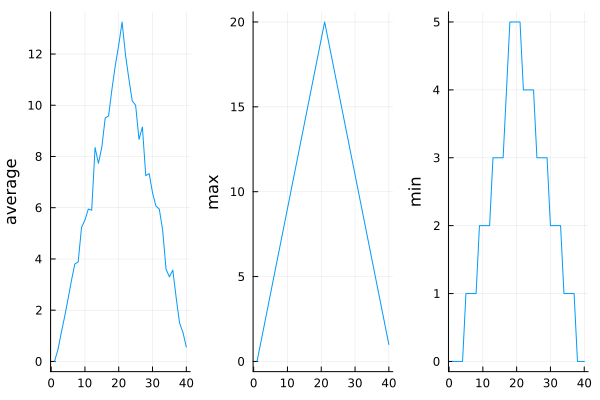
OUTPUT
inflammation-02.csv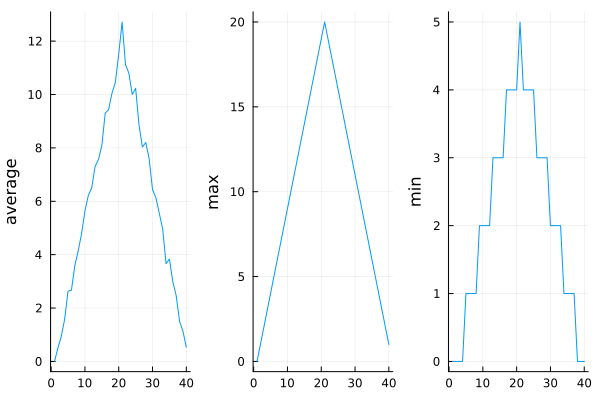
OUTPUT
inflammation-03.csv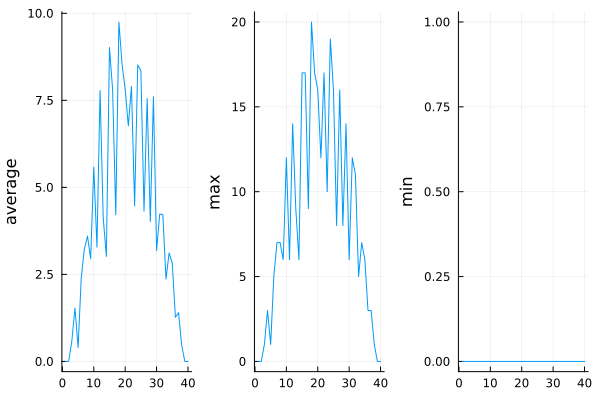
The plots from the second clinical trial file look almost identical to those from the first: the average curves show the same uneven rises and drops, the maximum values follow the same linear increase and decrease, and the minimum values form very similar show similar staircase structures
The third dataset, however, looks different. Its average and maximum plots are much noisier, and appear more realistic than those of the first two datasets. But the minimum values reveal that inflammation is always zero across all 40 days of the trial.
If we generate a heatmap of the third dataset, we can see why:
- Zero values are scattered across patients and days, pointing to possible measurement or recording issues.
- The very last patient has no recorded inflammation at all, which might indicate that this participant doesn’t actually suffer from arthritis.
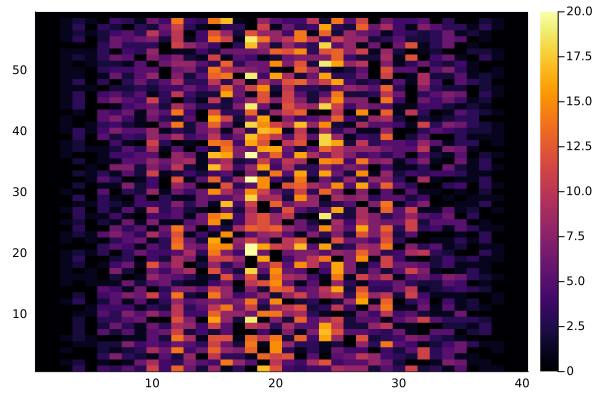
Comparing Maximum Inflammation Across Trials
Use a loop to analyze all inflammation datasets:
Collect all CSV files whose names start with
inflammation-.-
For each file:
- Load the data.
- Compute the maximum inflammation per day.
Store the daily maxima from each file.
Plot all daily maxima curves on the same figure to compare the trials.
Identify which dataset shows the highest peak inflammation overall.
Optional extensions:
- Highlight the dataset with the highest peak using a different color or line style.
- Print the filename corresponding to the highest peak.
Plotting Differences
Plot the difference between the average inflammations recorded in the
first and second datasets (inflammation-01.csv and
inflammation-02.csv), i.e., the difference between the
leftmost plots of the first two figures.
JULIA
using CSV
using Statistics
using Plots

# Load data
filenames = sort(glob("inflammation*.csv", "."))
data0 = Matrix(CSV.read(filenames[1], header = false))
data1 = Matrix(CSV.read(filenames[2], header = false))

# Compute averages across patients (rows) for each day (columns)
# vec convert 1×N matrix to a vector
avg1 = vec(mean(data0, dims=1))
avg2 = vec(mean(data1, dims=1))

# Plot the difference between the first two datasets
plot(avg1 - avg2, ylabel="Difference in average", xlabel="Day",
title="Difference between first and second dataset")Generate Composite Statistics
Use each of the files once to generate a dataset containing values averaged over all patients. Complete the code inside the loop given below:
JULIA
# get list of files (you may use Glob.jl or readdir + sort)
filenames = sort(glob("inflammation*.csv", "."))
composite_data = zeros(60, 40)

for filename in filenames
    # sum each new file's data into composite_data as it's read

end

# divide composite_data by number of files
composite_data = composite_data / length(filenames)
Then generate average, max, and min plots for all patients.
JULIA
using Glob
using CSV
using Statistics
using Plots

# Step 1: Get all CSV files and sort them
filenames = glob("inflammation*.csv", ".")
composite_data = zeros(60, 40)

# Step 2: Sum data from all files
for filename in filenames
    data = Matrix(CSV.read(filename, header = false))
    composite_data .+= data
end

# Step 3: Average over the number of files
composite_data ./= length(filenames)

# Step 4: Plot average, max, and min for all patients
avg_plot = plot(mean(composite_data, dims=1)' , ylabel="average", legend=false)
max_plot = plot(maximum(composite_data, dims=1)' , ylabel="max", legend=false)
min_plot = plot(minimum(composite_data, dims=1)' , ylabel="min", legend=false)

# Step 5: Arrange side by side
plot(avg_plot, max_plot, min_plot, layout=(1,3))
After exploring the heatmaps and statistical plots, and completing the exercises to plot differences between datasets and generate composite patient statistics, we can now summarize insights from the twelve clinical trial datasets.
The datasets seem to fall into two main categories:
- “Ideal” datasets that match Dr. Maverick’s claims very closely, but
show unusual maxima and minima (for example,
inflammation-01.csvandinflammation-02.csv). - “Noisy” datasets that partially agree with Dr. Maverick’s claims, but contain concerning issues such as missing values scattered throughout, and even participants whose data suggest they may not belong in the trial.
Interestingly, all three of the “noisy” datasets
(inflammation-03.csv, inflammation-08.csv, and
inflammation-11.csv) are identical down to the very last
value. Using this information, we confront Dr. Maverick about the
suspicious and duplicated data.
Dr. Maverick admits that the clinical trial data were fabricated. The initial trial suffered from unreliable measurements and poorly selected participants. To demonstrate the efficacy of the drug, fake datasets were created, and the original flawed dataset was reused multiple times to make the trials appear more convincing.
Congratulations! We have analyzed the inflammation datasets and uncovered that they were synthetically generated.
But rather than discard these synthetic datasets, we can continue to use them as valuable tools for learning programming and data analysis.
- Use
glob(pattern, folder)(fromGlob.jl) to get a vector of files whose names match a given pattern. - In the pattern,
*matches zero or more characters, and?matches exactly one character.
Content from Handling errors
Last updated on 2026-07-13 | Edit this page
Overview
Questions
- How does Julia report errors?
- How can I handle errors?
Objectives
- To be able to read a traceback, and determine where the error took place and what type it is.
- To be able to describe the types of situations in which syntax errors, indentation errors, name errors, index errors, and missing file errors occur.
Every programmer encounters errors, both those who are just beginning, and those who have been programming for years. Encountering errors and exceptions can be very frustrating at times, and can make coding feel like a hopeless endeavour. However, understanding what the different types of errors are and when you are likely to encounter them can help a lot. Once you know why you get certain types of errors, they become much easier to fix.
JULIA
function icecream()
       ice_creams = ["chocolate", "vanilla", "strawberry"]
       println(ice_creams[5])
       end

icecream()
OUTPUT
ERROR: BoundsError: attempt to access 3-element Vector{String} at index
[5]
Stacktrace:
 [1] getindex
   @ .\essentials.jl:13 [inlined]
 [2] ice()
   @ Main .\REPL[1]:3
 [3] top-level scope
   @ REPL[2]:1
Let’s look at the error massage step by step:
ERROR: BoundsError: attempt to access 3-element Vector{String} at index [5]BoundsError means: you tried to look up something outside the allowed
range. The vector has 3 elements, so the valid indices are
1, 2, and 3 index 5
does not exist.
[1] getindex
   @ .\essentials.jl:13 [inlined]
[2] ice()
   @ Main .\REPL[1]:3
[3] top-level scope
   @ REPL[2]:1
This is Julia telling you where the problem happened:
- At line 3 inside your function
(
println(ice_creams[5])). - That function was called at the REPL (line
[2]).
Don’t panic if your error message is very long!
Sometimes a traceback can go on for 20 lines or more. This doesn’t mean the error is worse — it just means many functions were called before Julia hit the problem.
In most cases, the most useful part is near the bottom, where Julia shows the exact line in your code that caused the error. The lines above just show the chain of function calls that led there.
If you encounter an error and don’t know what it means, it is still important to read the traceback closely. That way, if you fix the error but encounter a new one, you can tell that the error changed.
Additionally, sometimes knowing where the error occurred is enough to fix it, even if you don’t entirely understand the message.
Syntax Errors
When you forget a closing parenthesis, a end keyword, or
type something in the wrong order, you will encounter a syntax error.
This means that Julia couldn’t figure out how to read your program.
For example:
ERROR
ERROR: ParseError:
# Error @ REPL[1]:3:5
    msg = "hello, world!"
    println(msg)
#   └─────────┘ ── Expected `)`
Stacktrace:
 [1] top-level scope
   @ none:1
Here, Julia tells us that there is a syntax error and
shows us where parsing failed. In this case the problem is that the
opening parenthesis in the function header was never closed.
Variable Name Errors
Another very common type of error occurs when you try to use a variable that does not exist. For example:
ERROR
ERROR: UndefVarError: `a` not defined
Stacktrace:
 [1] top-level scope
   @ REPL[8]:1
Julia tells us that the variable a is not defined. These
errors are usually very informative, of the form:
UndefVarError: <variable_name> not definedWhy does this error occur? It depends on what your code was supposed to do, but there are a few very common reasons:
- Forgetting to use quotes around a string
ERROR
ERROR: UndefVarError: `hello` not defined
Stacktrace:
 [1] top-level scope
   @ REPL[9]:1
Here, Julia thinks hello is a variable, not text. To fix
it, you need to write "hello" instead.
- Using a variable before defining it
ERROR
ERROR: UndefVarError: `count` not defined
Stacktrace:
 [1] top-level scope
   @ .\REPL[10]:2
The variable count must be initialized
(e.g. count = 0) before it can be updated in the loop.
- Typos and case-sensitivity
ERROR
ERROR: UndefVarError: `count` not defined
Stacktrace:
 [1] top-level scope
   @ .\REPL[10]:2
In Julia, variable names are case-sensitive: Count and
count are two different variables. Here we defined
Count, but tried to use count, so Julia
reports it as undefined.
Method Errors
Julia uses multiple dispatch, which means functions can have
different implementations (methods) for different argument types. A
MethodError occurs when you call a function with arguments
for which no method is defined.
For example:
ERROR
ERROR: MethodError: no method matching greet(::Int64)The error tells us that the greet function exists, but
there’s no method that accepts an Int64 argument. To fix
this, you could either:
- Pass the correct type:
greet("Alice") - Define a new method for the function:
greet(n::Integer) = "Hello, number " * string(n)
File Errors
Another common type of error occurs when working with files. If you
try to open a file that does not exist, Julia will raise a
SystemError telling you so.
ERROR
ERROR: SystemError: opening file "myfile.txt": No such file or directory
Stacktrace:
 [1] systemerror(p::String, errno::Int32; extrainfo::Nothing)
   @ Base .\error.jl:176
 [2] #systemerror#82
   @ .\error.jl:175 [inlined]
 [3] systemerror
   @ .\error.jl:175 [inlined]
 [4] open(fname::String; lock::Bool, read::Bool, write::Nothing, create::Nothing, truncate::Nothing, append::Nothing)
   @ Base .\iostream.jl:293
 [5] open
   @ .\iostream.jl:275 [inlined]
 [6] open(fname::String, mode::String; lock::Bool)
   @ Base .\iostream.jl:356
 [7] open(fname::String, mode::String)
   @ Base .\iostream.jl:355
 [8] top-level scope
   @ REPL[13]:1
This usually happens because:
- The file does not exist at the given path
- The path is misspelled
- You are in the wrong working directory
If your project looks like this:
myproject/
  writing/
    myfile.txt
and you try:
Julia will throw an error, because the correct path is:
These are the most common errors with files, though many others exist. If you get an error that you’ve never seen before, searching the Internet for that error type often reveals common reasons why you might get that error.
Julia error messages may look intimidating at first, but they contain useful information: what type of error occurred, where it happened, and sometimes hints about why.
An error having to do with the grammar or structure of the program is called a
syntax: ...error.An
UndefVarErrorwill occur when trying to use a variable that does not exist.Containers like arrays and strings will generate a
BoundsErrorif you try to access an element at an index that does not exist.Trying to open a file that does not exist will give you a
SystemError.
Content from Writing Tests
Last updated on 2026-05-04 | Edit this page
Overview
Questions
How can I make my programs more reliable?
Objectives
- Explain what a test is.
- Explain what an assertion is.
- Use tests and assertions to check my code.
Why Testing Matters
When we write code, we want to be confident that it produces the
right results.
Additionally, it should keep working when we make changes. And even if
we make mistakes,
they should be caught early.
Julia provides two simple ways to test your code:
-
@test(from theTeststandard library).
-
@assert(built-in macro).
Using @test
The @test macro is part of Julia’s Test
standard library.
It checks whether an expression evaluates to true.
If not, the test fails but your program keeps running.
OUTPUT
Test PassedOUTPUT
Test PassedOUTPUT
Test PassedOUTPUT
Test Failed at REPL[5]:1
  Expression: 10 / 3 == 3
   Evaluated: 3.3333333333333335 == 3

ERROR: There was an error during testing
@test reports failures without stopping execution. You
usually use it for larger projects where you want to test many things at
once. For these cases, there is another structure we can use:
@testset.
OUTPUT
Test Summary: | Pass  Total  Time
Math tests    |    3      3  0.1s
Test.DefaultTestSet("Math tests", Any[], 3, false, false, true, 1.75629781203e9, 1.756297812095e9, false)
The @assert Macro
The @assert macro is built into Julia. It also checks if
an expression is true, but if the check fails, it
immediately throws an error and stops the program.
OUTPUT
ERROR: AssertionError: 10 / 3 == 3
Stacktrace:
 [1] top-level scope
   @ REPL[8]:1
You can also provide a custom error message:
OUTPUT
ERROR: AssertionError: x must be non-negative!
Stacktrace:
 [1] top-level scope
   @ REPL[10]:1
When to Use What?
- Use
@testwhen writing test files or checking lots of conditions at once. - Use
@assertinside your program to enforce assumptions (like “input must be positive”).
Test
Write a function
is_even(n)that returnstrueifnis even.-
Add a testset that checks:
-
is_even(2)istrue. -
is_even(3)isfalse.
-
Add an assertion in your function that throws an error if
nis not an integer.
Content from Debugging
Last updated on 2026-07-13 | Edit this page
Overview
Questions
- How can I debug my program?
Objectives
- Debug code containing an error systematically.
- Identify ways of making code less error-prone and more easily tested.
- Use debugging tools and techniques in Julia.
Once testing has uncovered problems, the next step is to fix them. Many novices do this by making more-or-less random changes to their code until it seems to produce the right answer, but that’s very inefficient (and the result is usually only correct for the one case they’re testing). The more experienced a programmer is, the more systematically they debug, and most follow some variation on the rules explained below.
It’s always important to check that our code is “plugged in”, i.e., that we’re actually exercising the problem that we think we are. Every programmer has spent hours chasing a bug, only to realize that they were actually calling their code on the wrong data set or with the wrong configuration parameters, or are using the wrong version of the software entirely. Mistakes like these are particularly likely to happen when we’re tired, frustrated, and up against a deadline, which is one of the reasons late-night (or overnight) coding sessions are almost never worthwhile.
The first step in debugging something is to know what it’s supposed to do. “My program doesn’t work” isn’t good enough: in order to diagnose and fix problems, we need to be able to tell correct output from incorrect. But writing test cases for scientific software is hard, because if we knew what the output of the scientific code was supposed to be, we wouldn’t be running the software In practice, scientists tend to do the following: Test with simplified data, Test a simplified case, Check conservation laws, Visualize
We can only debug something when it fails, so the second step is always to find a test case that makes it fail every time. The “every time” part is important because few things are more frustrating than debugging an intermittent problem: if we have to call a function a dozen times to get a single failure, the odds are good that we’ll scroll past the failure when it actually occurs.
Make It Fail Fast: If it takes 20 minutes for the bug to surface, we can only do three experiments an hour. This means that we’ll get less data in more time and that we’re more likely to be distracted by other things as we wait for our program to fail, which means the time we are spending on the problem is less focused. It’s therefore critical to make it fail fast.
Change One Thing at a Time: Every time we make a change, however small, we should re-run our tests immediately, because the more things we change at once, the harder it is to know what’s responsible for what (those N! interactions again). And we should re-run all of our tests: more than half of fixes made to code introduce (or re-introduce) bugs, so re-running all of our tests tells us whether we have regressed.
Keep Track of What You’ve Done: Debugging works best when we keep track of what we’ve done and how well it worked. If we find ourselves asking, “Did left followed by right with an odd number of lines cause the crash? Or was it right followed by left? Or was I using an even number of lines?” then it’s time to step away from the computer, take a deep breath, and start working more systematically. Records are particularly useful when the time comes to ask for help. People are more likely to listen to us when we can explain clearly what we did, and we’re better able to give them the information they need to be useful.
Version Control
Version control is often used to reset software to a known state during debugging, and to explore recent changes to code that might be responsible for bugs.
Git is a great example for a version control Software.
If we can’t find a bug we should ask for help.
We could ask a colleague or describe our problem in an online forum. Asking for
help also helps alleviate confirmation bias. If we have just spent an
hour writing a complicated program, we want it to work, so we’re likely
to keep telling ourselves why it should, rather than searching for the
reason it doesn’t. People who aren’t emotionally invested in the code
can be more objective, which is why they’re often able to spot the
simple mistakes we have overlooked.
Practical Debugging Tools in Julia
While the systematic approach above is essential, Julia provides several tools to make debugging more efficient:
Using @show for Quick Inspection
The @show macro prints both the expression and its
value, making it perfect for quick debugging:
OUTPUT
x = 5
y = 10
x + y = 15
This is much more informative than separate println
statements and doesn’t require updating code when variable names
change.
Using @debug for Conditional Debugging
The @debug macro only prints when the
JULIA_DEBUG environment variable is set:
JULIA
using Logging

@debug "Starting analysis with data size: " size(data)

# Your code here

@debug "Processing complete"
This allows you to leave debug statements in your code without cluttering normal output.
Common Debugging Scenarios
Scenario 1: Wrong Results
If your function produces incorrect results, try:
- Test with simple, known values
- Use
@showto trace intermediate values - Compare with a known correct implementation
JULIA
# Example: Calculate standard deviation incorrectly
function std_wrong(data)
    n = length(data)
    m = sum(data) / n
    return sqrt(sum((data .- m)^2) / n)  # Bug: should use .- for element-wise subtraction
end

# Test with simple data
test_data = [1, 2, 3, 4, 5]
@show std_wrong(test_data)
@show Statistics.std(test_data) # Correct implementationDebugging Workflow Example
Let’s debug a function that should find the patient with the highest average inflammation:
JULIA
function find_max_patient(data)
    max_avg = 0
    max_patient = 0

    for i in 1:size(data, 1)
        avg = mean(data[i, :])
        if avg > max_avg
            max_avg = avg
            max_patient = i
        end
    end

    return max_patient
end

# Test with known data
test_data = [1 2 3; 4 5 6; 7 8 9]  # Row 3 should have highest average (5.0)
println("Expected patient 3, got: ", find_max_patient(test_data))
If this returns the wrong answer, we’d add @show
statements:
JULIA
function find_max_patient_debug(data)
    max_avg = 0
    max_patient = 0

    for i in 1:size(data, 1)
        avg = mean(data[i, :])
        @show i avg max_avg
        if avg > max_avg
            max_avg = avg
            max_patient = i
            @show "Updated: " max_avg max_patient
        end
    end

    return max_patient
end

find_max_patient_debug(test_data)
This would reveal whether the issue is with the comparison, the update logic, or something else.
Using the Julia Debugger
For more complex debugging, Julia has a built-in debugger:
Or use @enter to start debugging at a function:
This allows you to step through code line by line and inspect variables.
Part 1: Find the Bug
The following function should calculate the average inflammation for each patient, but it’s returning incorrect results:
JULIA
function patient_averages_incorrect(data)
    averages = []
    for i in 1:size(data, 1)
        total = 0
        for j in 1:size(data, 2)
            total += data[i, j]
        end
        avg = total / size(data, 1)  # Bug: dividing by wrong number
        push!(averages, avg)
    end
    return averages
end- Use
@showto trace what’s happening - Identify the bug
- Fix the function
The bug is on the line avg = total / size(data, 1). It
should divide by size(data, 2) (number of days) not
size(data, 1) (number of patients).
Part 2: Bounds Error
Part 4: Debugging Workflow
You’re given this function that should find days where inflammation exceeded a threshold for any patient:
JULIA
function find_high_inflammation_days(data, threshold)
    high_days = []
    for j in 1:size(data, 2)
        if maximum(data[:, j]) > threshold
            push!(high_days, j)
        end
    end
    return high_days
end
But it’s returning an empty array when you expect results. Use debugging techniques to identify the issue and fix it.
The function logic looks correct, but the issue might be with the threshold value or data type. Add debugging:
JULIA
function find_high_inflammation_days_debug(data, threshold)
    high_days = []
    for j in 1:size(data, 2)
        day_max = maximum(data[:, j])
        @show j day_max threshold
        if day_max > threshold
            push!(high_days, j)
        end
    end
    return high_days
end
This would reveal if the threshold is too high or if there’s a type mismatch.
- Know what code is supposed to do before trying to debug it.
- Make it fail every time.
- Make it fail fast.
- Change one thing at a time, and for a reason.
- Keep track of what you’ve done.
- Ask for help.
- Use
@showfor quick variable inspection. - Use
@debugfor conditional debugging output. - Read error messages carefully - they often tell you exactly what’s wrong.
- Test with simple, known values to isolate bugs.
- Use debugging tools like the Julia debugger for complex issues.
Content from Course Conclusion
Last updated on 2026-05-04 | Edit this page
Congratulations! You have completed all parts of this Julia course and built a solid foundation for working with Julia.
By completing these lessons, you not only gained practical skills in Julia but also learned key principles of scientific programming: structuring code, reusability, readability, and testing.
What’s Next?
- Apply Julia to your own projects and research questions.
- Connect with the Julia community: https://julialang.org/community/.
- Continue your learning with more advanced courses on topics like machine learning in Julia, scientific computing, optimization, or high-performance numerical simulations.
Final Thought
Learning to program means: practice, experimentation, and curiosity. With the foundations you have gained here, you are well prepared to use Julia for your own data analysis and scientific projects.
Good luck on your Julia journey