All Images
Image 1 of 1: ‘Screenshot of the GitHub interface highlighting the green New button in the top left corner’
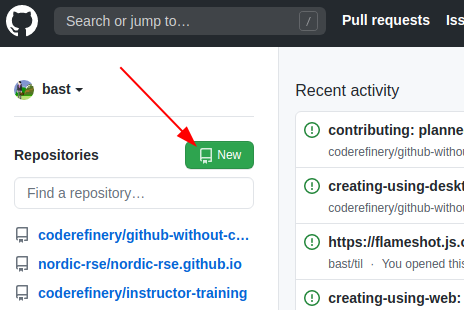
The green “New” button in the top left corner of
GitHub
Image 1 of 1: ‘Screenshot of the GitHub interface highlighting the plus icon menu in the top right corner’
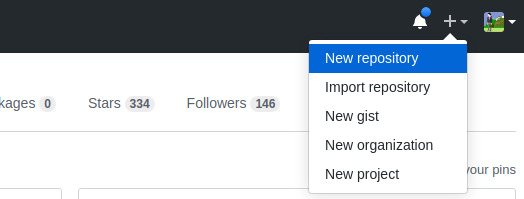
The “+” menu in the top right corner of
GitHub
Image 1 of 1: ‘Screenshot of the GitHub new repository creation form’
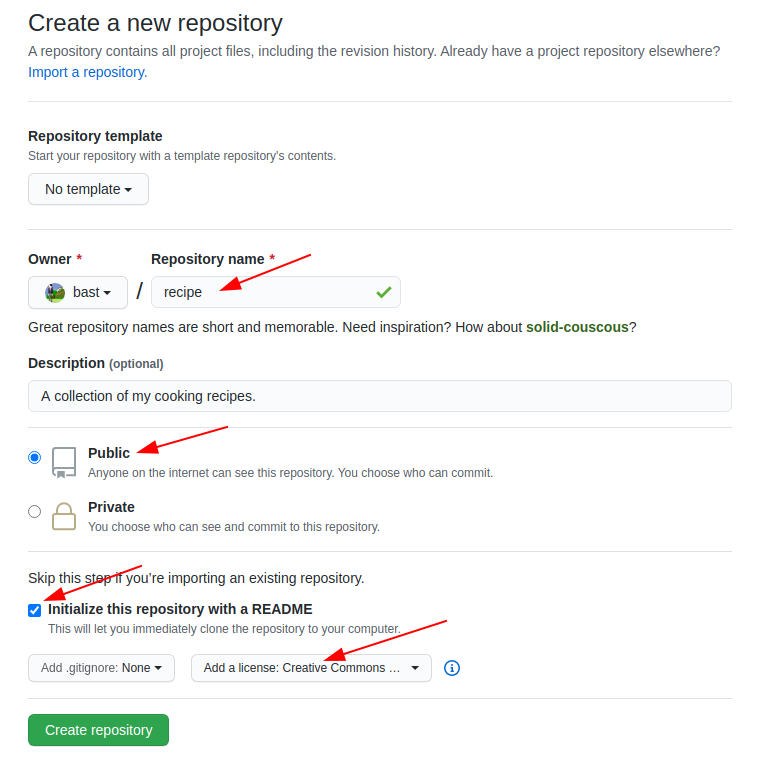
The GitHub new repository form
Image 1 of 1: ‘Screenshot of a newly created GitHub repository showing the README and one commit’
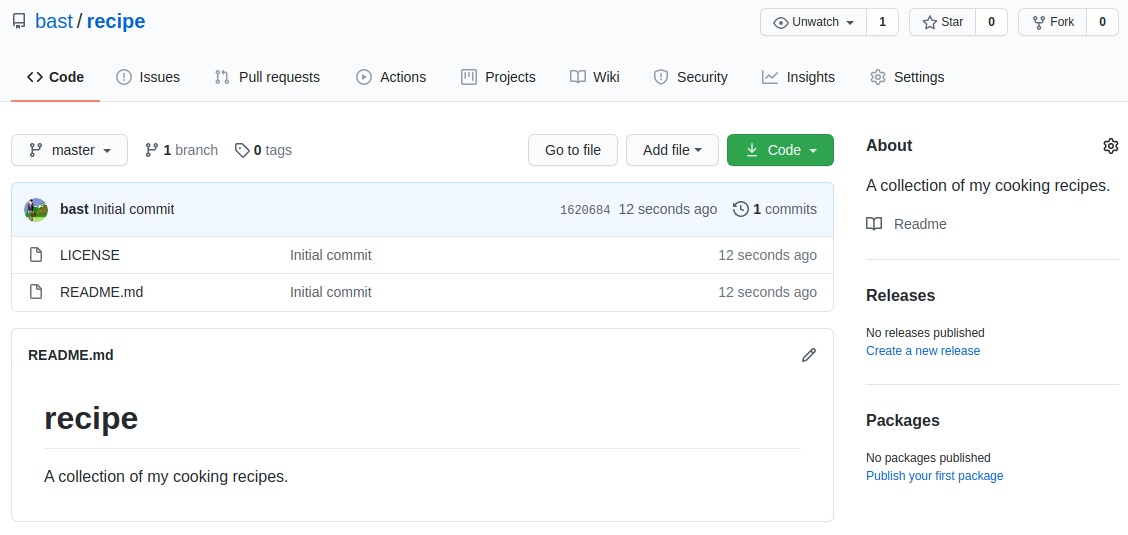
A newly created repository
Image 1 of 1: ‘Screenshot of the GitHub interface highlighting the buttons for creating a new file’
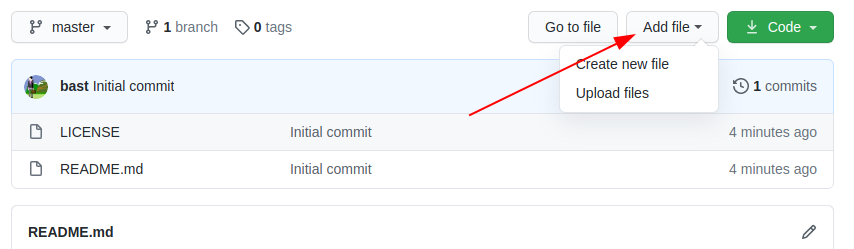
Buttons for creating a new file
Image 1 of 1: ‘Screenshot of the GitHub web editor with recipe content entered’
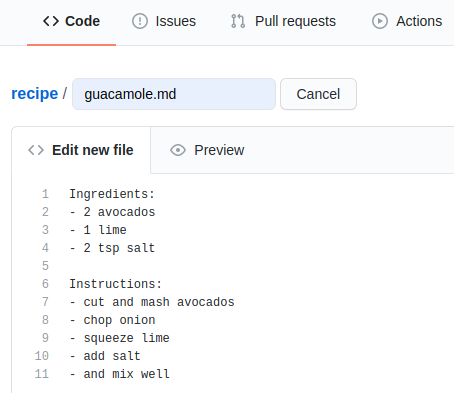
The new file editor
Image 1 of 1: ‘Screenshot of the GitHub commit form for a new file’
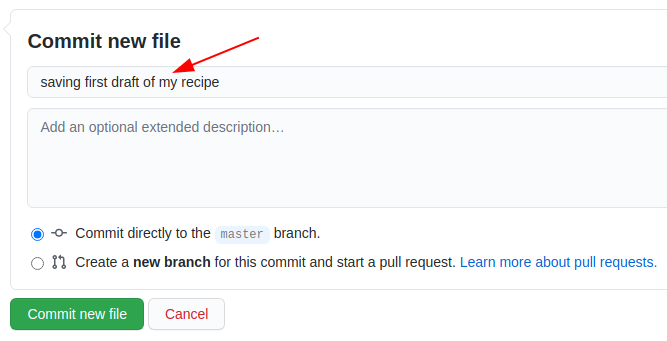
Committing a new file
Image 1 of 1: ‘Screenshot of the GitHub file editor showing a diff preview’
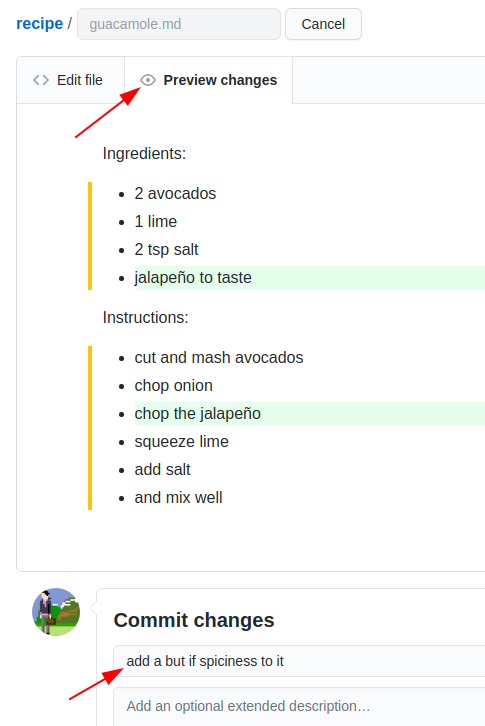
Editing a file with a preview of the
change
Image 1 of 1: ‘Screenshot of the GitHub commits list’
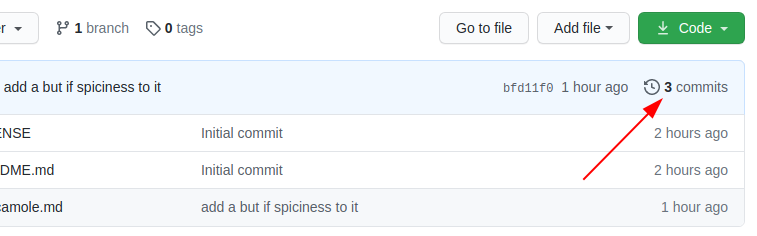
Browsing commits
Image 1 of 1: ‘Screenshot of an example commit history with several commits’
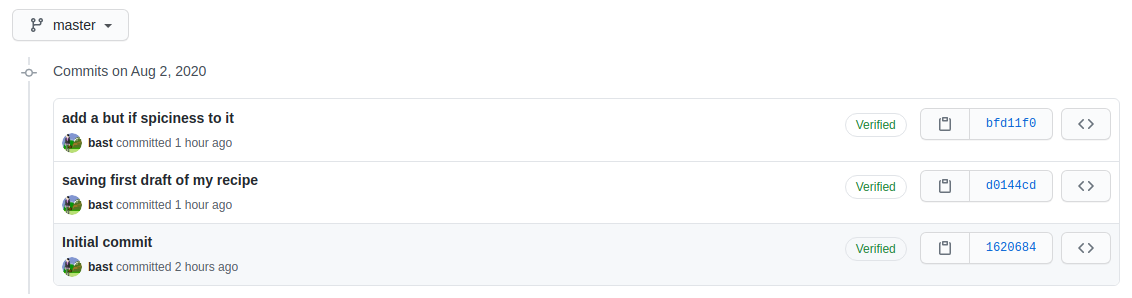
Example commit history
Image 1 of 1: ‘Screenshot of CodiMD showing the Markdown source and rendered preview side by side’
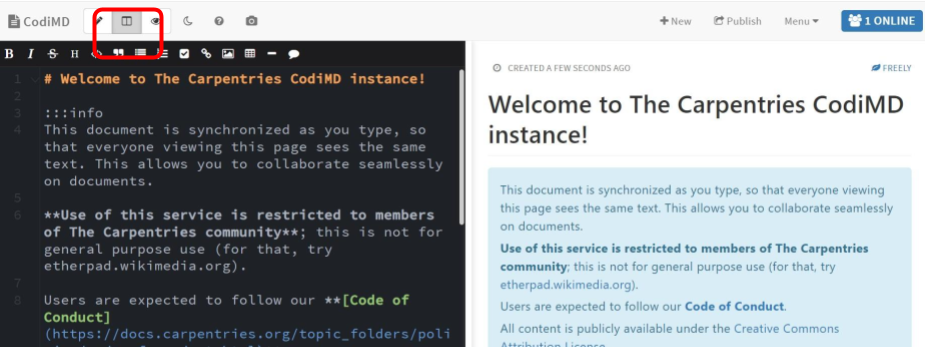
The CodiMD split-pane editor
Image 1 of 1: ‘Screenshot of the GitHub new issue form’
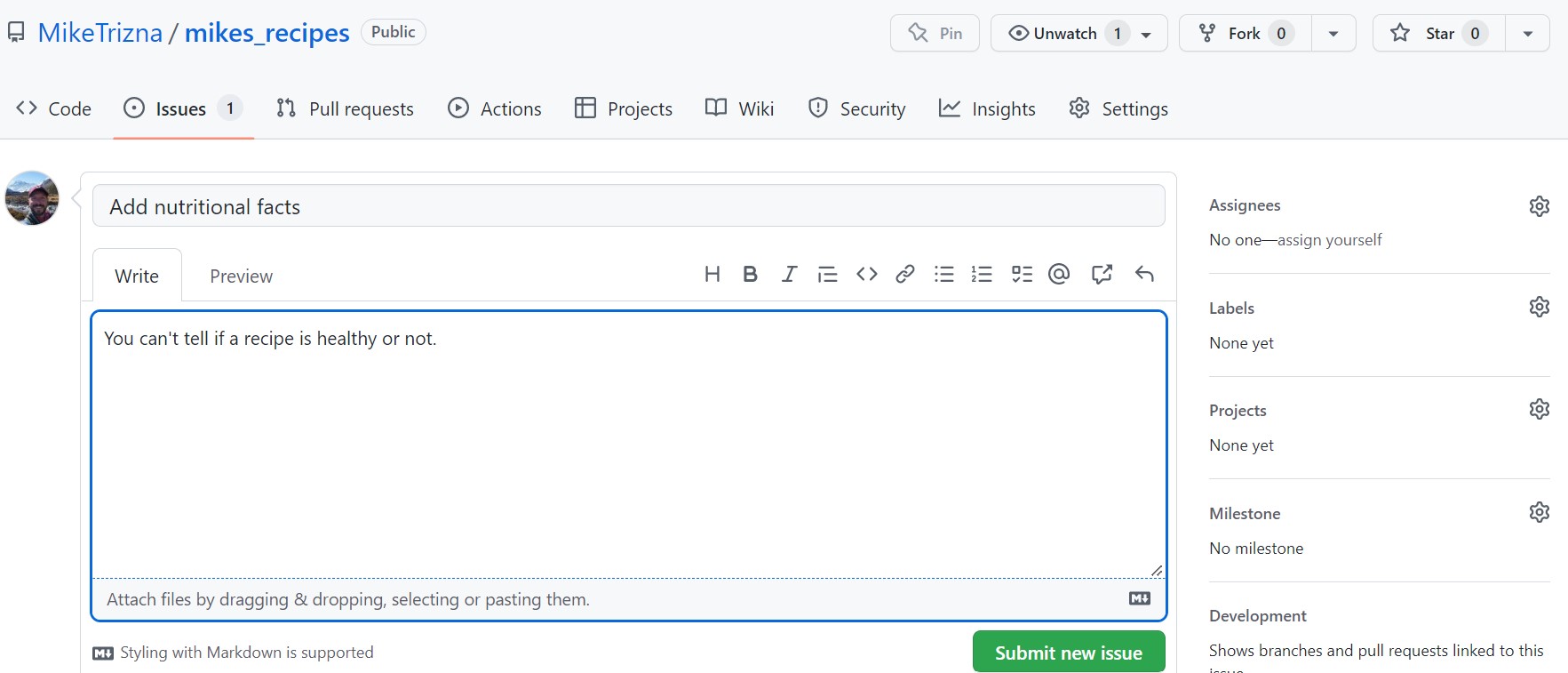
The GitHub new issue form
Image 1 of 1: ‘Screenshot of GitHub prompting to fork a repository before editing a file you do not own’
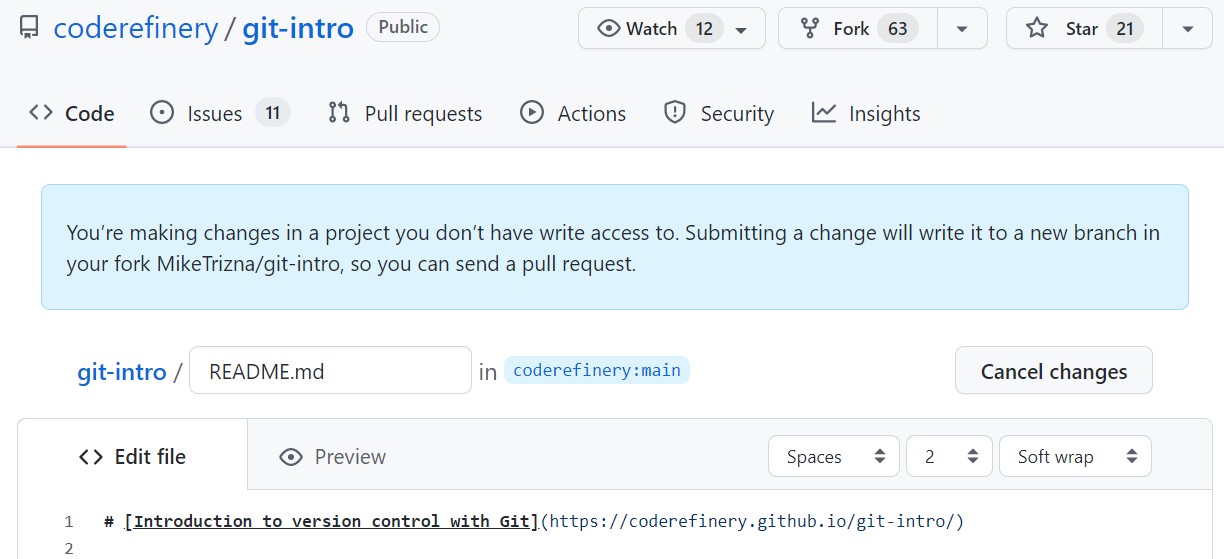
Editing a file on someone else’s repository
triggers a fork
Image 1 of 1: ‘Screenshot of the GitHub commit form showing a Propose changes button instead of Commit changes’
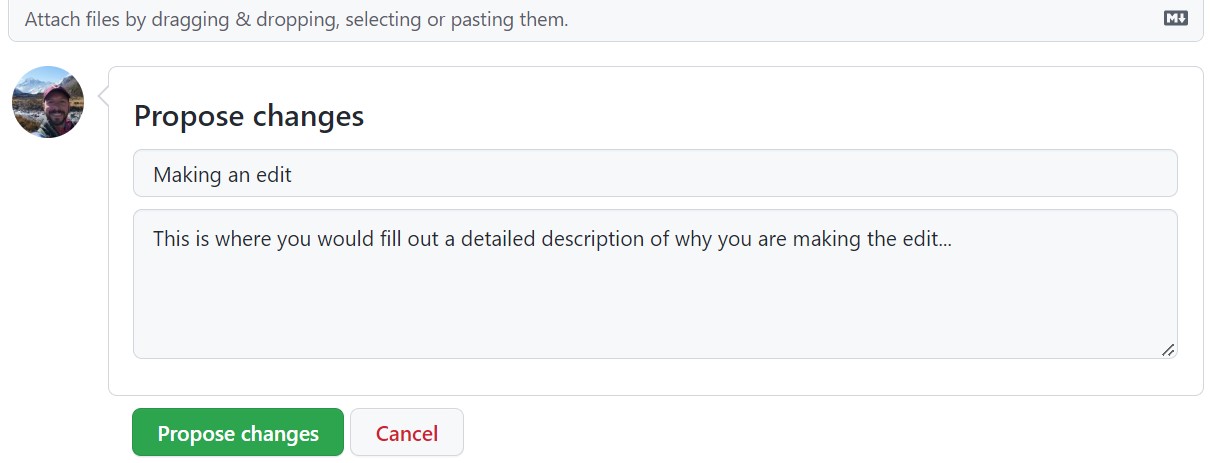
The “Propose changes” button
Image 1 of 1: ‘Screenshot of the GitHub Compare Changes page showing a diff of the proposed changes’
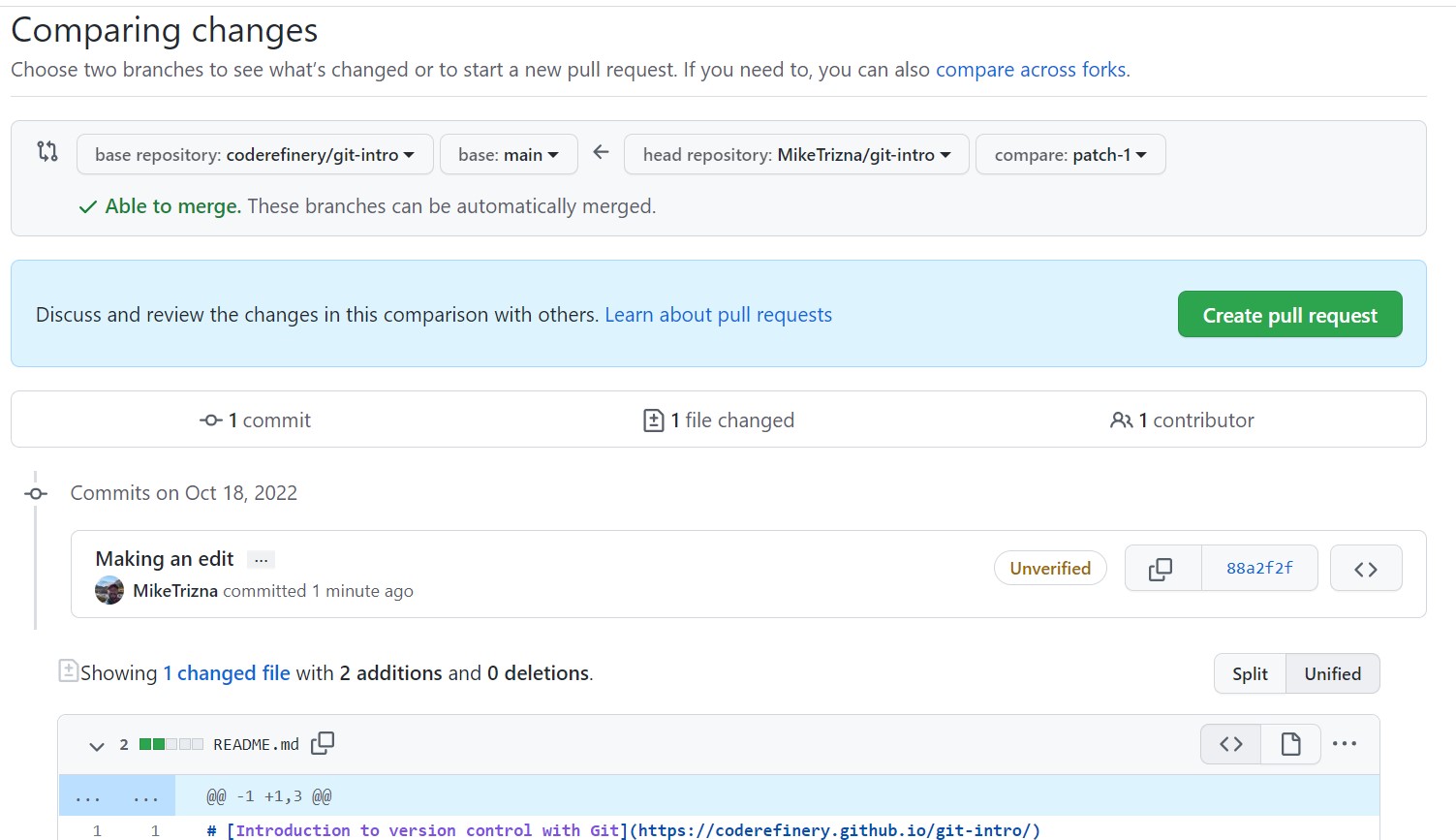
The Compare Changes page
Image 1 of 1: ‘Screenshot of the GitHub Desktop welcome screen’
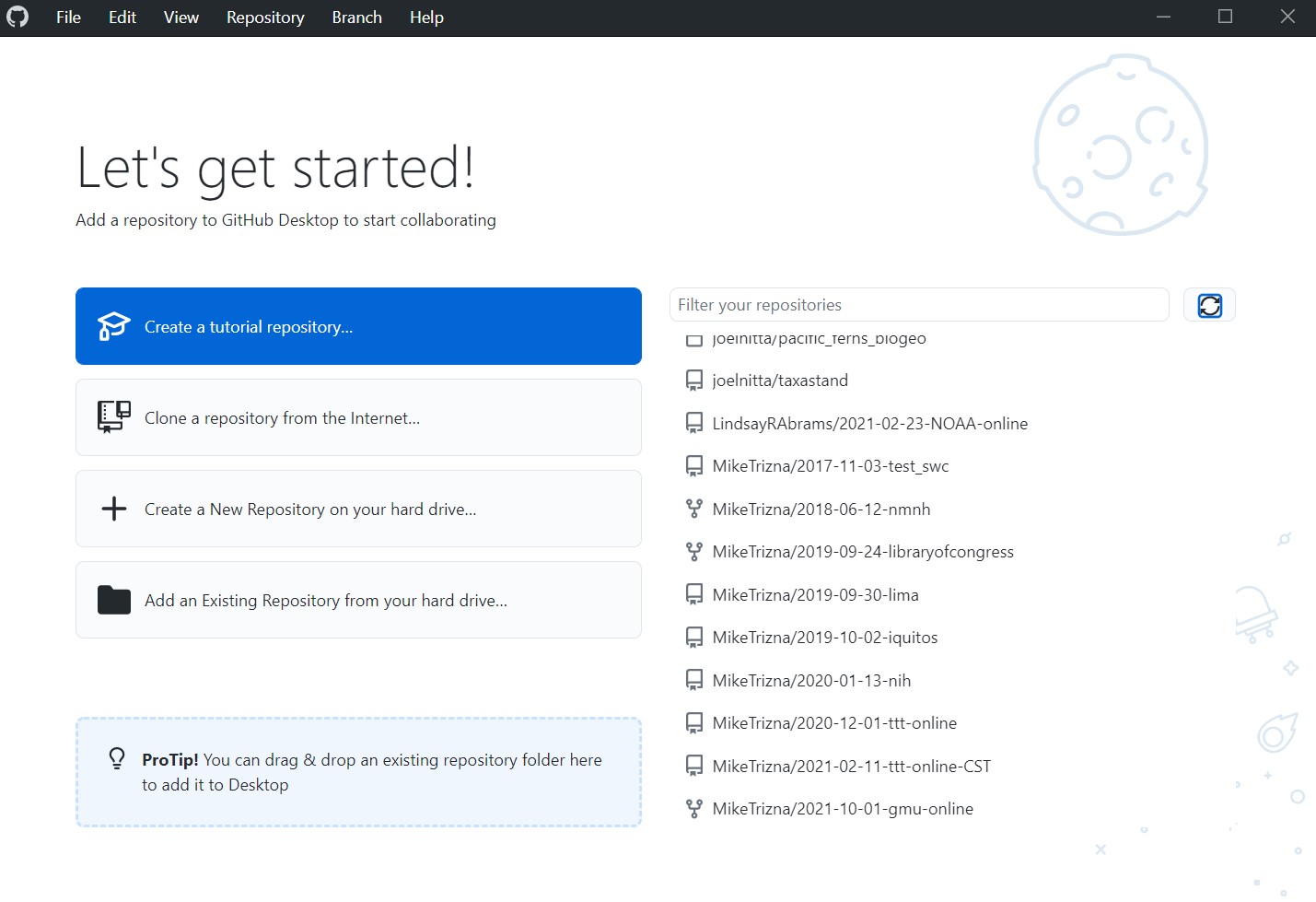
The GitHub Desktop welcome screen
Image 1 of 1: ‘Screenshot of the GitHub Desktop Clone a repository window’
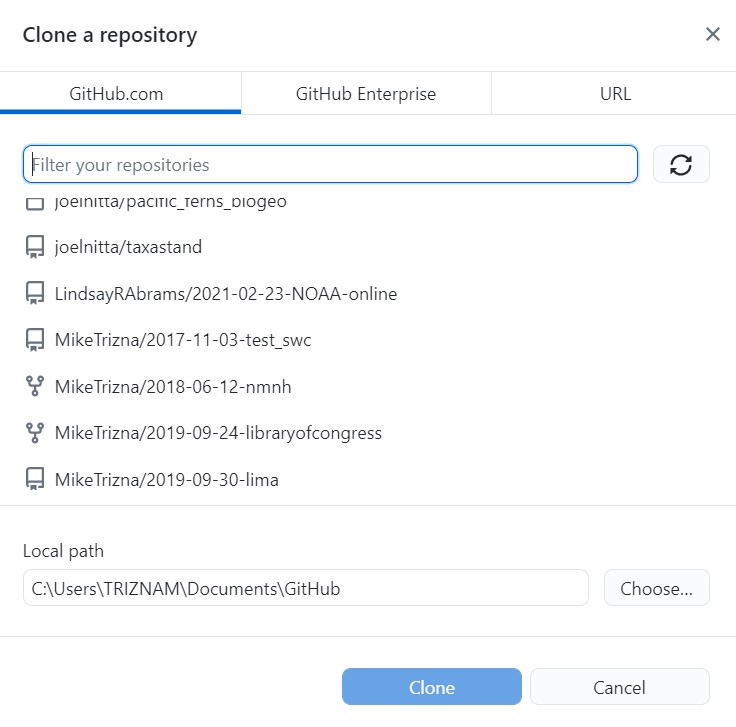
The Clone a repository window
Image 1 of 1: ‘Screenshot of the Changes tab in GitHub Desktop showing new files’
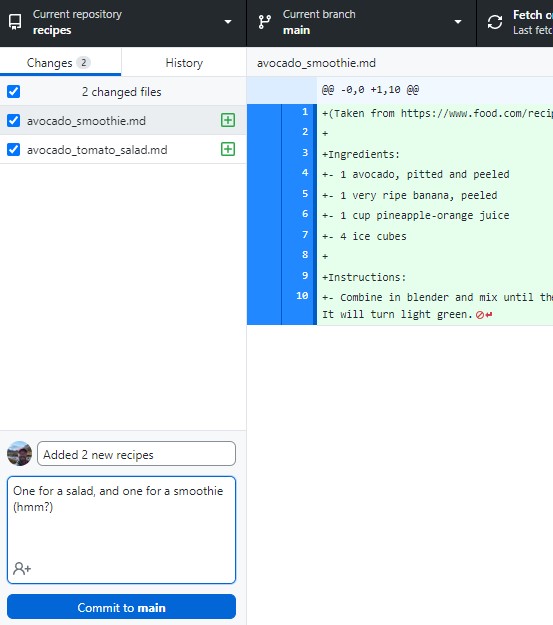
The Changes tab in GitHub Desktop
Image 1 of 1: ‘Screenshot of the History tab in GitHub Desktop showing the latest commit’
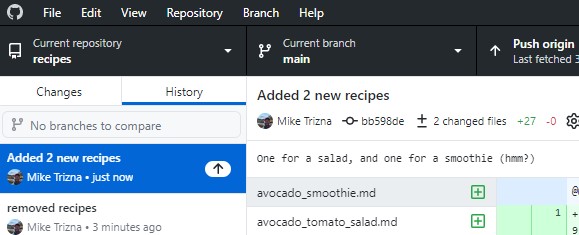
The History tab in GitHub Desktop
Image 1 of 1: ‘Screenshot of GitHub Desktop showing new options in place of Push origin’
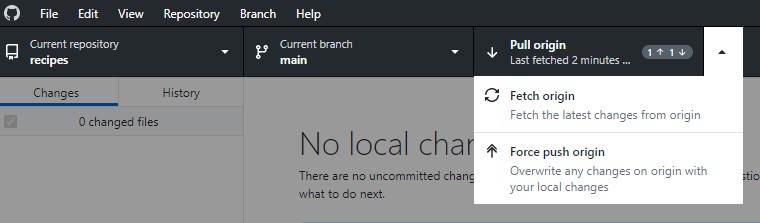
New push/pull options appear after a conflicting
remote change
Image 1 of 1: ‘Screenshot of GitHub Desktop warning about merge conflicts that need to be resolved’
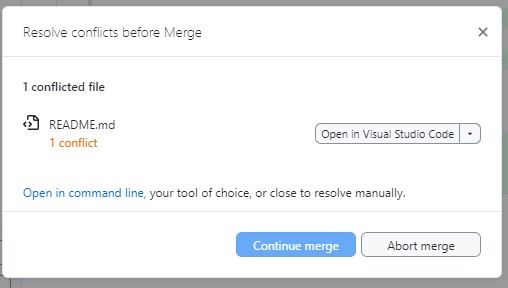
A warning about resolving conflicts
Image 1 of 1: ‘Screenshot of a text editor showing Git conflict markers in the README file’
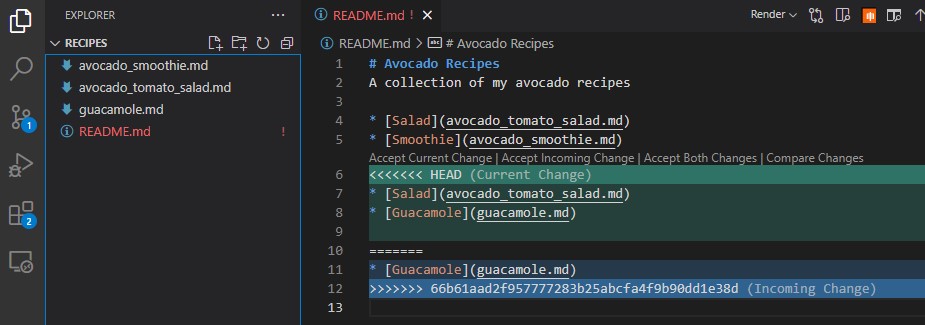
Conflict markers shown in a text editor
Image 1 of 1: ‘Screenshot showing the GitHub Settings Pages section’
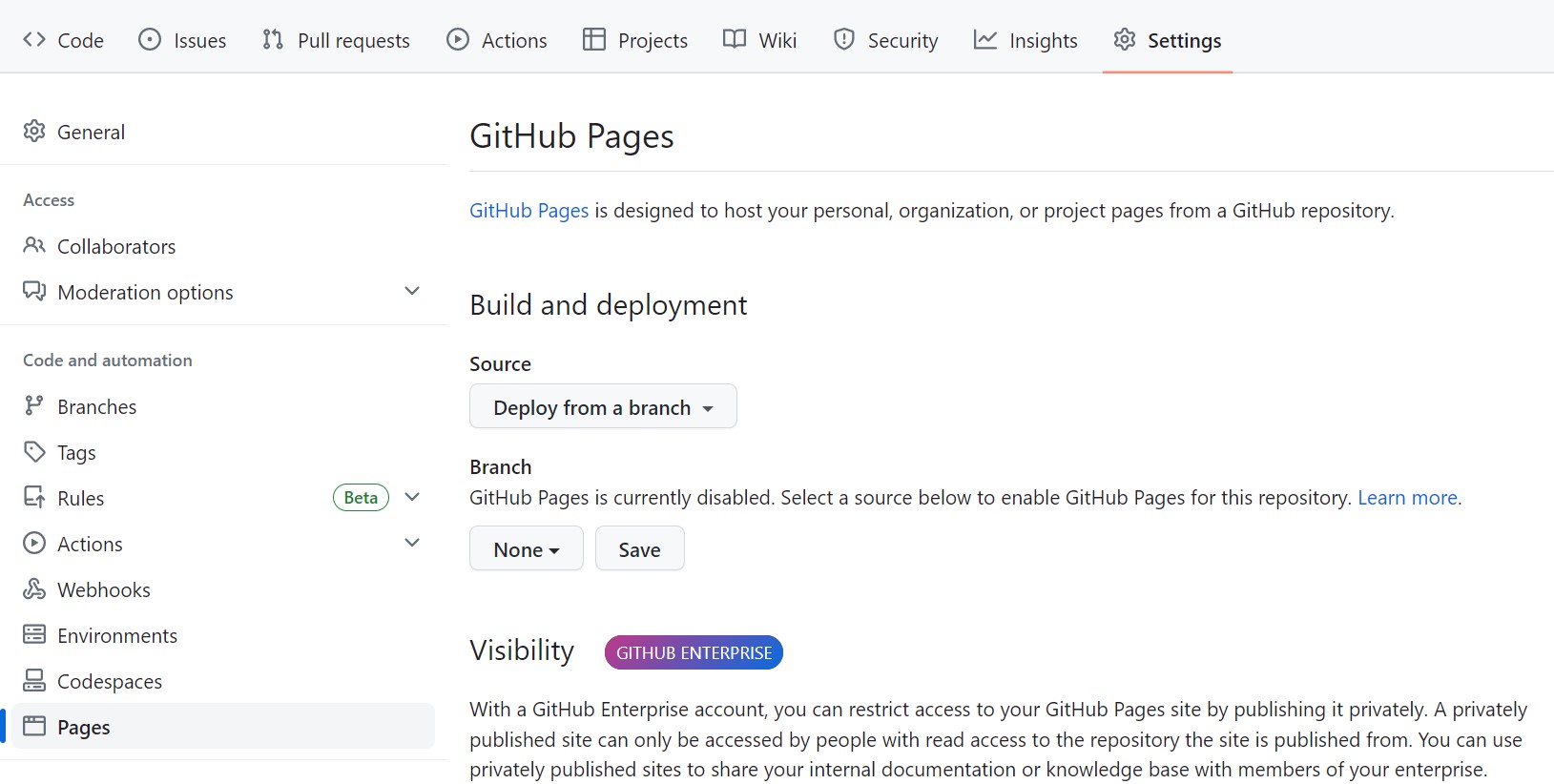
A screenshot showing the GitHub Settings Page
section
Image 1 of 1: ‘Screenshot showing the GitHub Pages settings with the main branch and root folder selected’
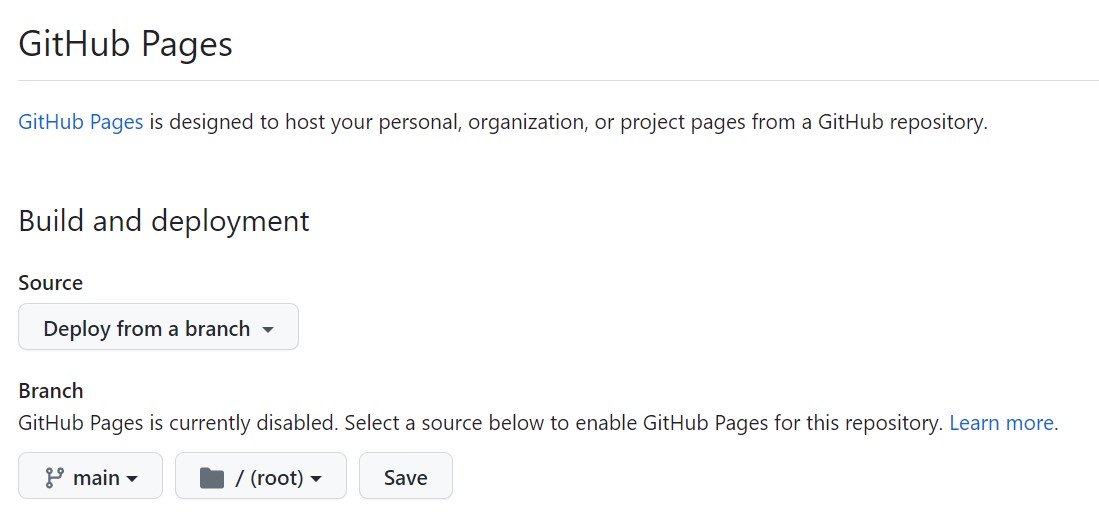
A screenshot showing the GitHub Settings Page
section, with main branch and root selected
Image 1 of 1: ‘Screenshot of the GitHub Actions page showing a pages build and deployment workflow that was just triggered’
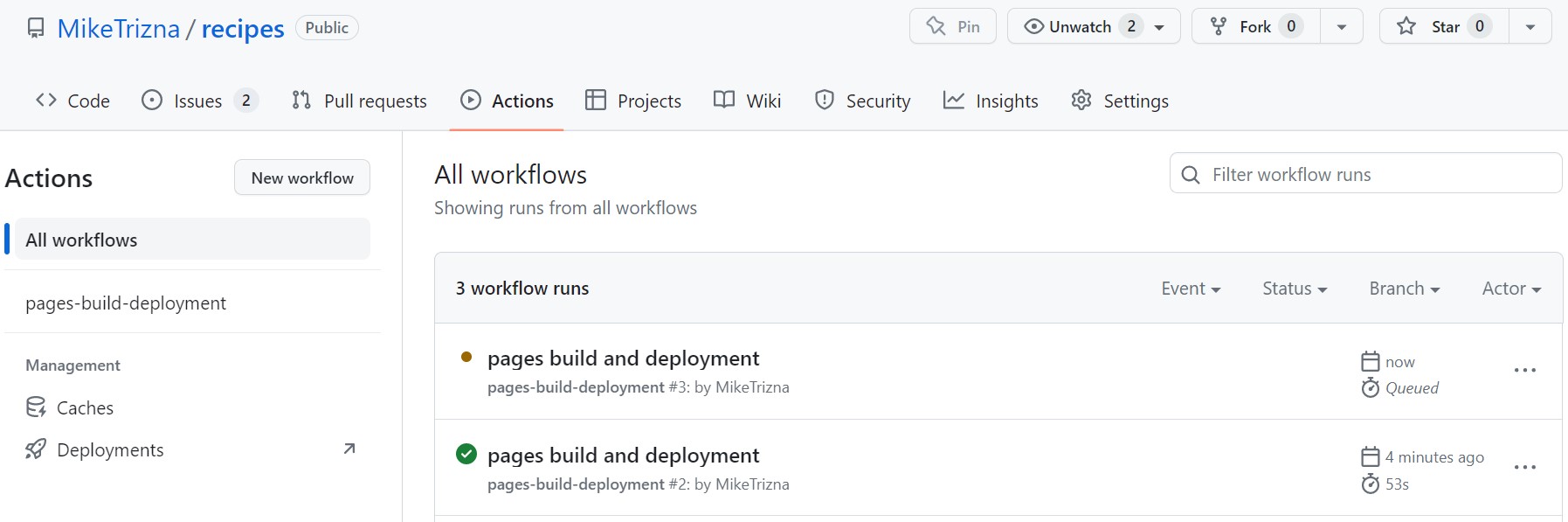
A screenshot showing the GitHub Actions page
with a deployment that has just been triggered
Image 1 of 1: ‘Screenshot of a completed GitHub Actions workflow with a link to the deployed site’
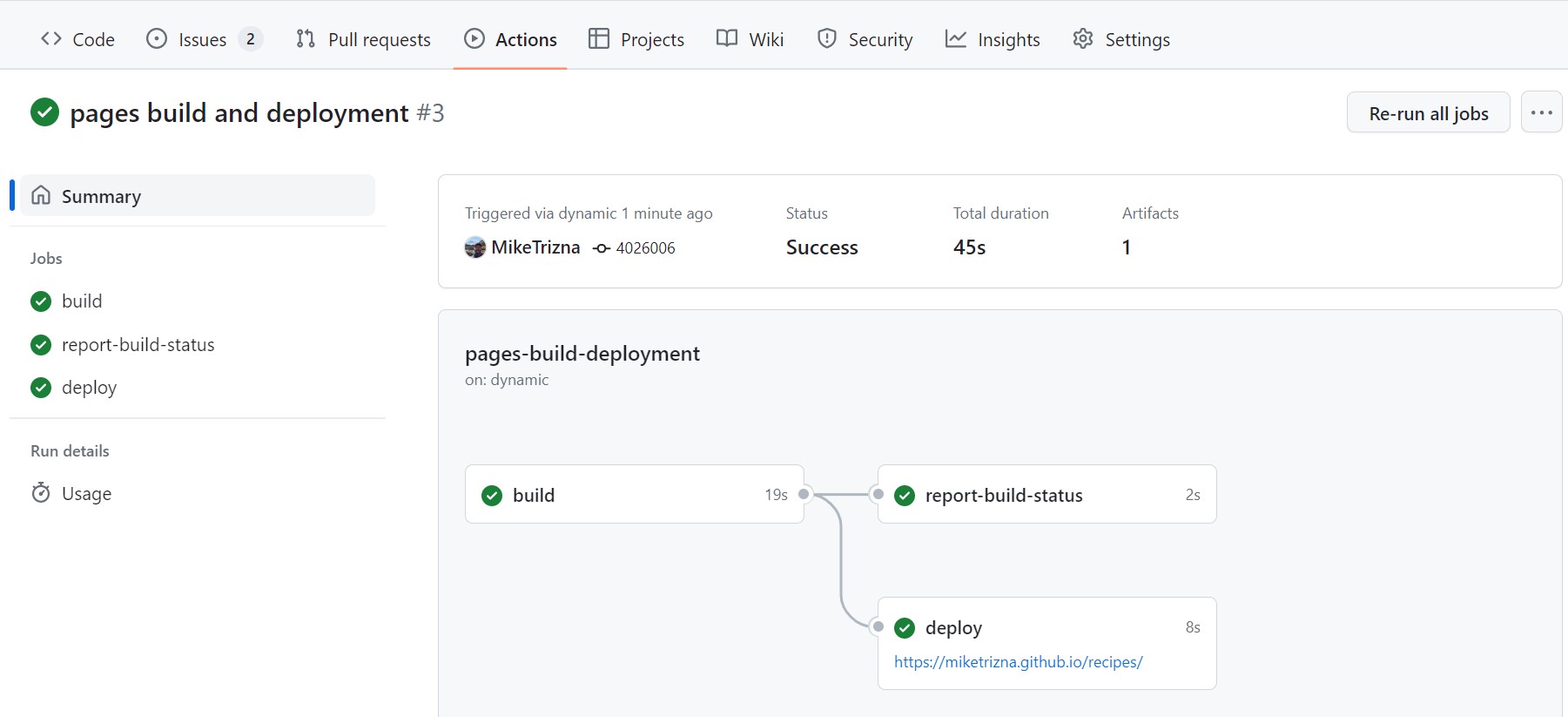
A screenshot showing details of a GitHub Actions
workflow
Image 1 of 1: ‘Screenshot of a simple deployed webpage with links to recipes’
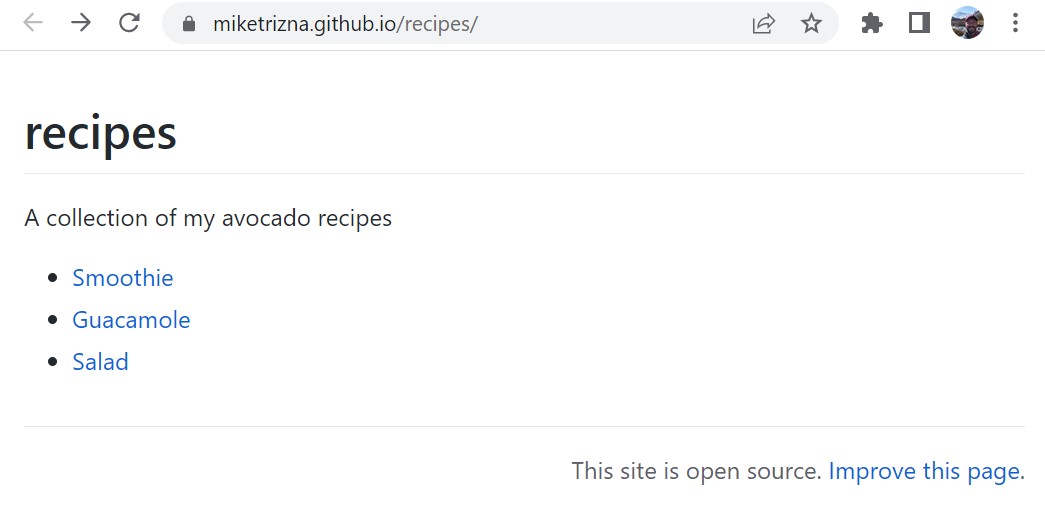
A screenshot showing a simple webpage with links
to recipes
