All Images
Scientific reproducibility: What is it for?
Figure 1
Figure 2
Figure 3
Figure 4
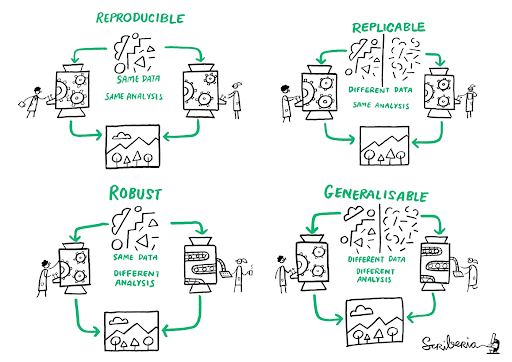
Figure 5
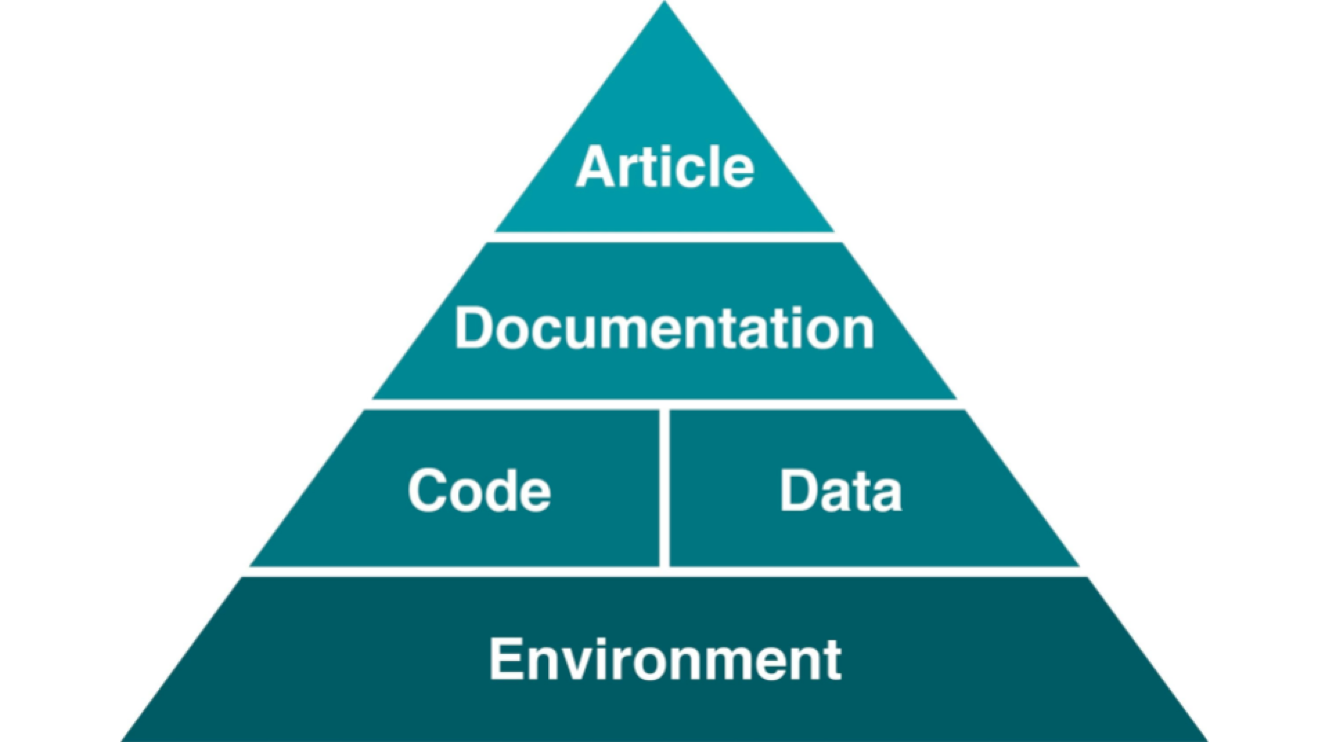
Good Practices for Managing Projects in RStudio
Figure 1
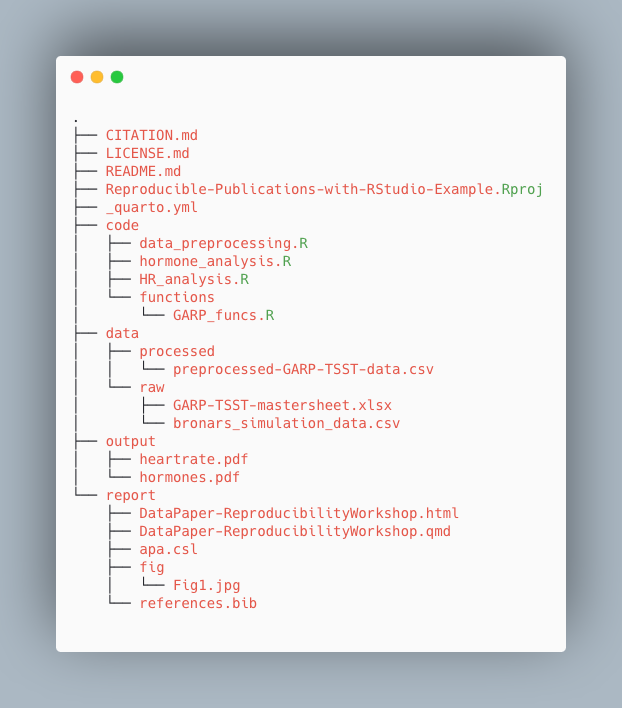
Navigating RStudio and Quarto Documents
Figure 1
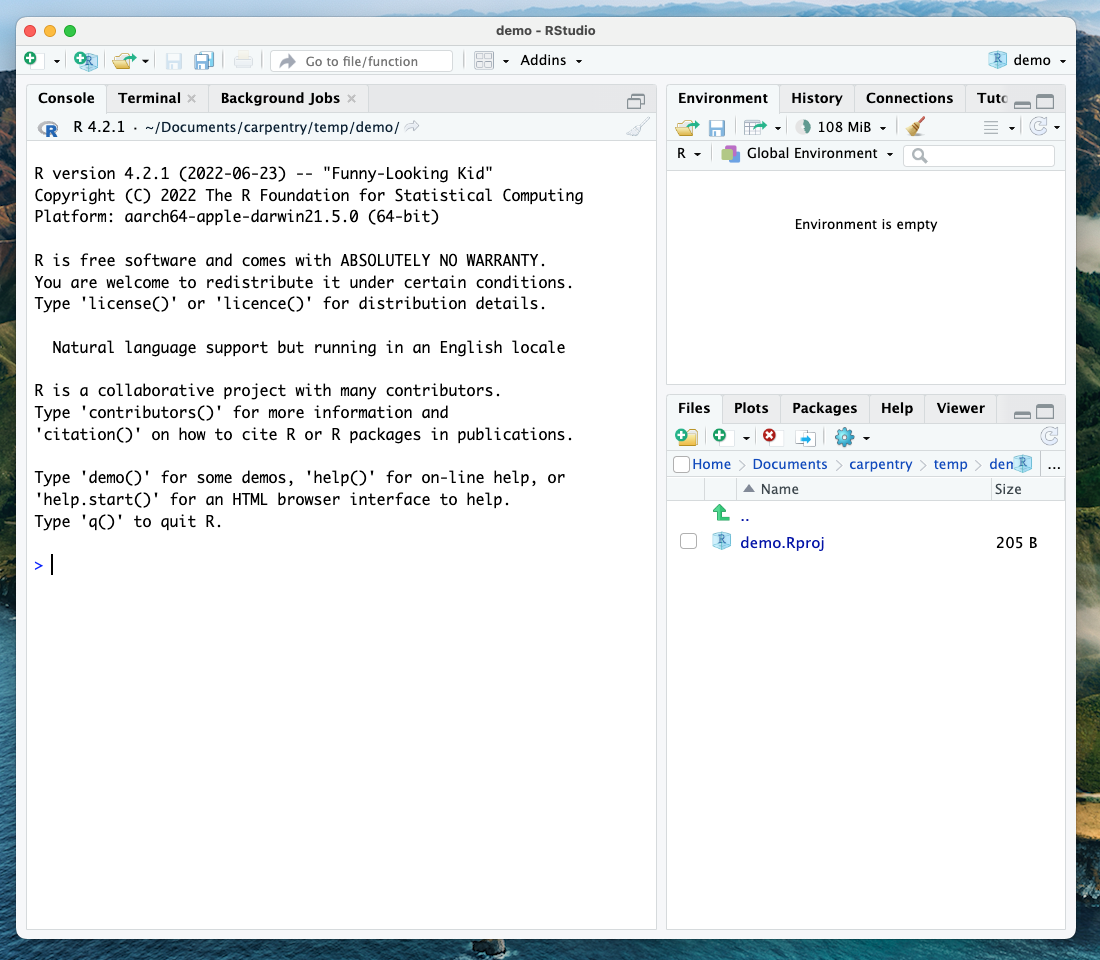
Figure 2
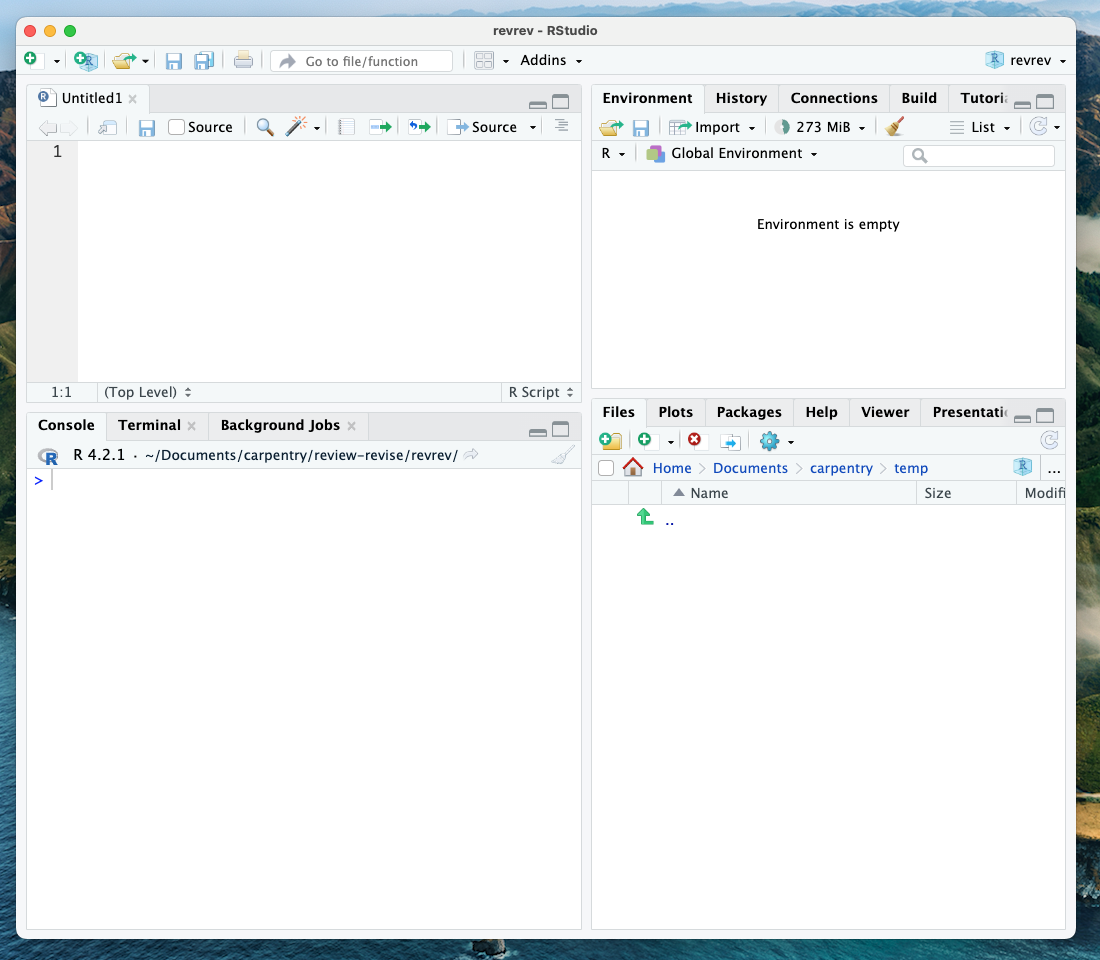
Figure 3
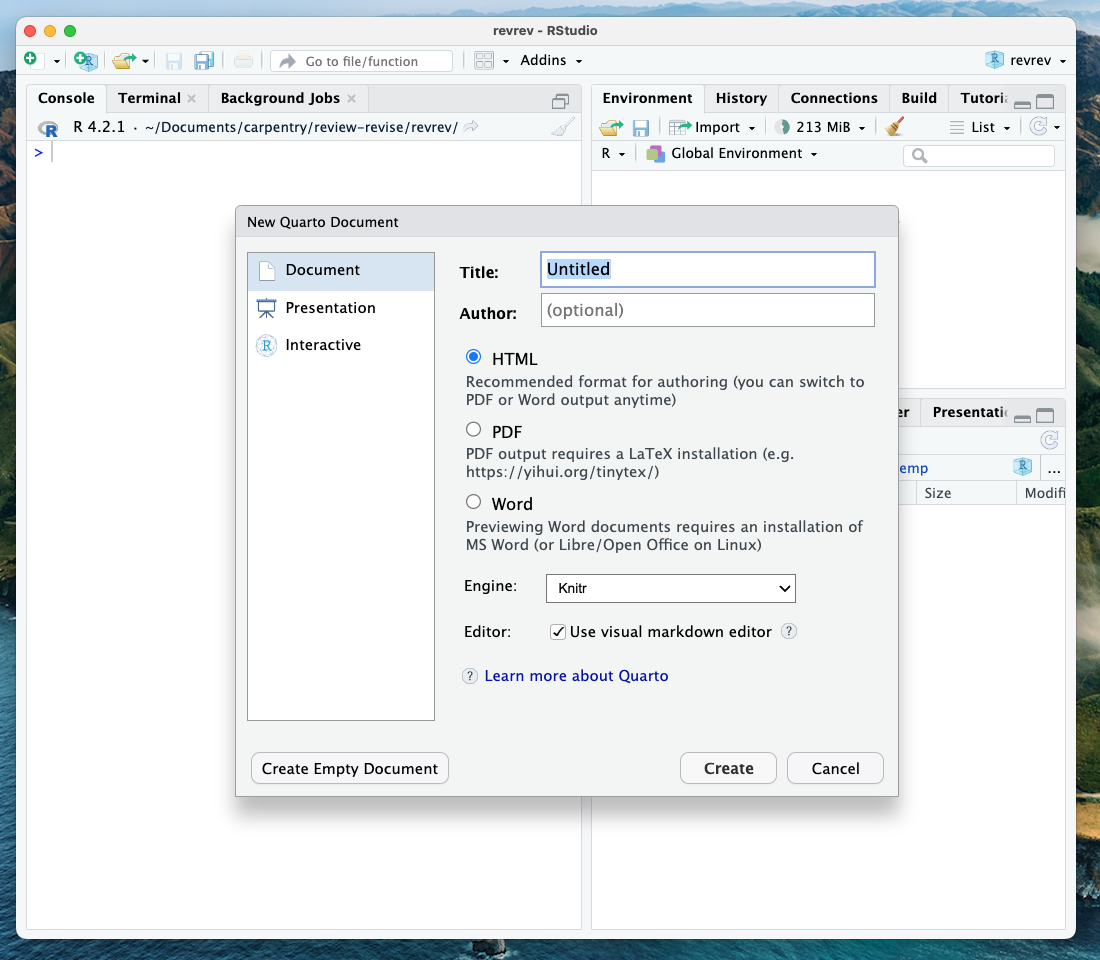
Figure 4
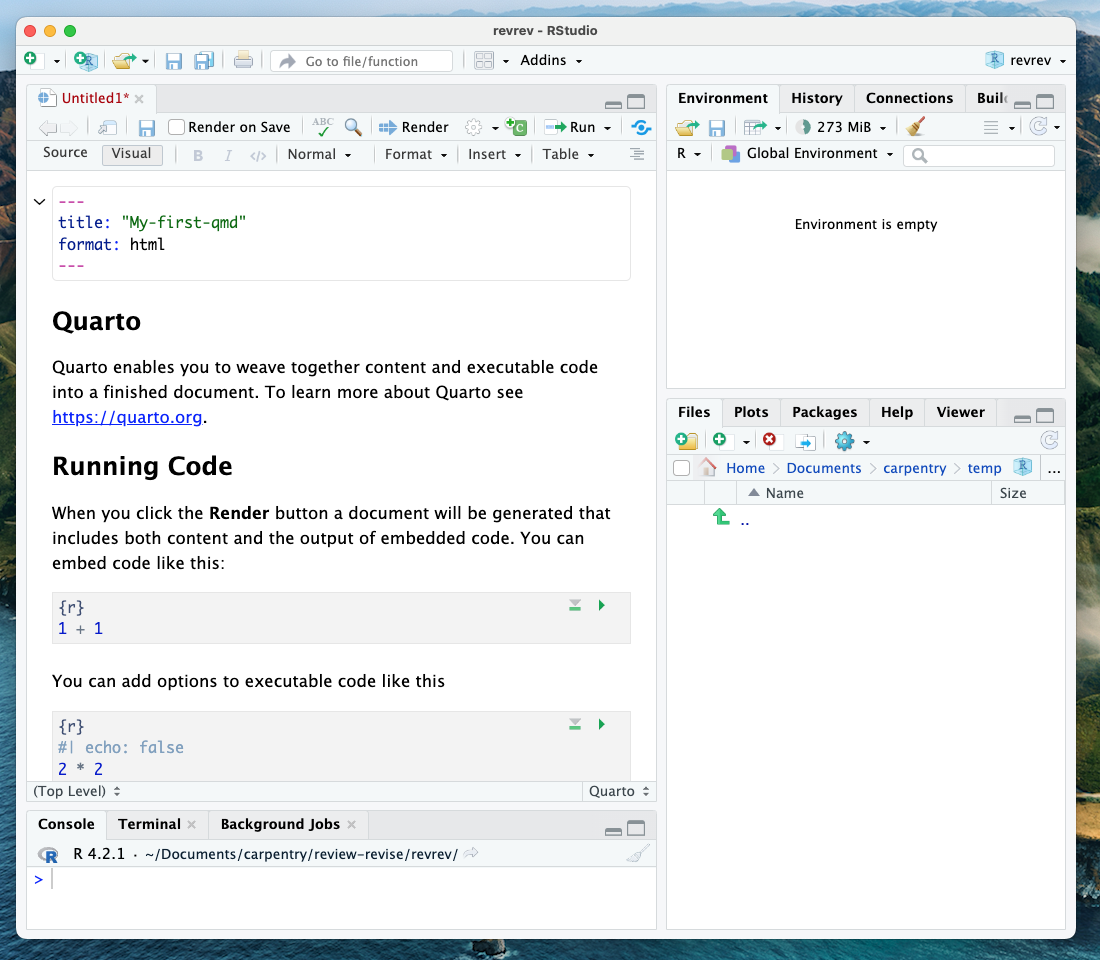
Figure 5
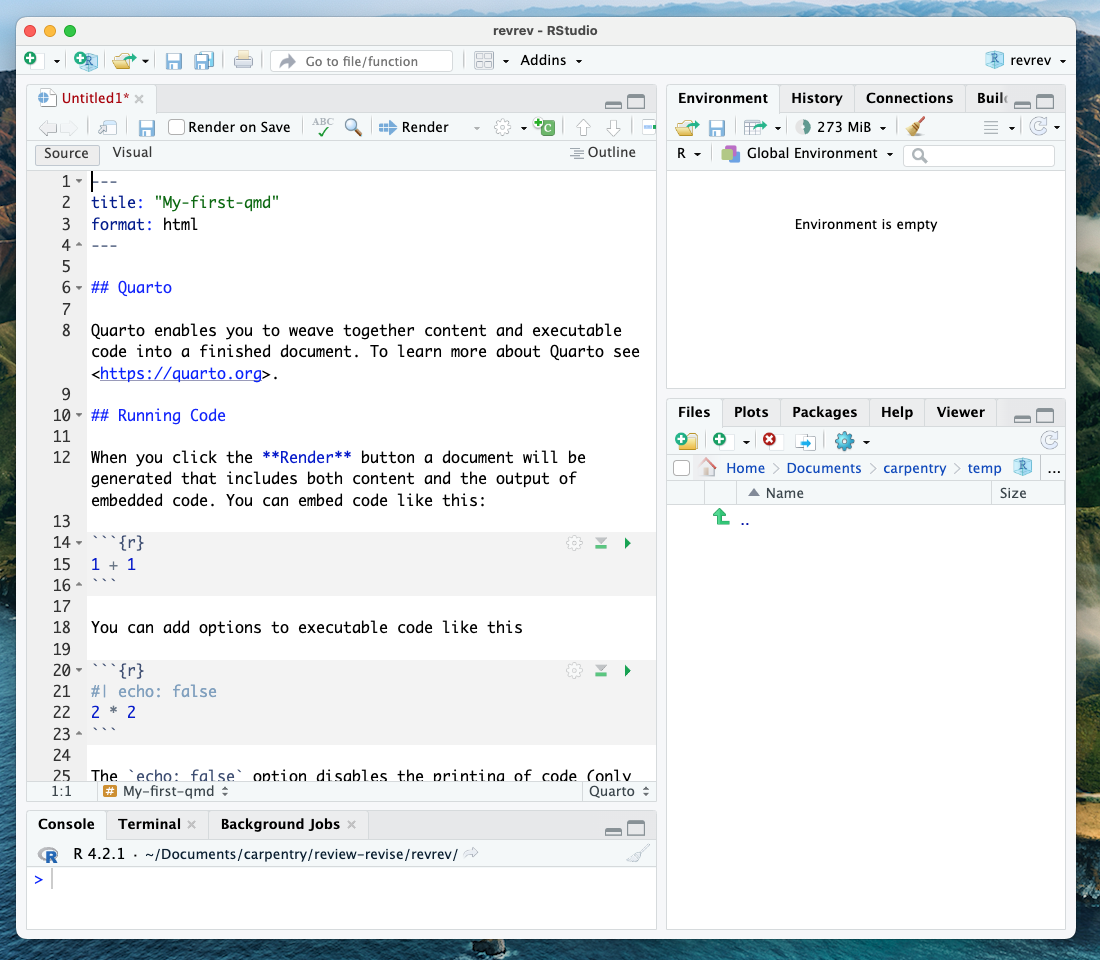
Figure 6
Note that both the visual and the source editors offer the option to
display an outline of your document  which makes it easier to navigate long documents.
Working with projects in RStudio
Figure 1
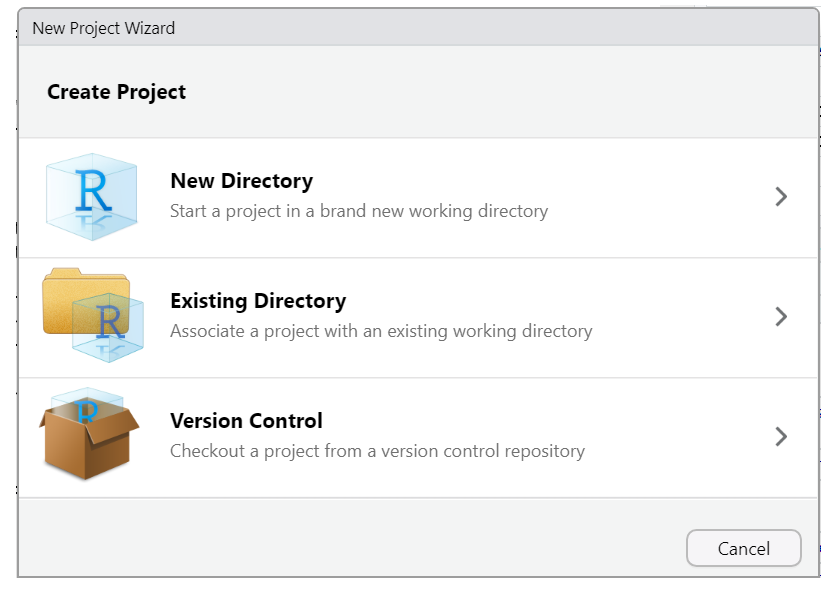
Figure 2
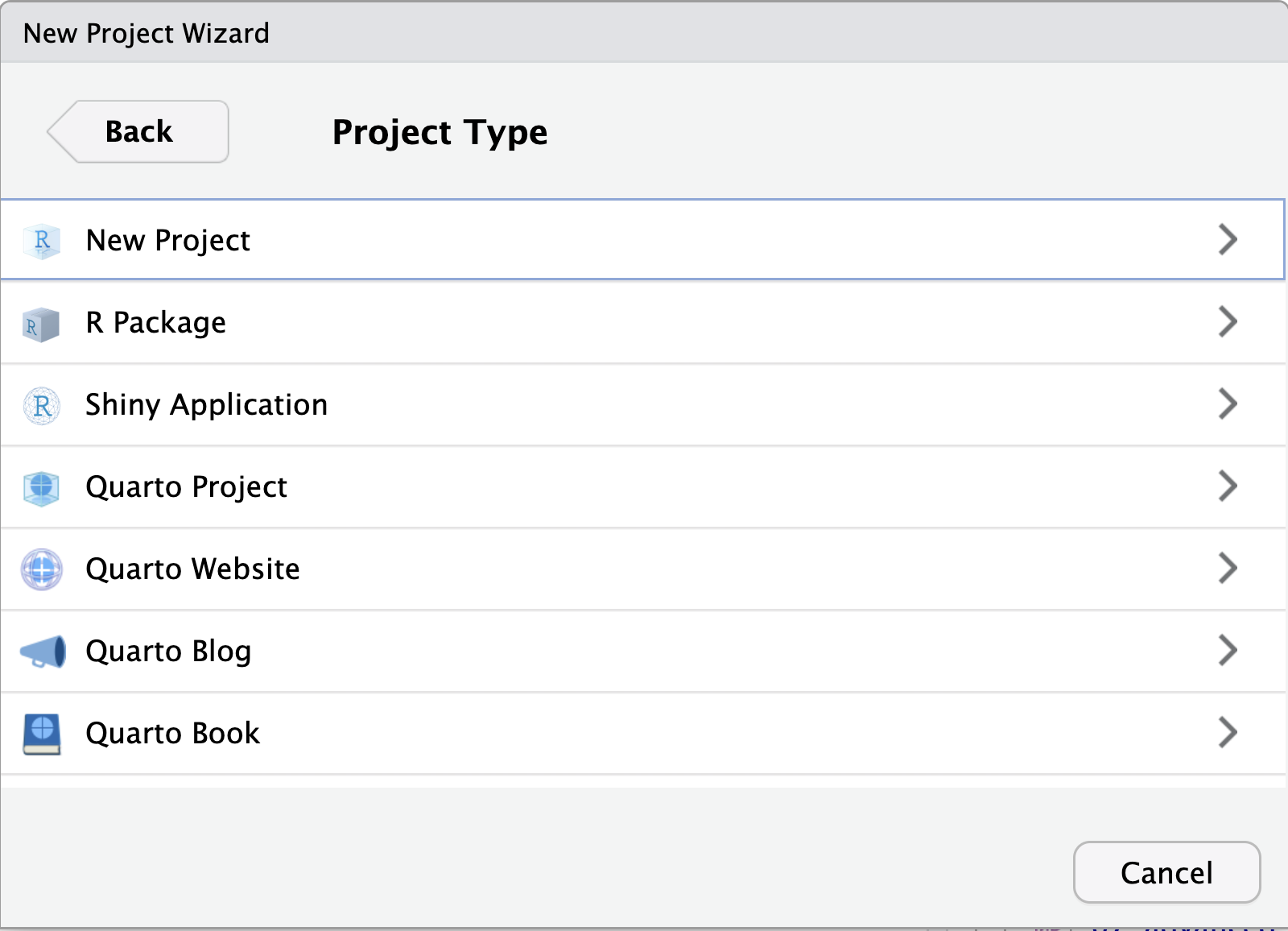
Figure 3

Figure 4
Then, to use version control, make sure to check the “Create a
git repository” box as highlighted in this screenshot: 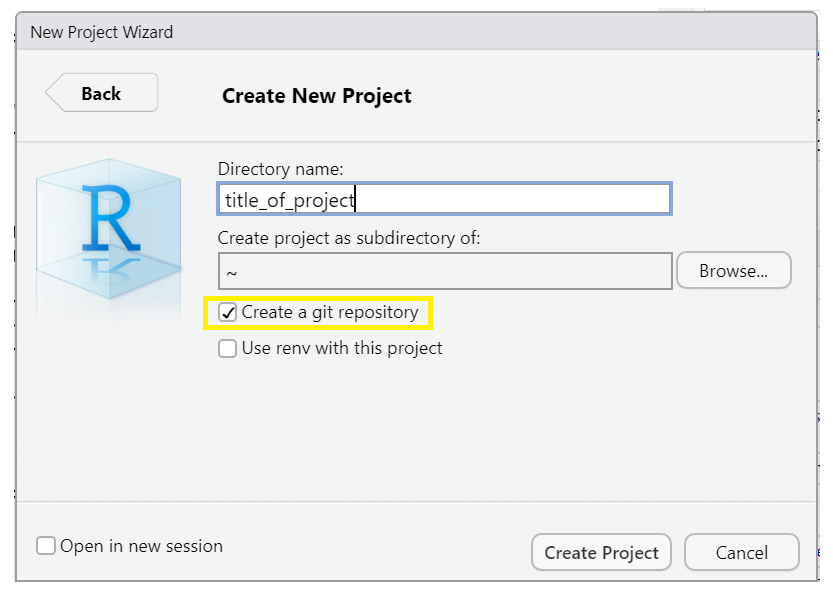
Figure 5

Figure 6
 The final option is to continue a
version-controlled project. This is the option we will do for our
workshop.
The final option is to continue a
version-controlled project. This is the option we will do for our
workshop.
Figure 7
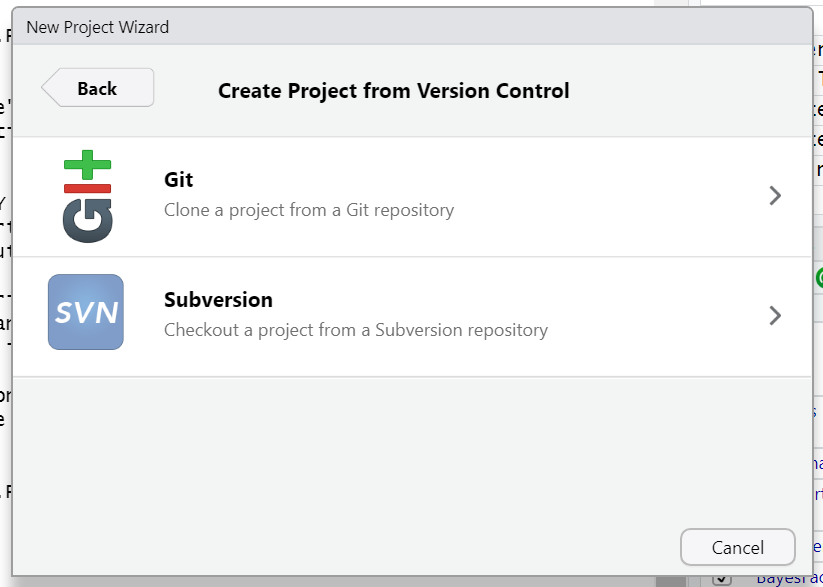
Figure 8
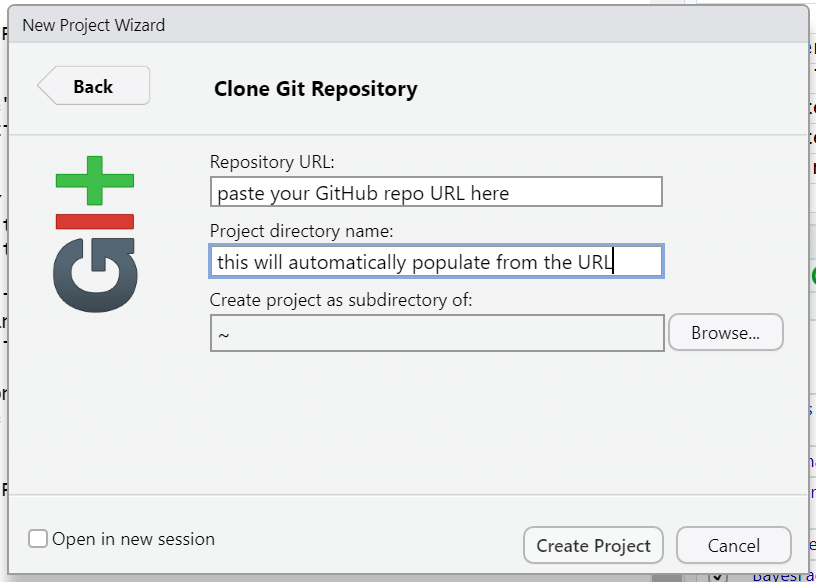
Figure 9
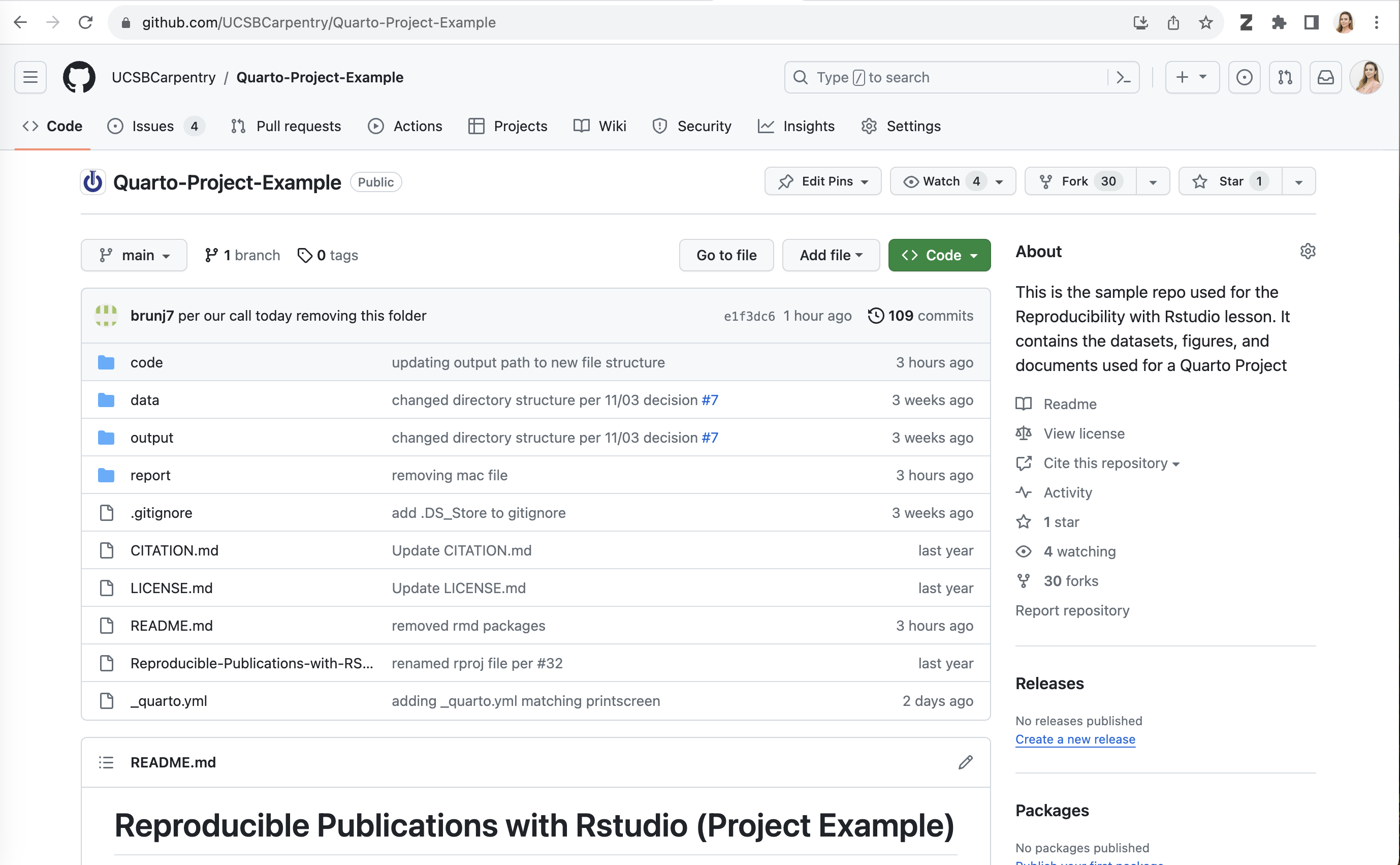
Figure 10
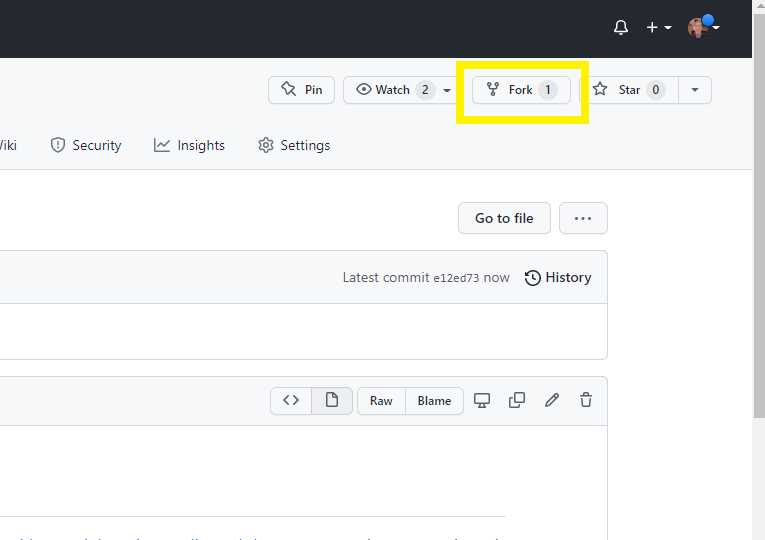
Figure 11
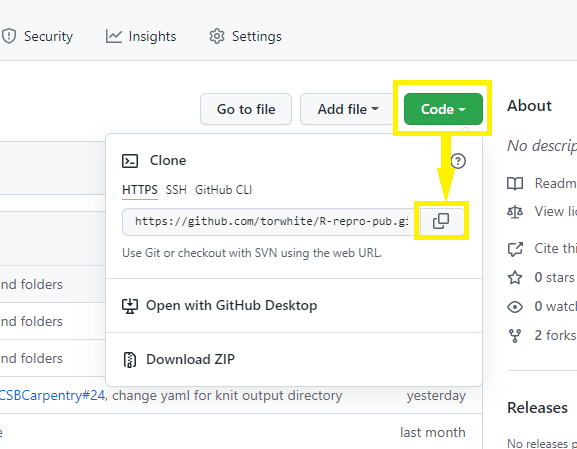
Figure 12
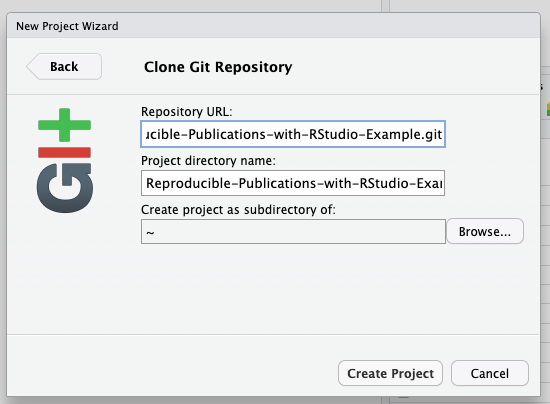
Figure 13
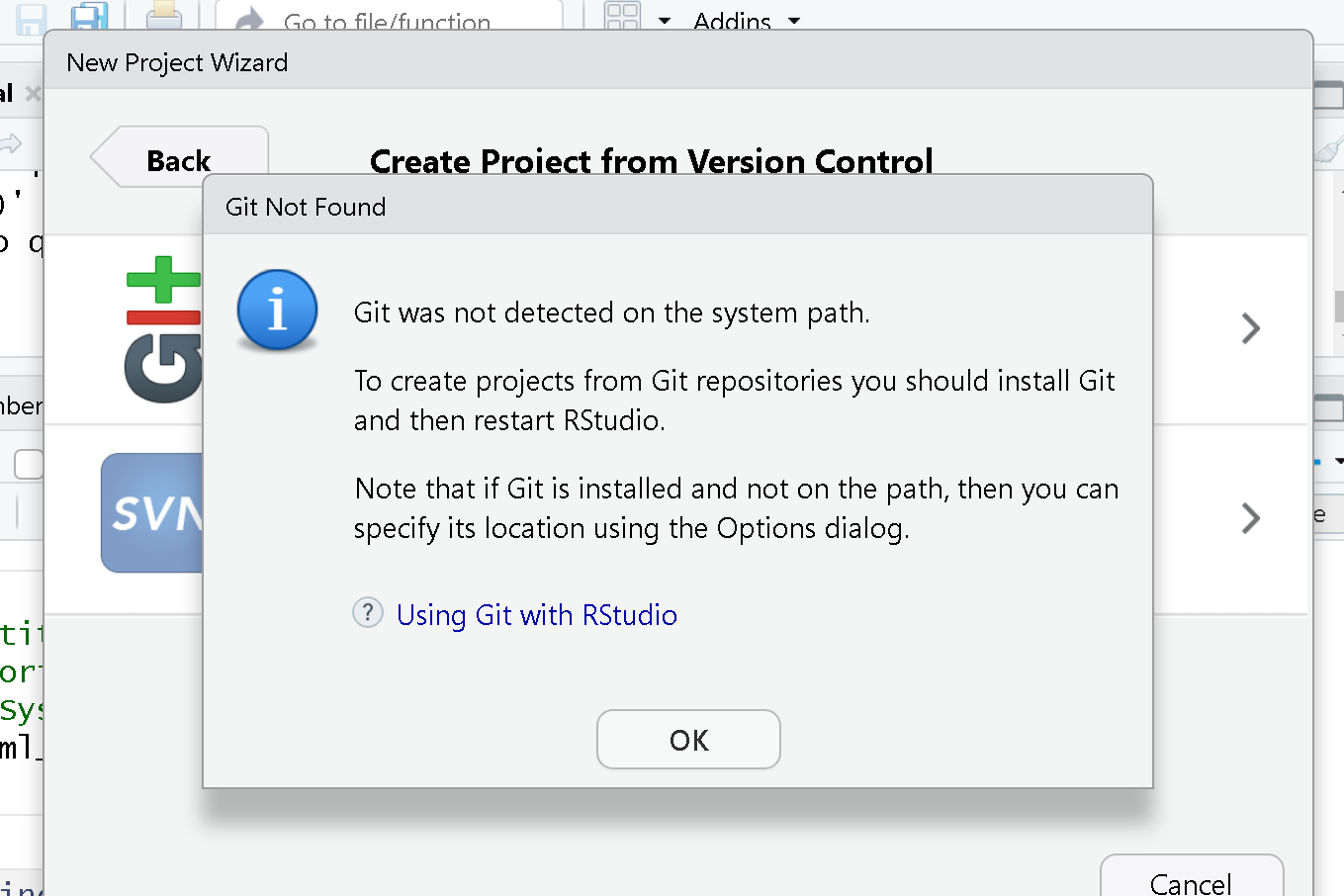
Figure 14
To set it up, we need to go to Tools > Global Options 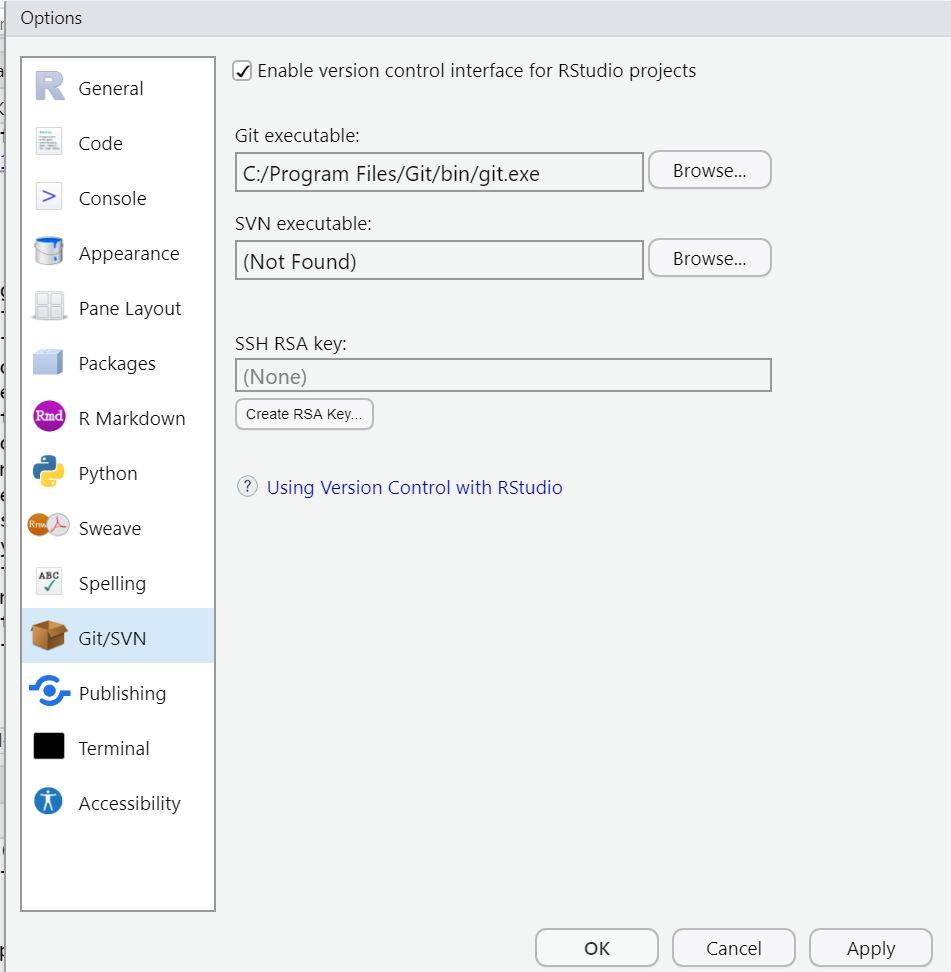
Introduction to Working with Quarto documents
Figure 1
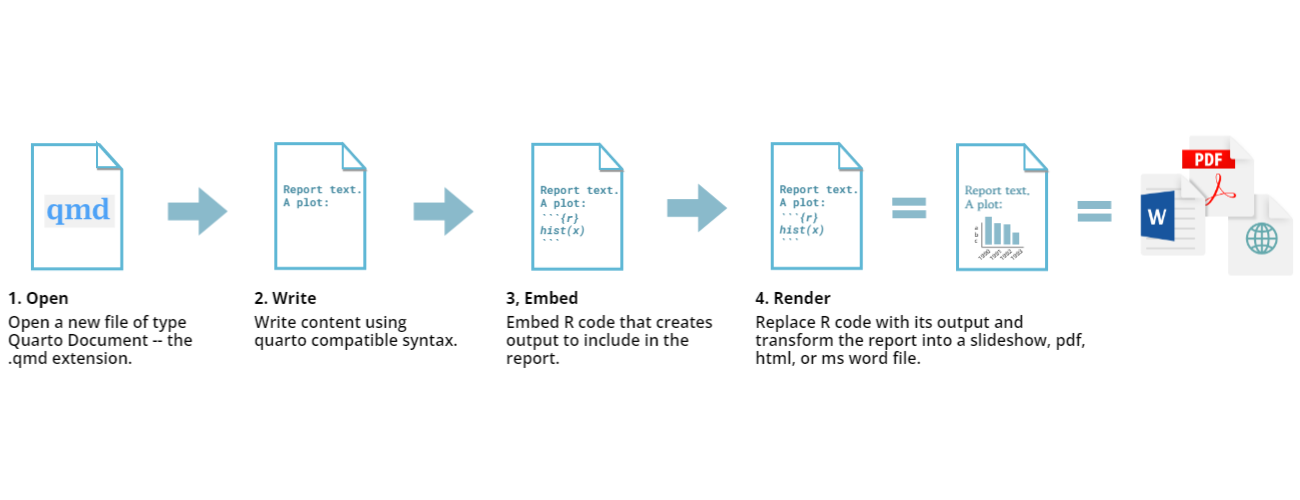
Figure 2
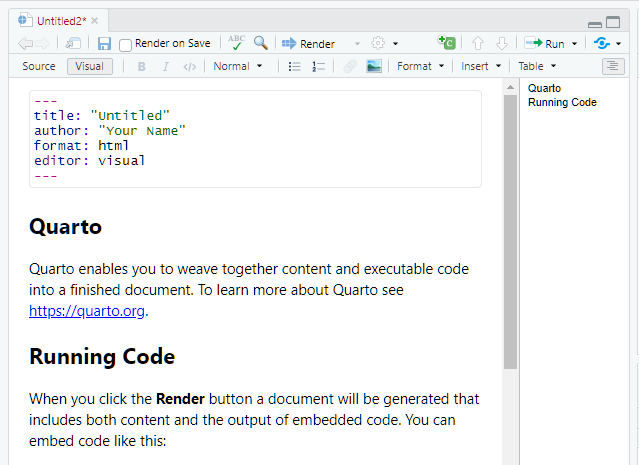
Figure 3
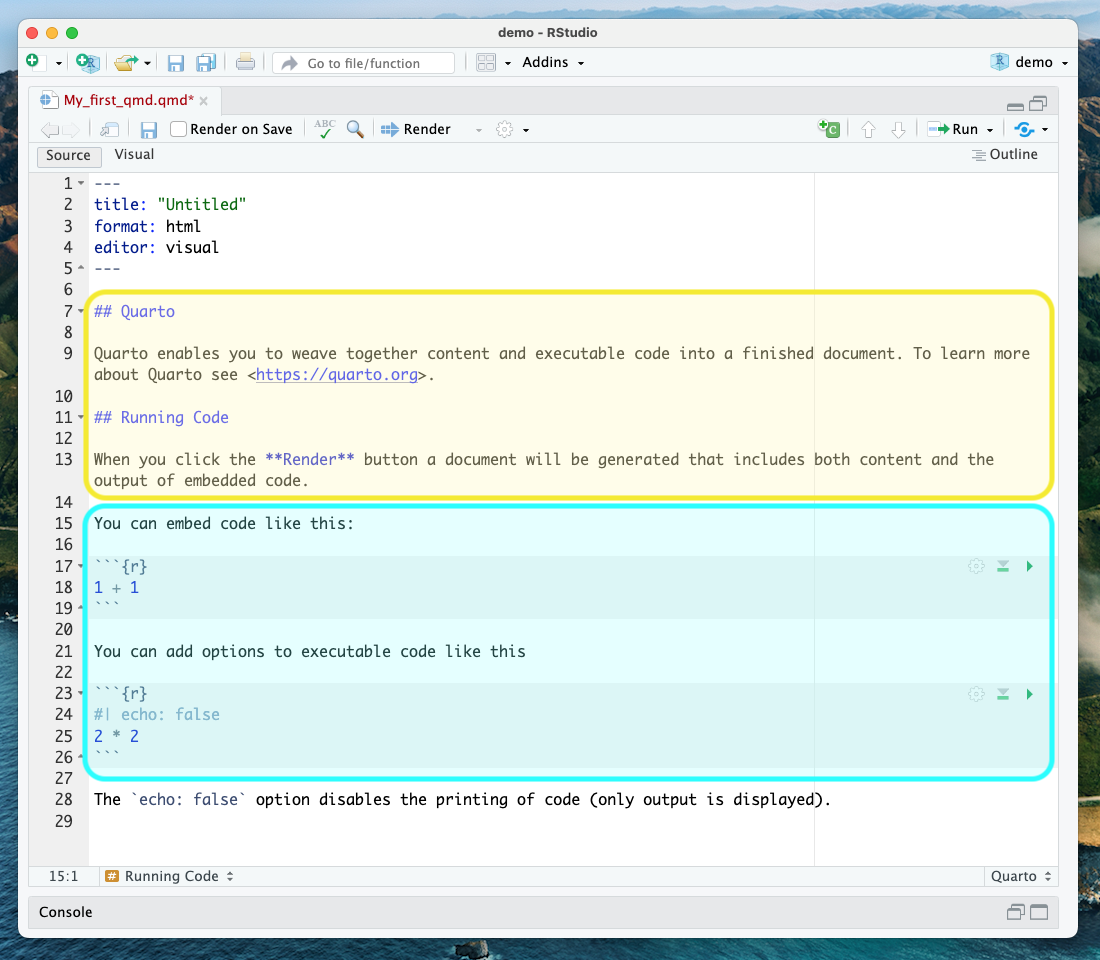
Figure 4
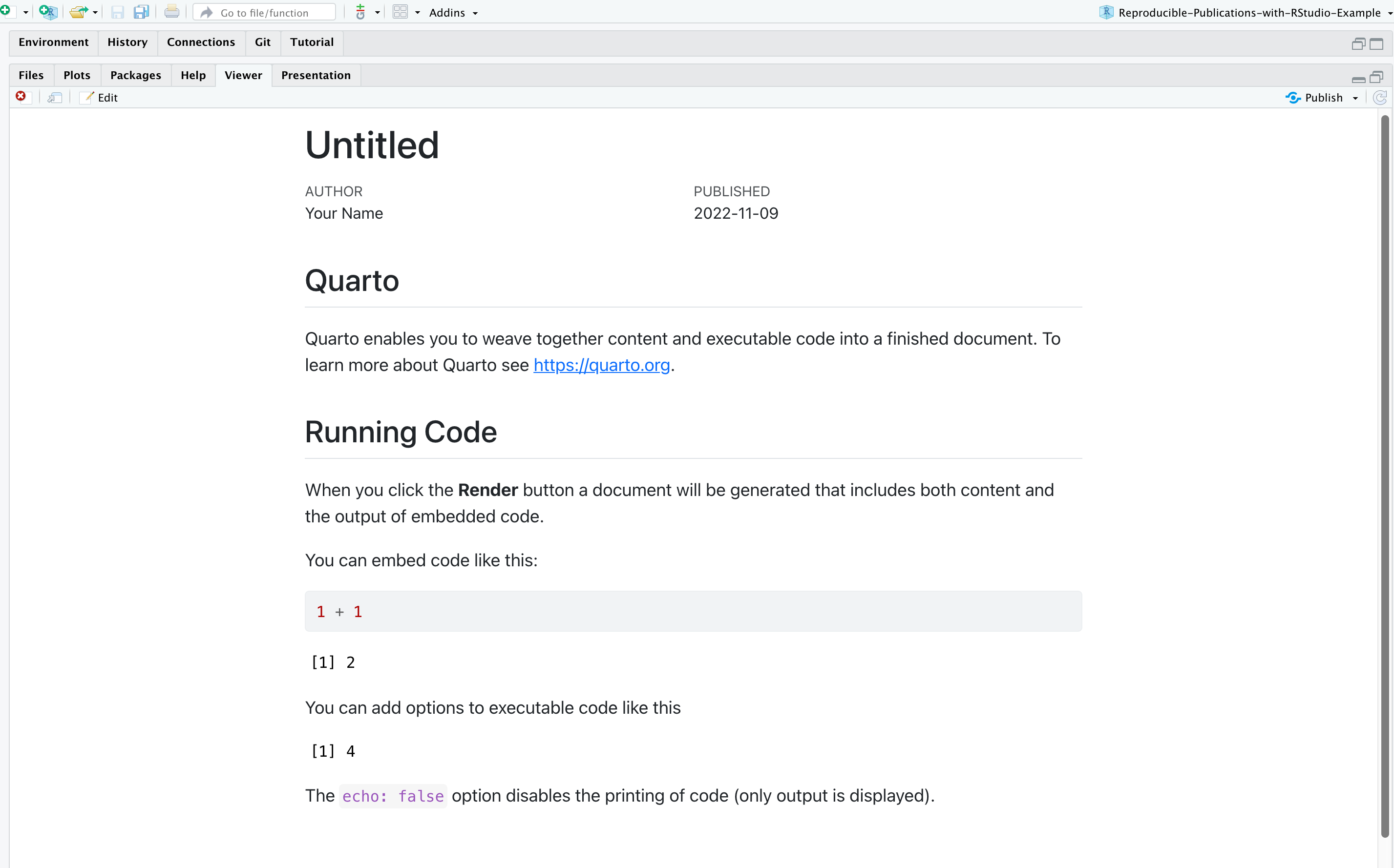
Writing and Styling Quarto Documents
Figure 1

Figure 2
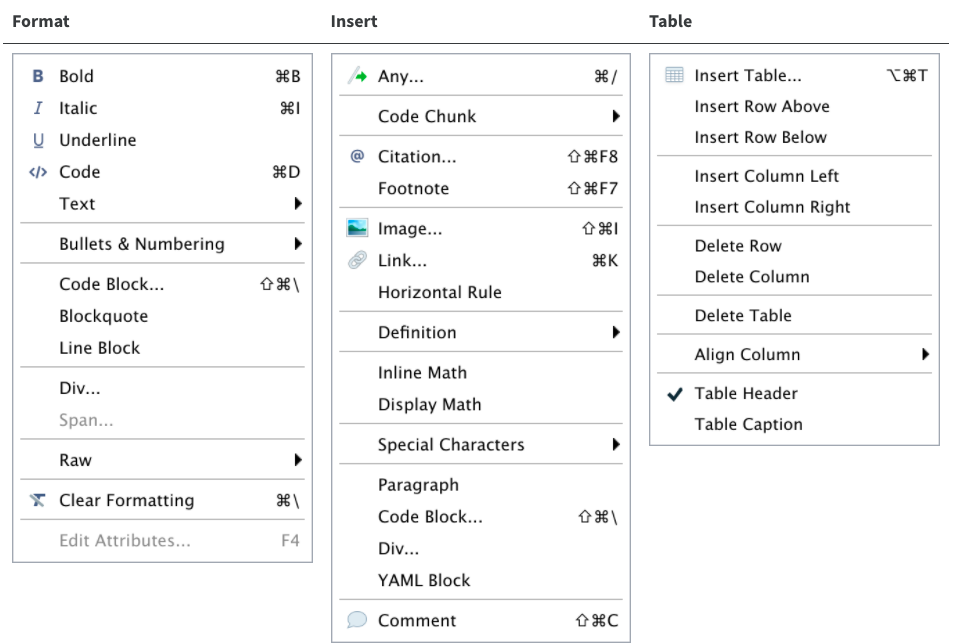
Figure 3
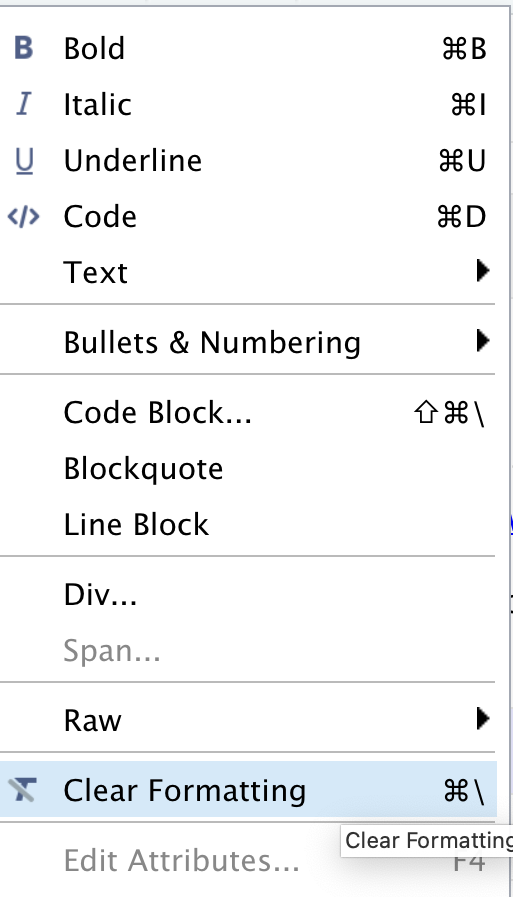
Figure 4
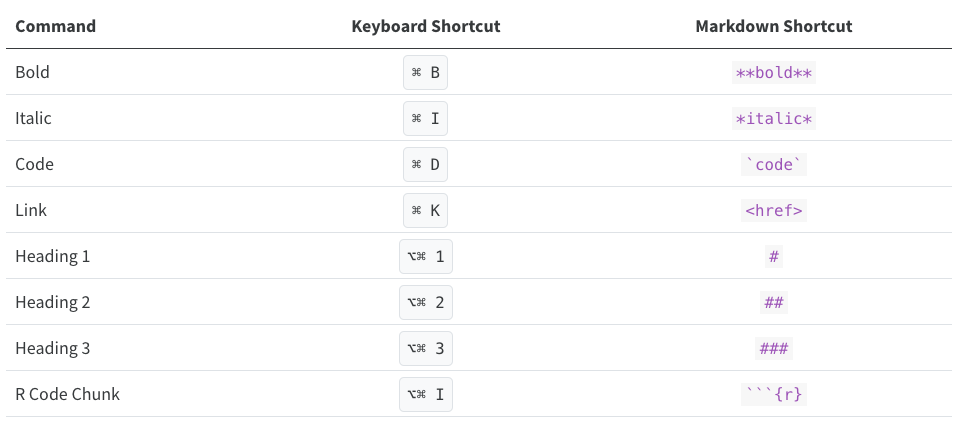
Figure 5

Figure 6

Adding Code to Quarto Documents
Figure 1
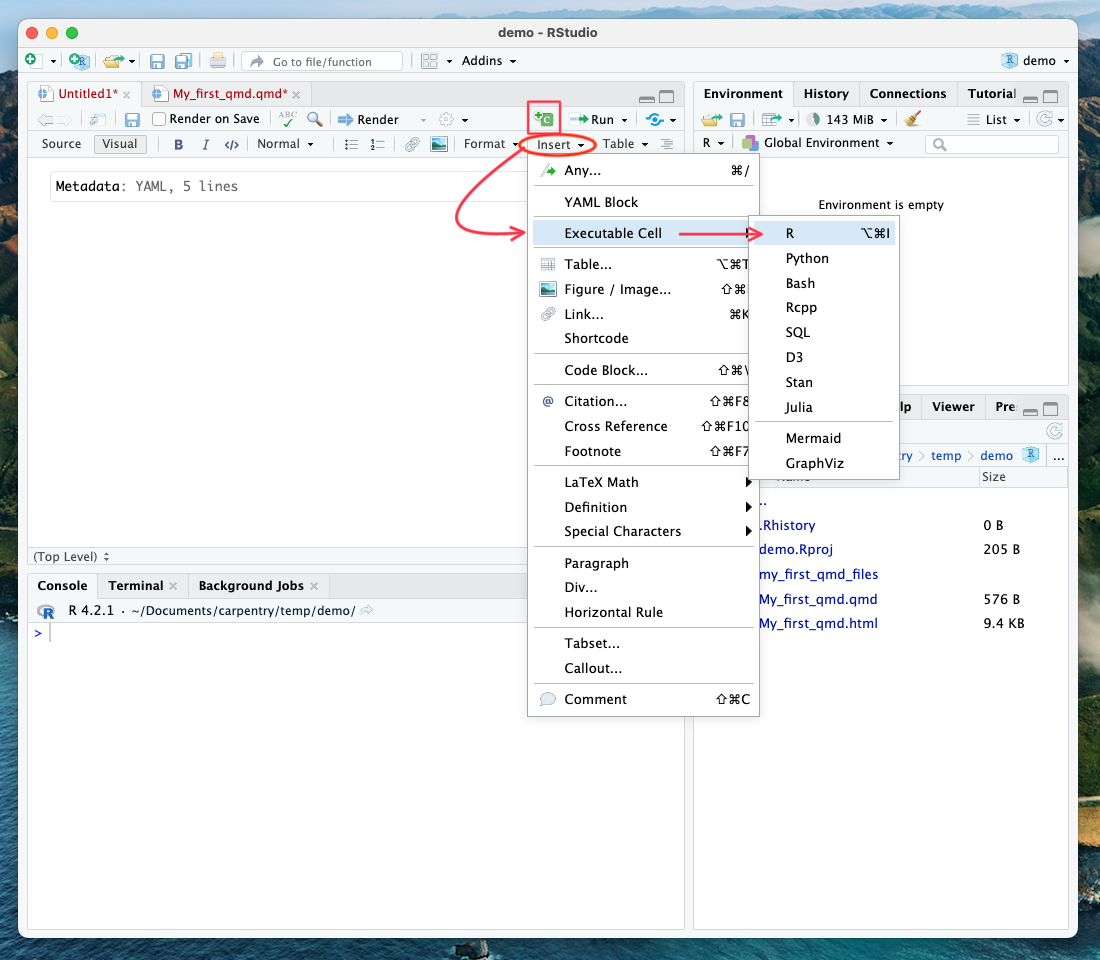
Figure 2
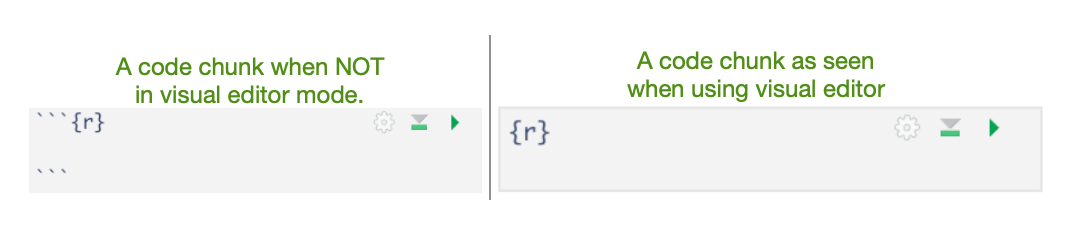
Figure 3
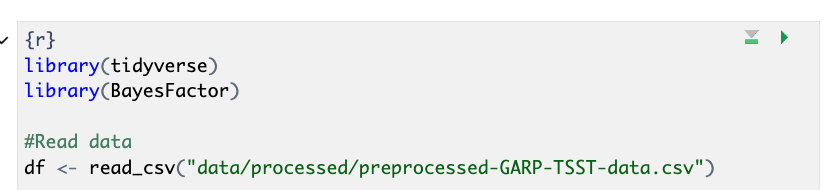
Figure 4
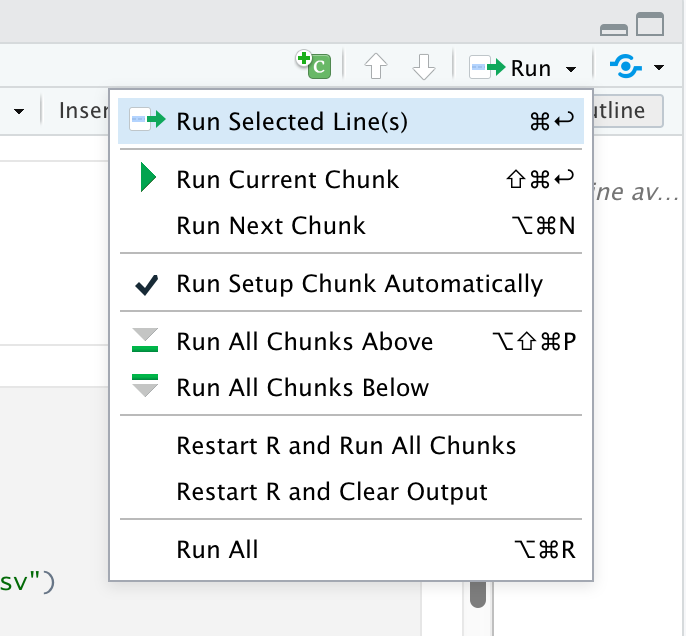
Figure 5
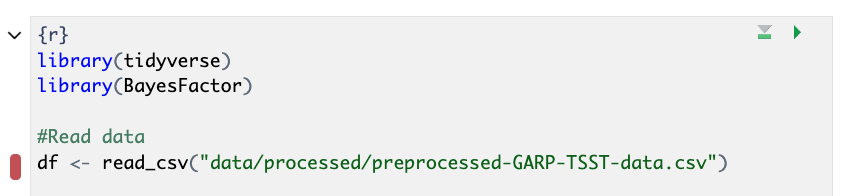
Figure 6

Figure 7
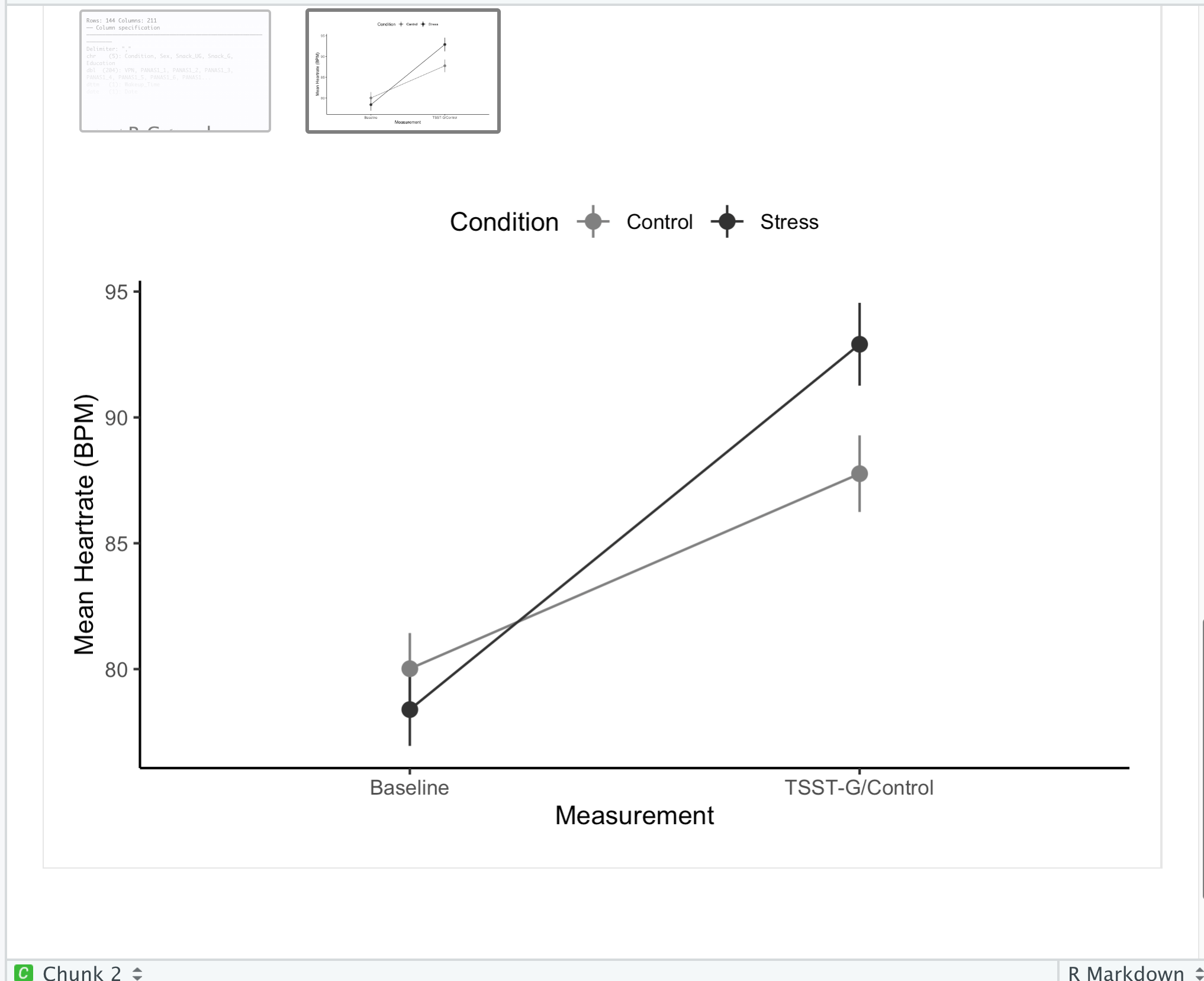
Rendering and Customizing Code Outputs
Figure 1
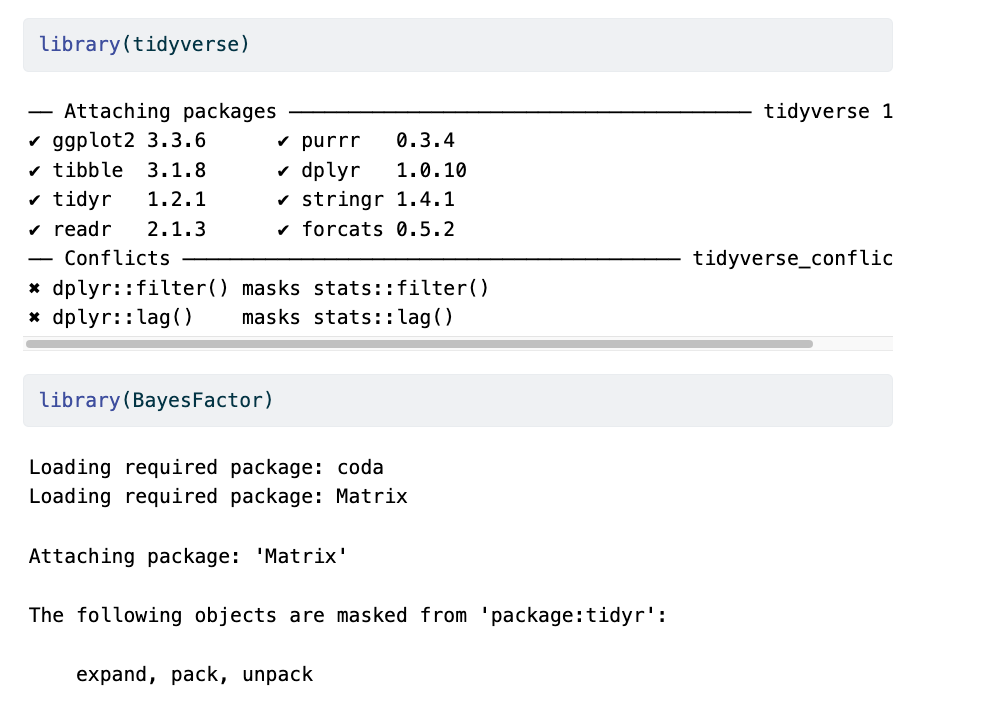
Figure 2

Figure 3
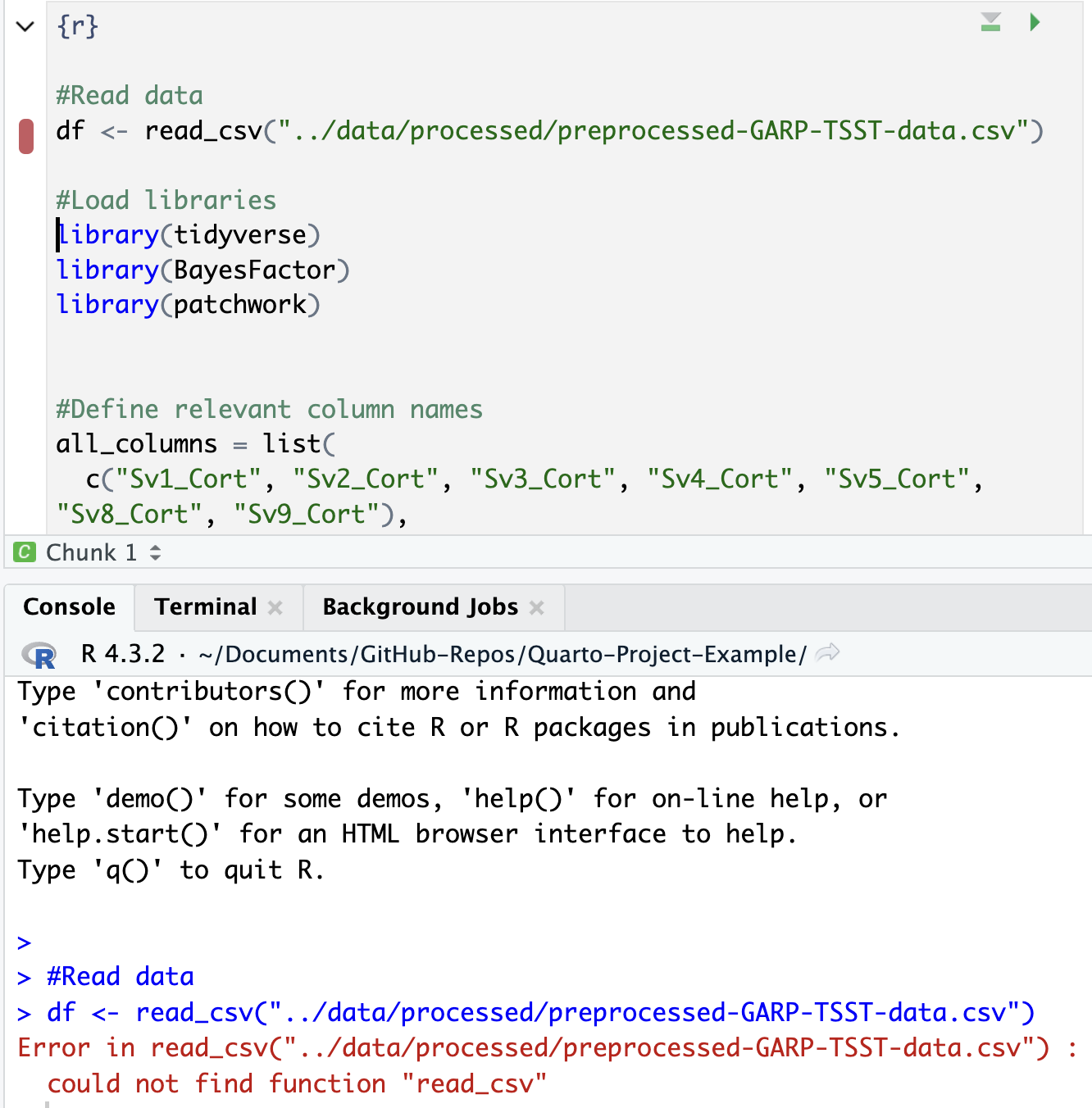
Advanced Code Chunk Options
Figure 1
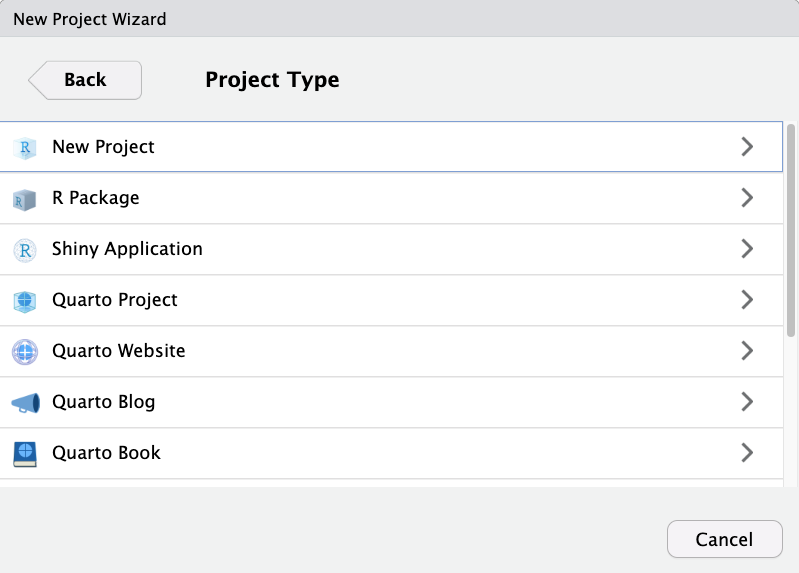
Figure 2
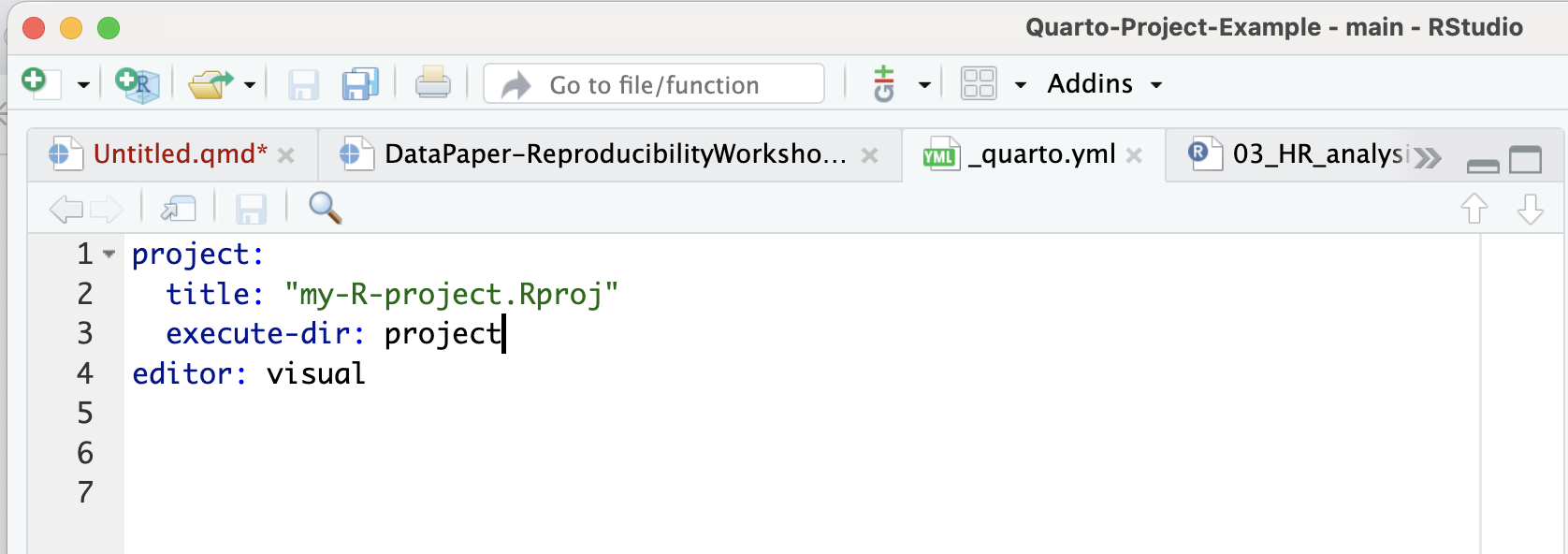
Figure 3
Figure 4
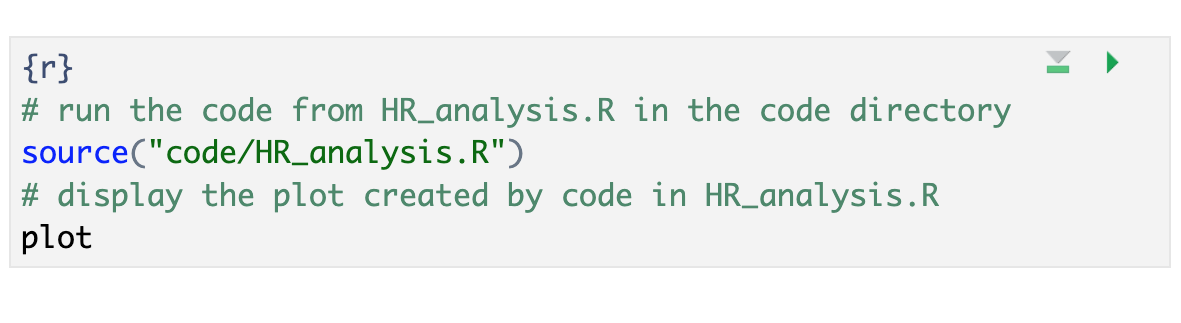
Bibliography, Citations and Cross-Referencing
Figure 1
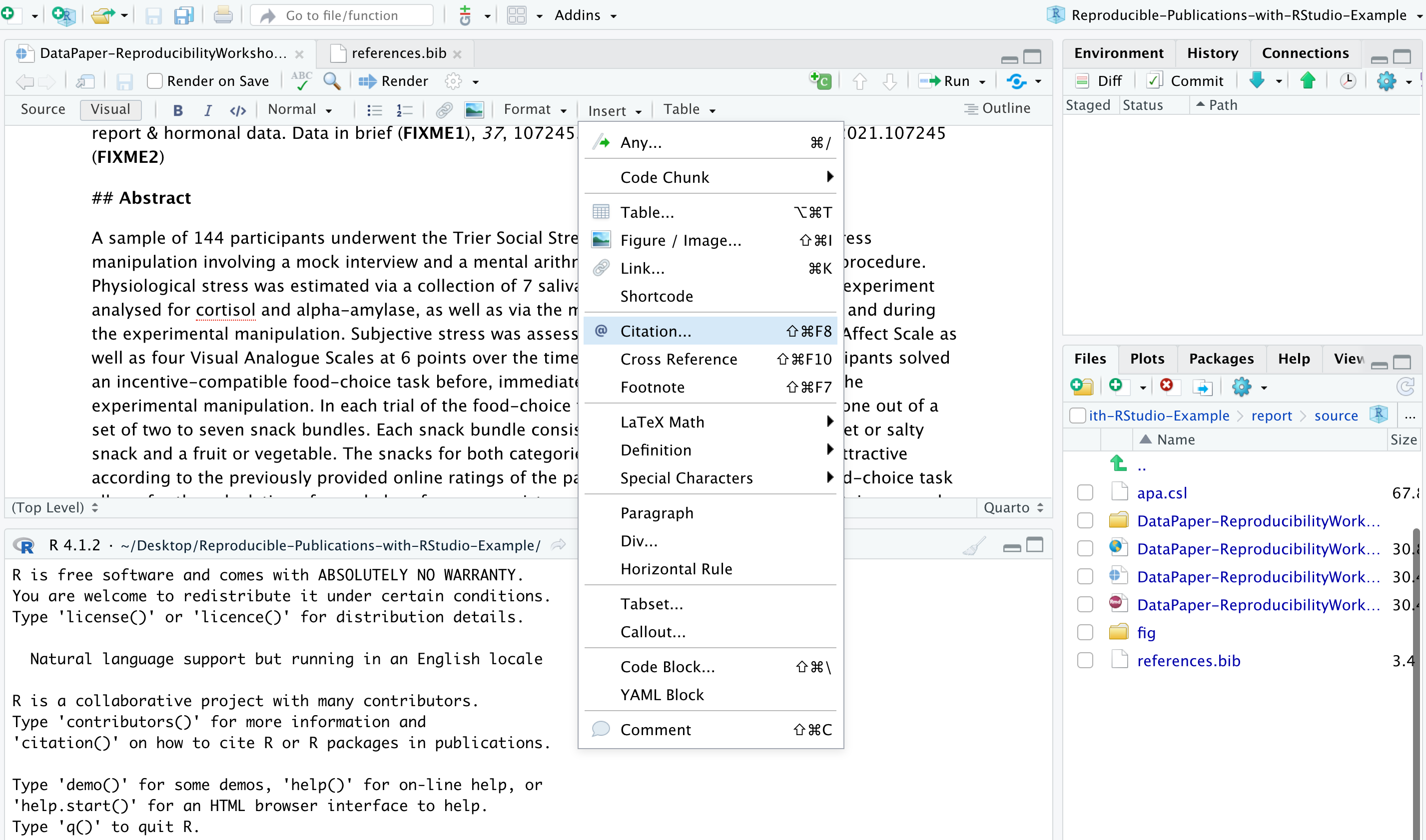
Figure 2
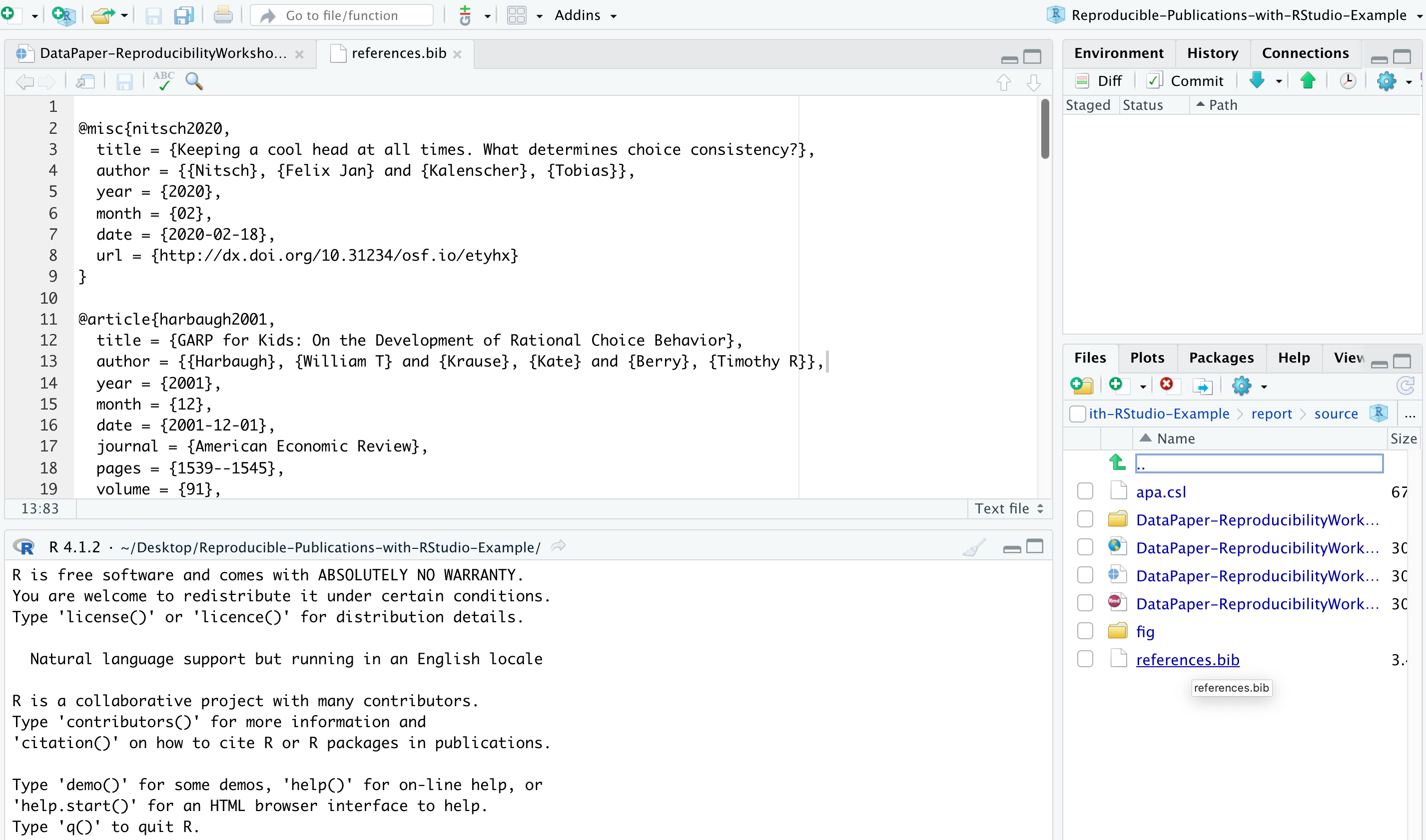
Figure 3
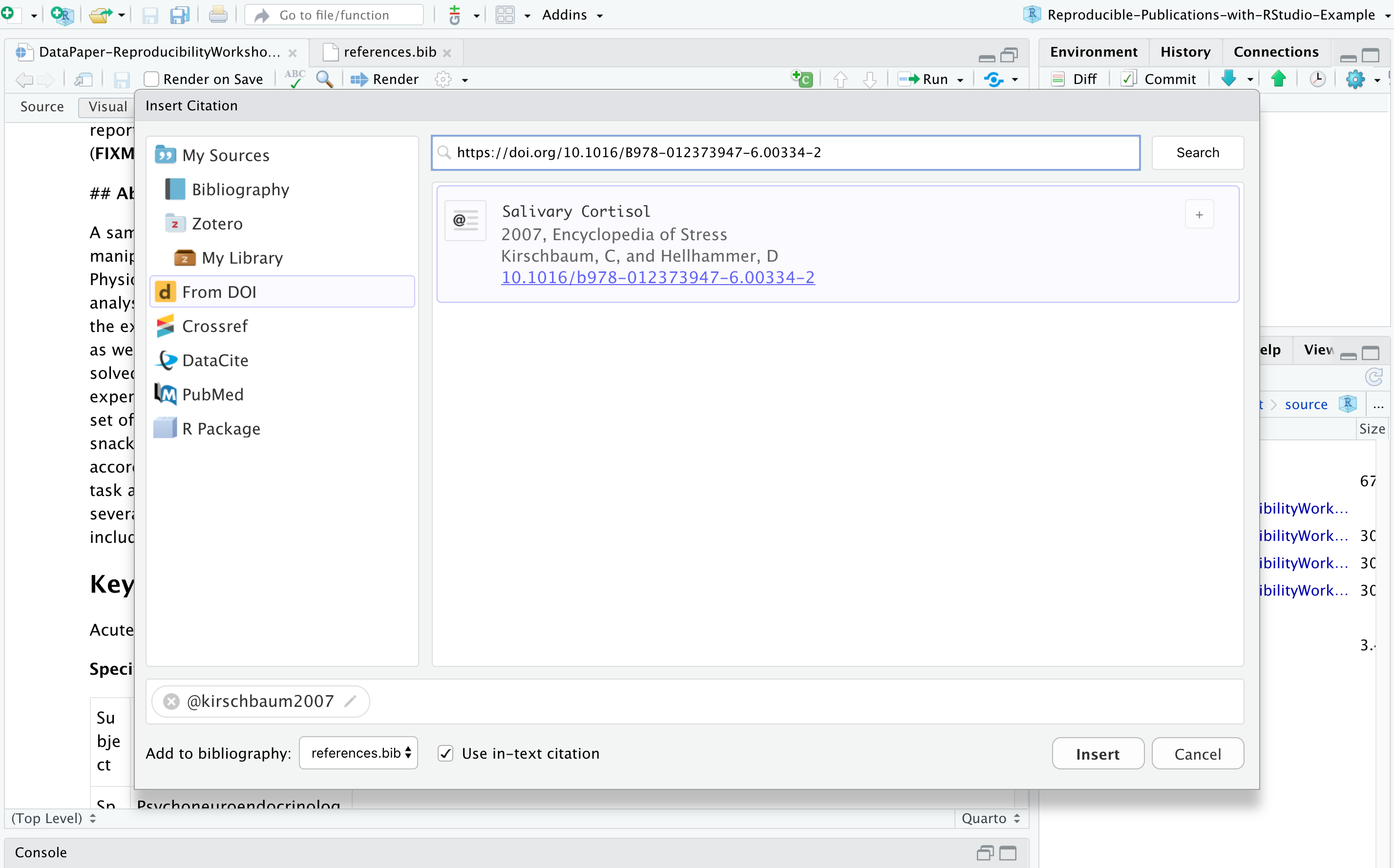
Figure 4
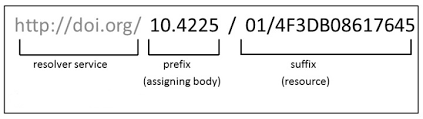
Figure 5
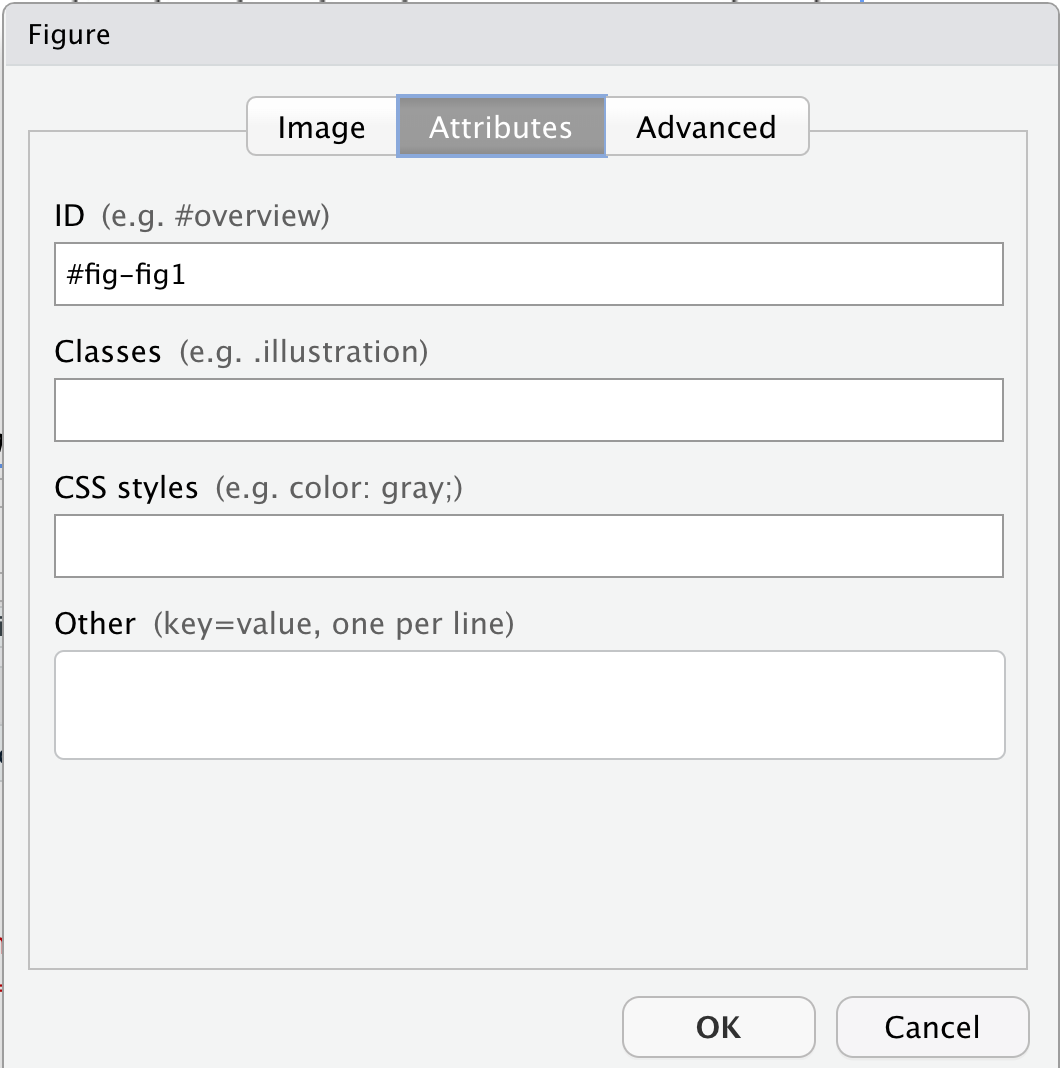
Using Git in RStudio
Figure 1

Figure 2
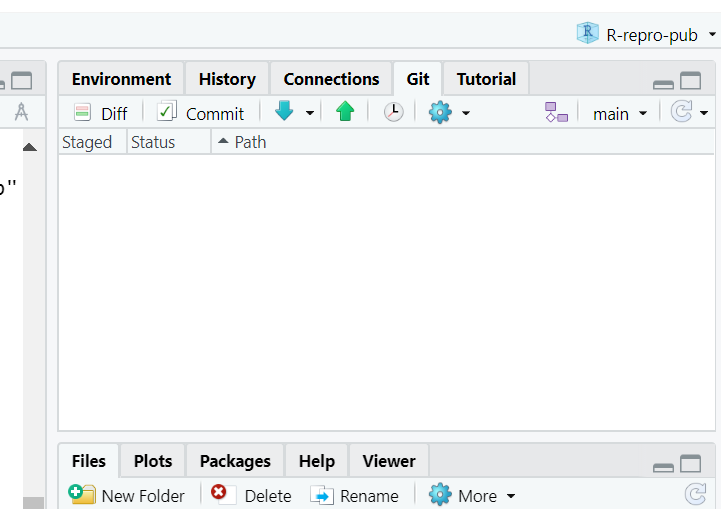
Figure 3
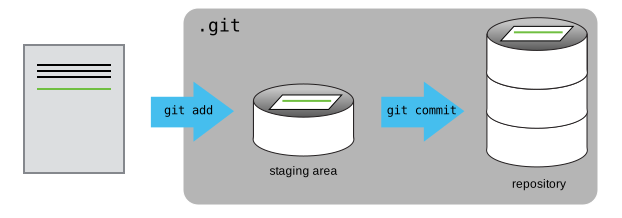
Figure 4
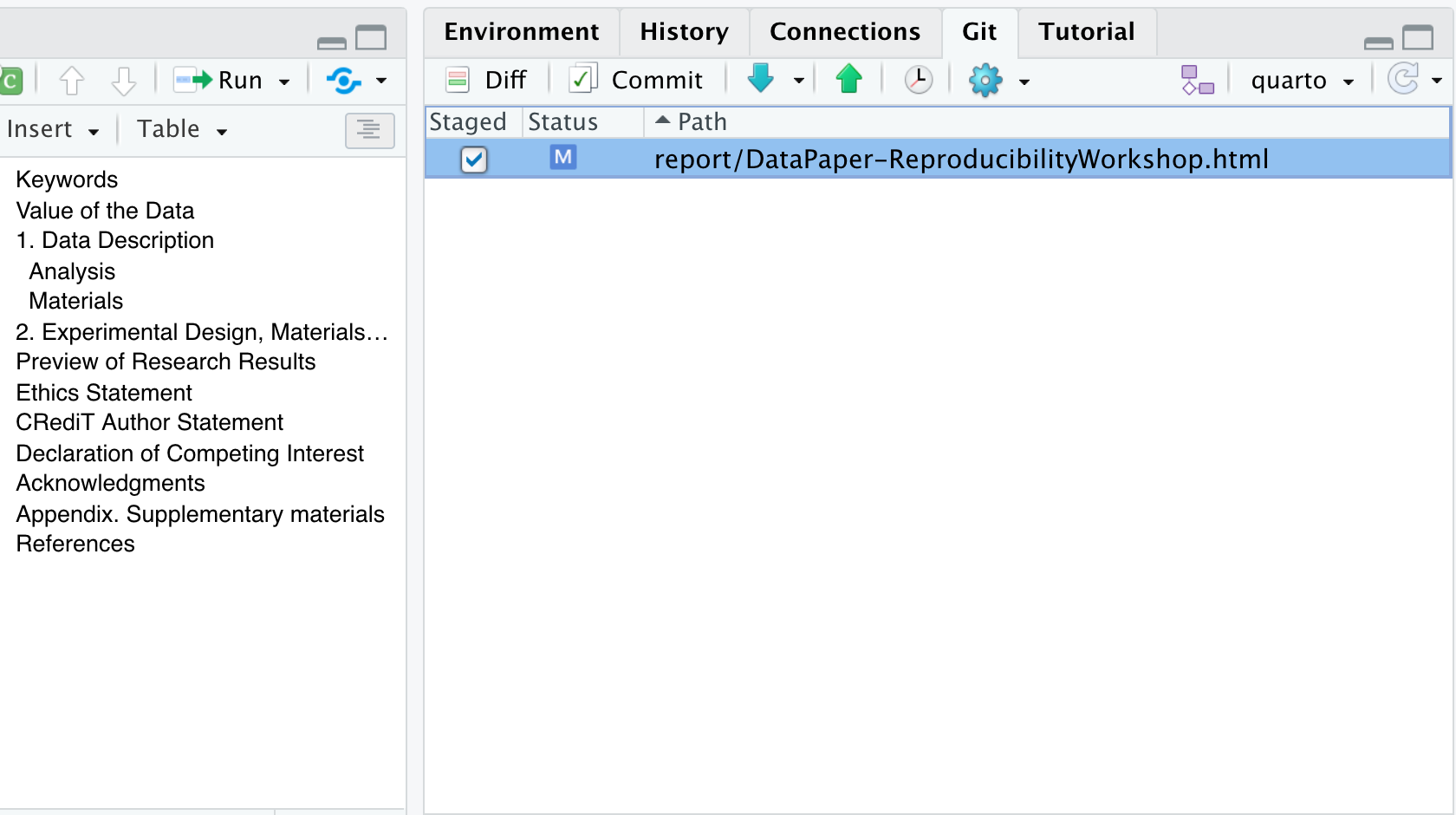
Figure 5

Figure 6
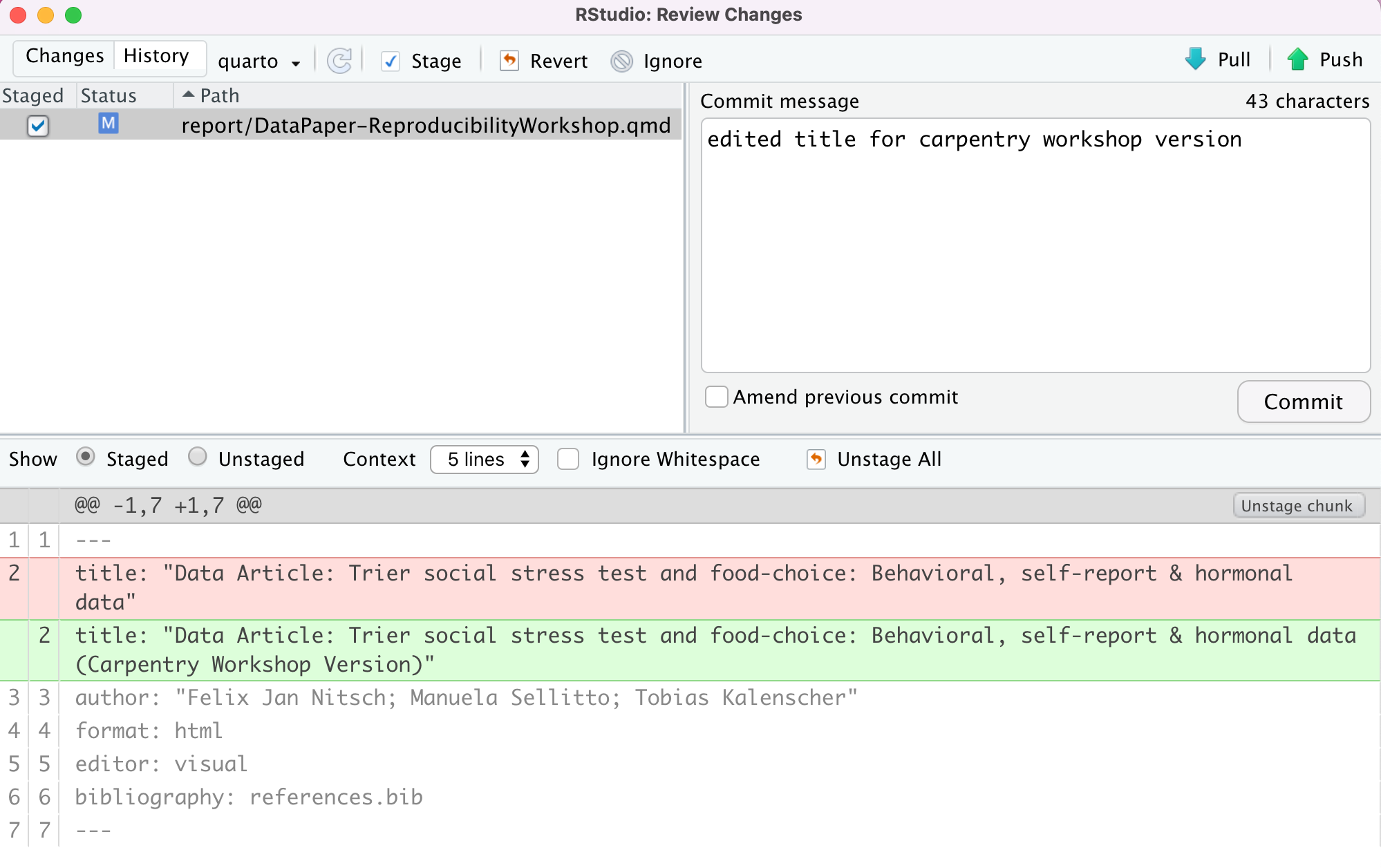
Figure 7
data/. Save the file, and don’t
forget to commit it. 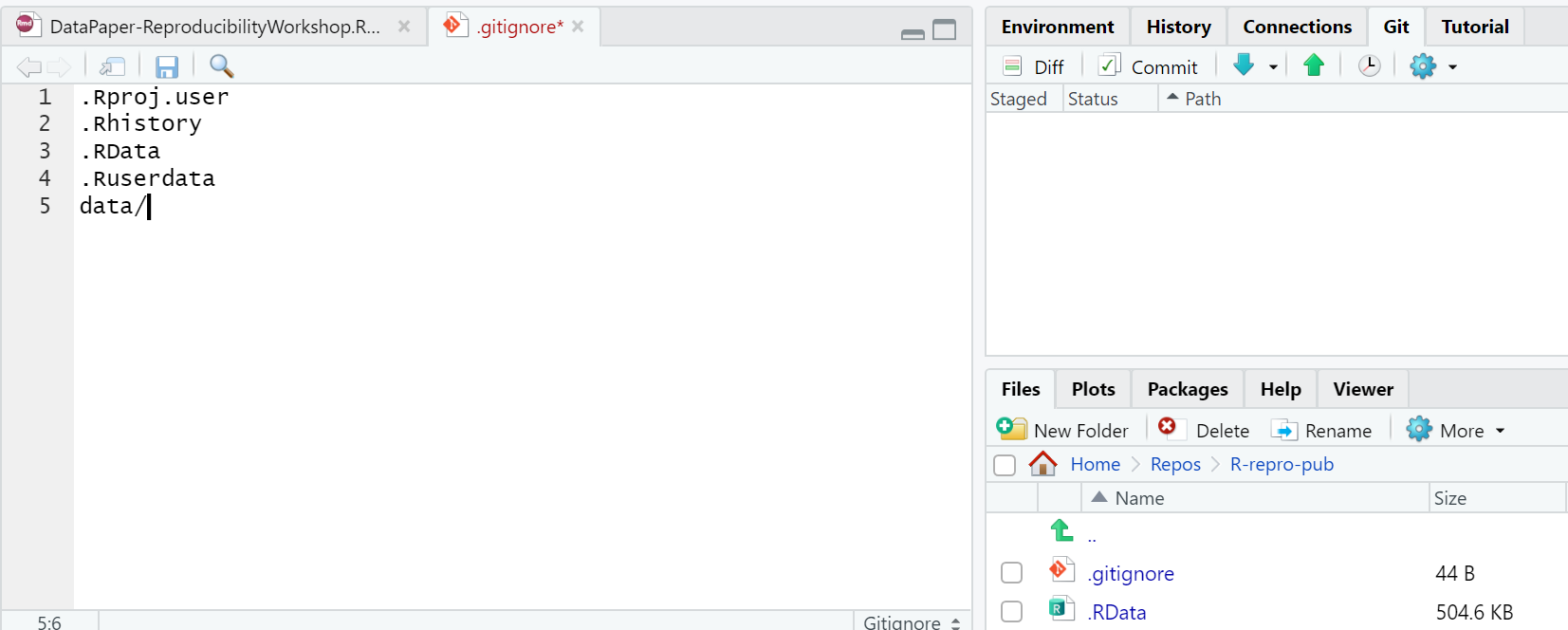
Figure 8
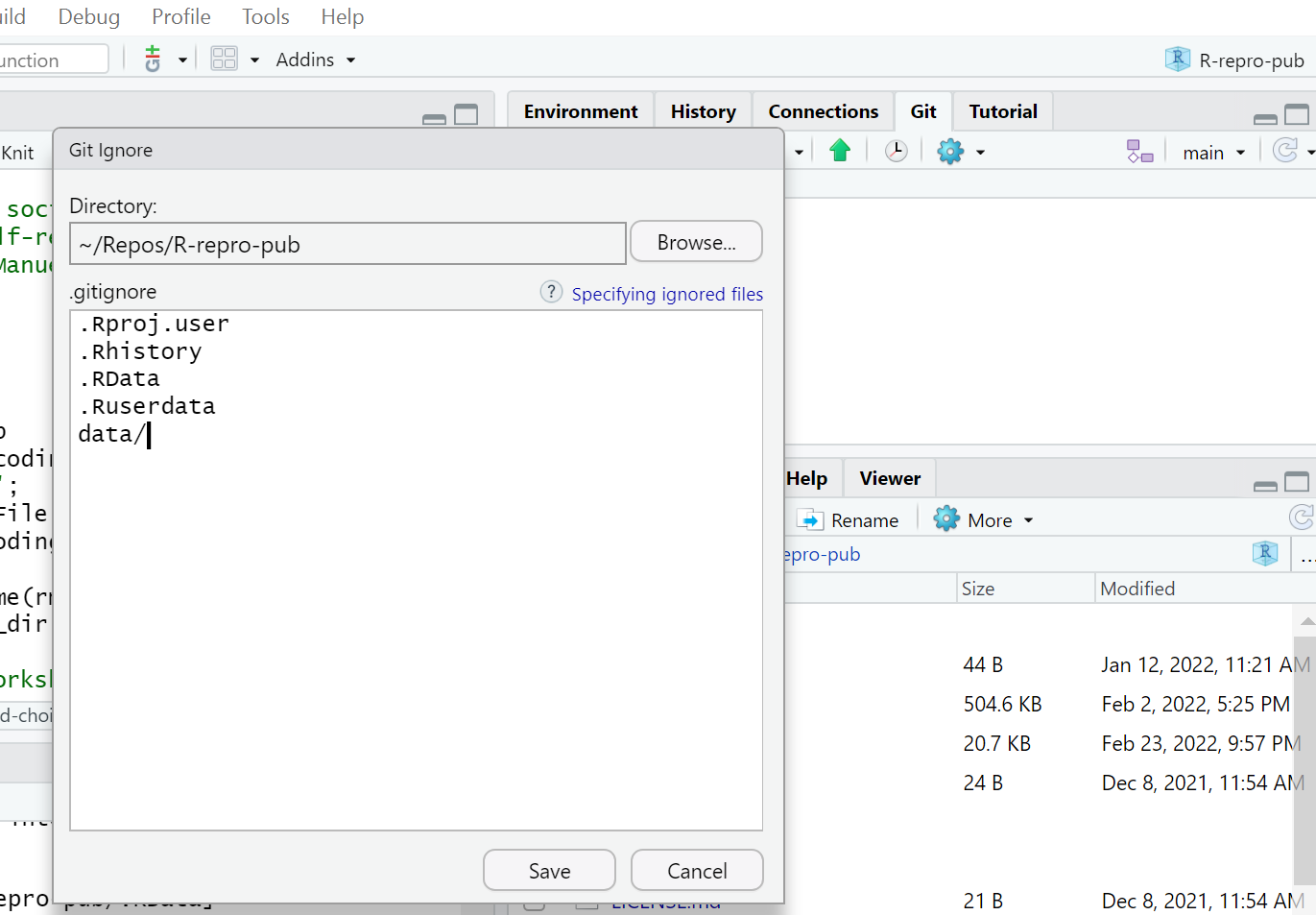
gitignore. On a new line, add data
and click save. Don’t forget to commit the .gitignore file.
Collaborating via GitHub
Figure 1
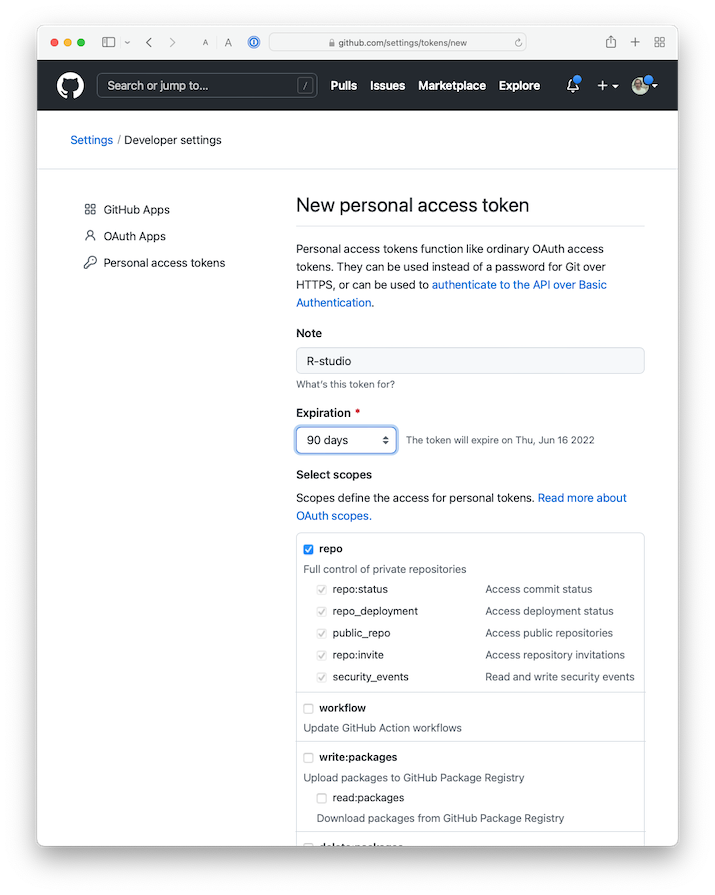
Figure 2
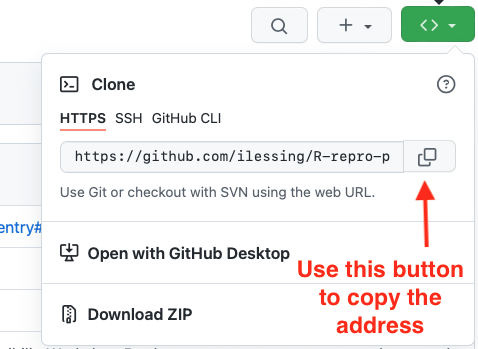
Figure 3
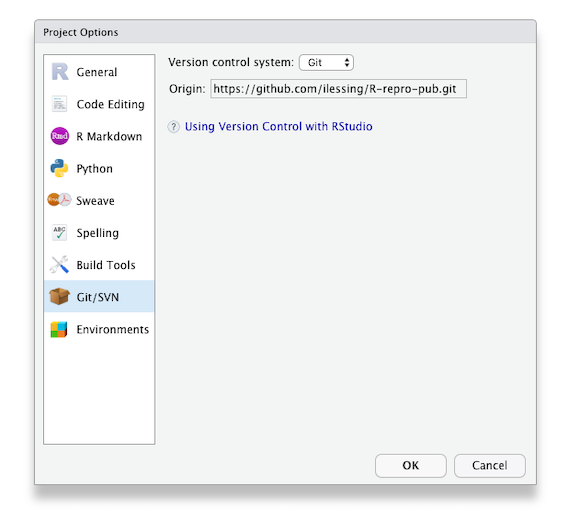
Managing Dependencies in R/RStudio
Publishing your project
Figure 1

Figure 2
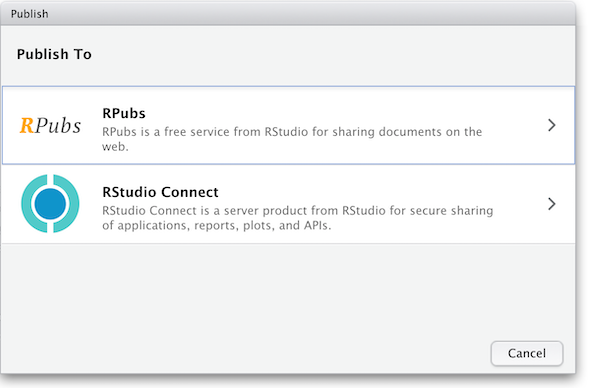
Figure 3
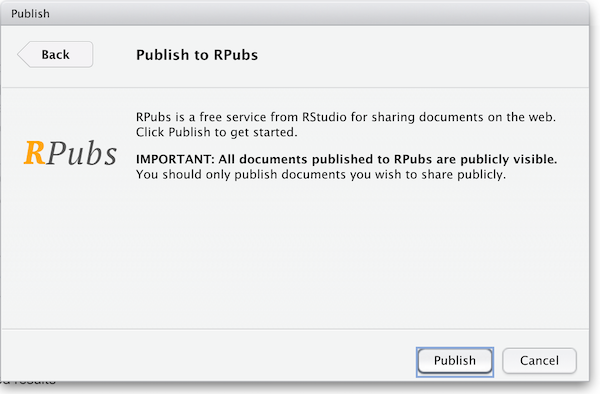
Figure 4
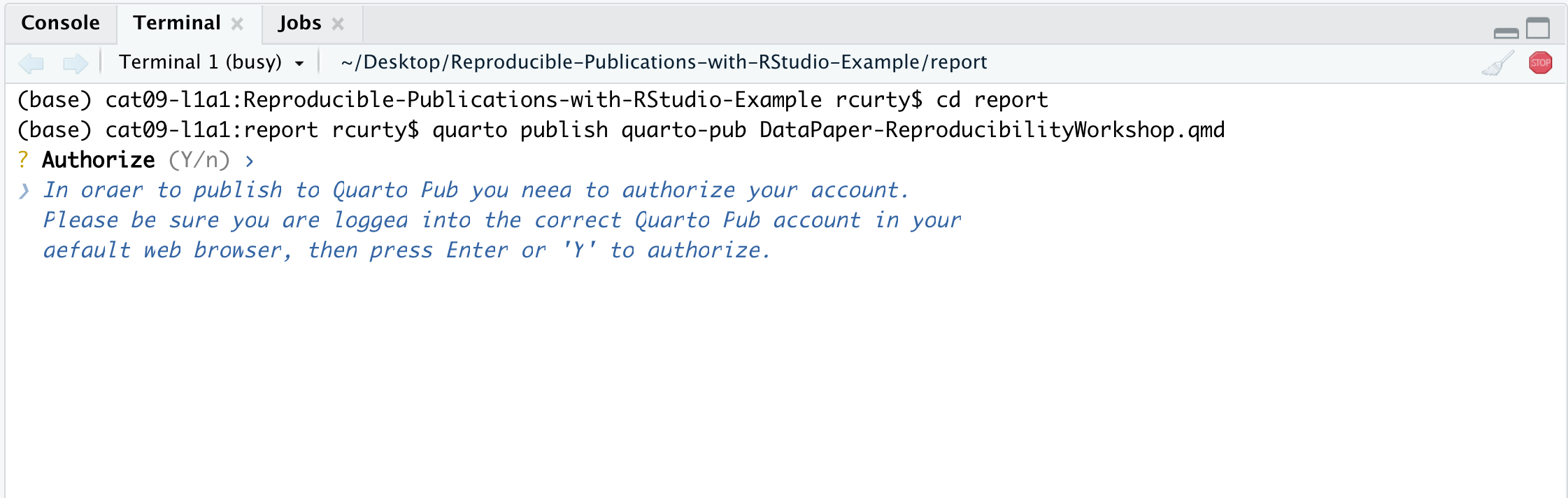
Figure 5
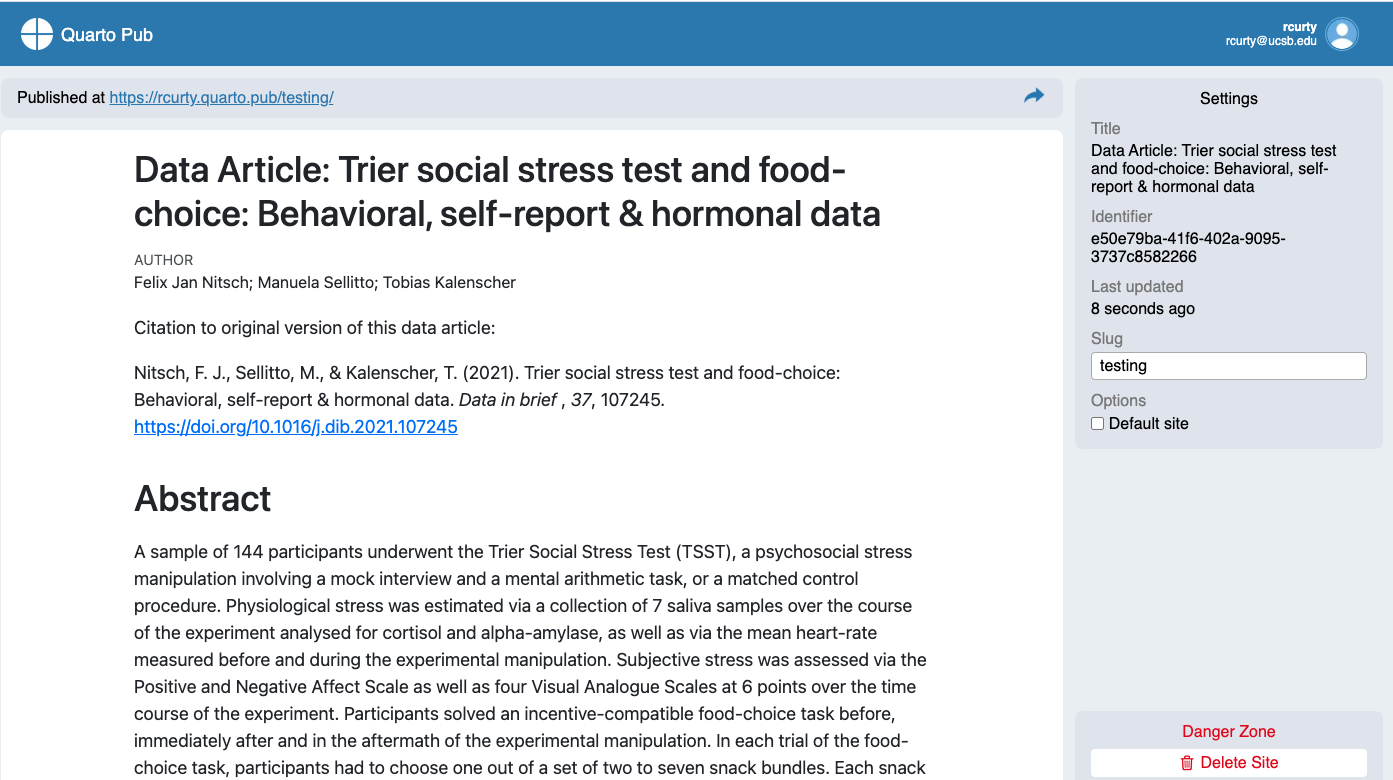
Figure 6
Figure 7
Creating and sharing reproducible environments with renv
Figure 1
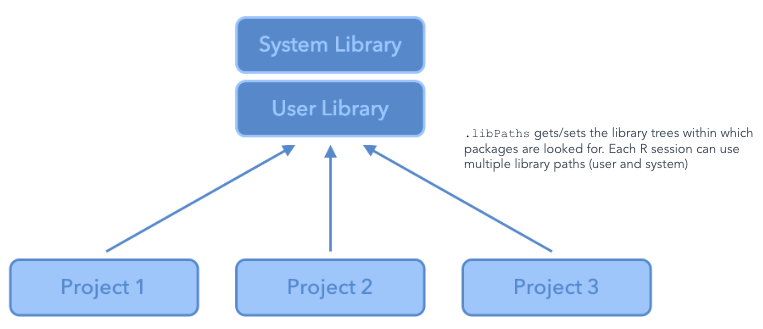
Figure 2
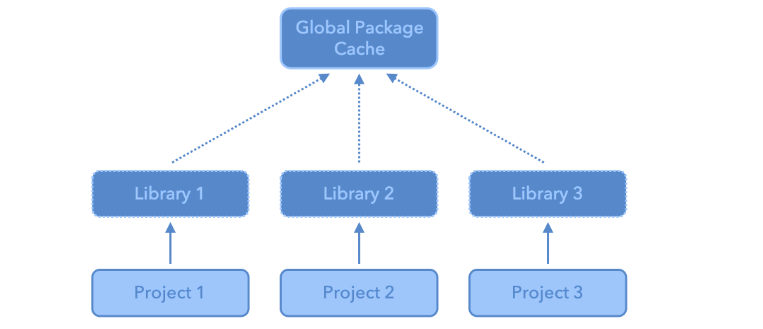
Figure 3
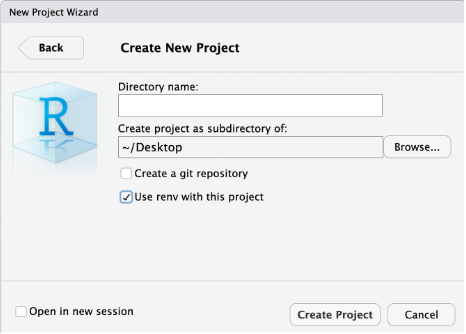
Figure 4
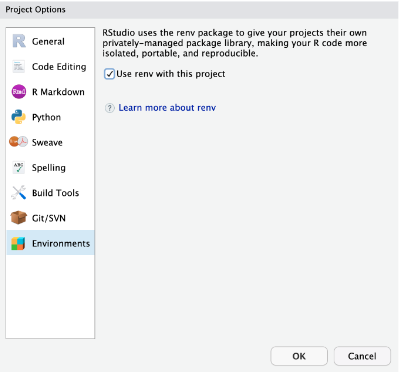
Figure 5
Figure 6