
Visualizing Tabular Data
Last updated on 2026-08-28 | Edit this page
Estimated time: 50 minutes
Plotting
The mathematician Richard Hamming once said, “The purpose of
computing is insight, not numbers,” and the best way to develop insight
is often to visualize data. Visualization deserves an entire lecture of
its own, but we can explore a few features of Julia’s
Plots.jl library here. While Julia has several plotting
libraries, Plots.jl is a powerful and flexible option that
works well for most use cases. First, we will load Plots
and use its functions to create and display a heat map of our data:
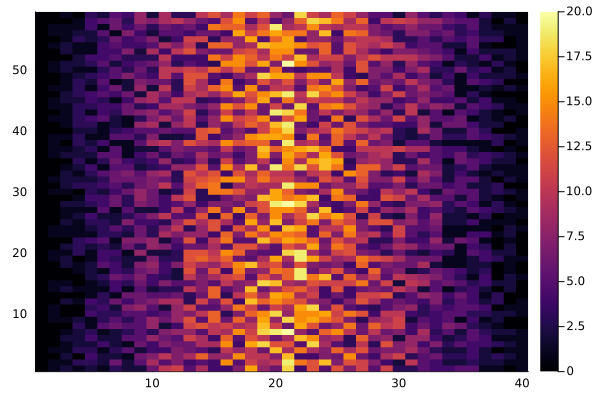
This will display a heat map where colors represent the magnitude of
values in a matrix data. You can customize it further by
adding labels, colorbars, and other visual elements. Each row in the
heat map corresponds to a patient in the clinical trial dataset, and
each column corresponds to a day in the dataset. Darker (blue) pixels in
this heat map represent lower values, while lighter (yellow) pixels
represent higher values. As we can see, the general number of
inflammation flare-ups for the patients rises and falls over a 40-day
period.
Let’s calculate the average inflammation per day across all patients and plot it:
JULIA
plot(transpose(mean(data, dims=1)),
     xlabel="Day",
     ylabel="Average inflammation",
     title="Average inflammation over time",
     legend=false)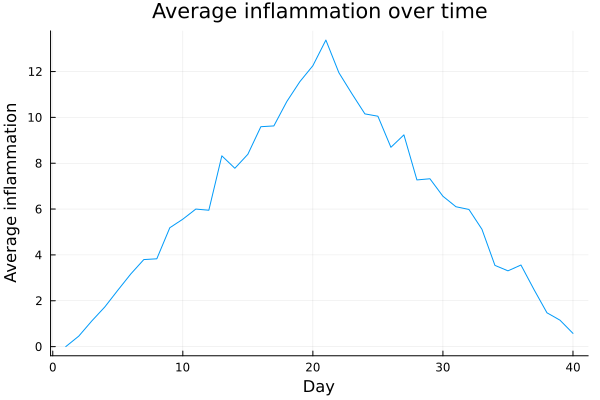
This line of code creates a plot showing the average inflammation
over time. The options xlabel="Day" and
ylabel="Average inflammation" label the axes,
title="Average inflammation over time" adds a title to the
graph, and legend=false hides the legend since only one
line is being shown. Note, that we plot the transposed data since
Plots.jl treats columns as series, not rows.
This plot shows how the average inflammation changes day by day, across all patients. It typically starts low, increases steadily, and then decreases — supporting the idea that the treatment takes effect after about three weeks.
JULIA
plot(transpose(maximum(data, dims=1)),
     xlabel="Day",
     ylabel="Maximum inflammation",
     title="Maximum inflammation over time",
     legend=false)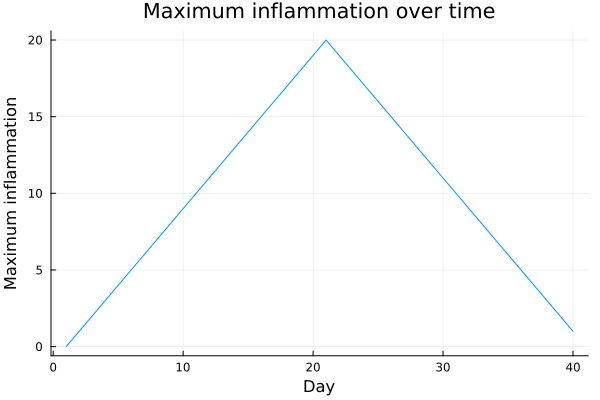
JULIA
plot(transpose(minimum(data, dims=1)),
     xlabel="Day",
     ylabel="Minimum inflammation",
     title="Minimum inflammation over time",
     legend=false)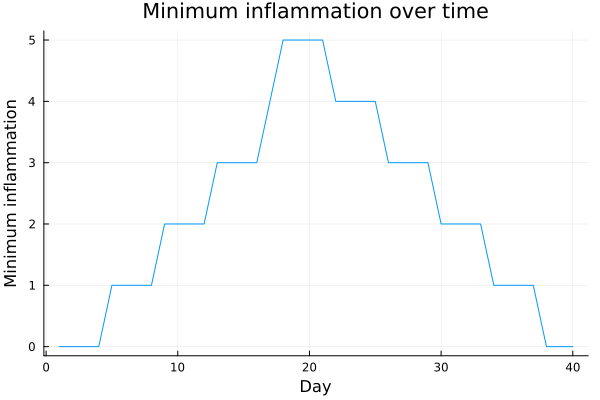
The maximum value rises and falls in a linear pattern, while the minimum values appear to follow a step-like function. Neither of these trends seems biologically plausible, so there may be an error in the data or in how it was collected. These insights would have been difficult to uncover without visualizing the results.
Grouping Plots
With Plots.jl, it is easy to group multiple plots into a single
figure. We first create the individual subplots and save them in
variables. Then, we combine them into one figure using the
layout argument.
JULIA
p1 = plot(transpose(mean(data, dims=1)), title="Average", ylabel="average", xlabel="Day", legend=false)
p2 = plot(transpose(maximum(data, dims=1)), title="Maximum", ylabel="max", xlabel="Day", legend=false)
p3 = plot(transpose(minimum(data, dims=1)), title="Minimum", ylabel="min", xlabel="Day", legend=false)

plot(p1, p2, p3, layout=(1, 3))
savefig("inflammation.svg")
With the layout argument to arrange three plots in one
row. The call to savefig stores the figure as a svg file.
You can change the filename extension to save in other formats like
.pdf or .png.
By using grouped plots, we can compare different trends side by side — for example, while the average inflammation rises and falls gradually, the minimum appears to jump in discrete steps. This visual comparison helps us spot unusual patterns that would be hard to detect just by looking at numbers.
Plot Scaling
Why do all of our plots stop just short of the upper end of our graph?
By default, Plots.jl scales the axes to fit the data range exactly, so lines often stop right before the plot edge.
Plot Scaling (continued)
If we want to change this, we can manually set the y-axis limits
using the ylims keyword argument. Try updating your
plotting code so that all subplots share the same y-axis.
JULIA
p1 = plot(transpose(mean(data, dims=1)), title="Average", ylabel="average", xlabel="Day", ylims=(0, 20), legend=false)
p2 = plot(transpose(maximum(data, dims=1)), title="Maximum", ylabel="max", xlabel="Day", ylims=(0, 20), legend=false)
p3 = plot(transpose(minimum(data, dims=1)), title="Minimum", ylabel="min", xlabel="Day",ylims=(0, 20), legend=false)

plot(p1, p2, p3, layout=(1, 3))
or
JULIA
p1 = plot(transpose(mean(data, dims=1)), title="Average", ylabel="average", xlabel="Day", legend=false)
p2 = plot(transpose(maximum(data, dims=1)), title="Maximum", ylabel="max", xlabel="Day", legend=false)
p3 = plot(transpose(minimum(data, dims=1)), title="Minimum", ylabel="min", xlabel="Day", legend=false)

plot(p1, p2, p3, layout=(1, 3), ylims = (0, 20))- Use the
Plots.jlpackage to create simple and flexible visualizations.